Skip to content
Softcoderz

Device management & kiosks

Device management, MDM and kiosk solutions for company phones, tablets and screens

We design, build and roll out the software that sets up, locks down and looks after your organisation's devices: Androidâ„¢ phones and tablets, iPhone and iPad, Mac and Windows PCs, POS terminals and signage screens.

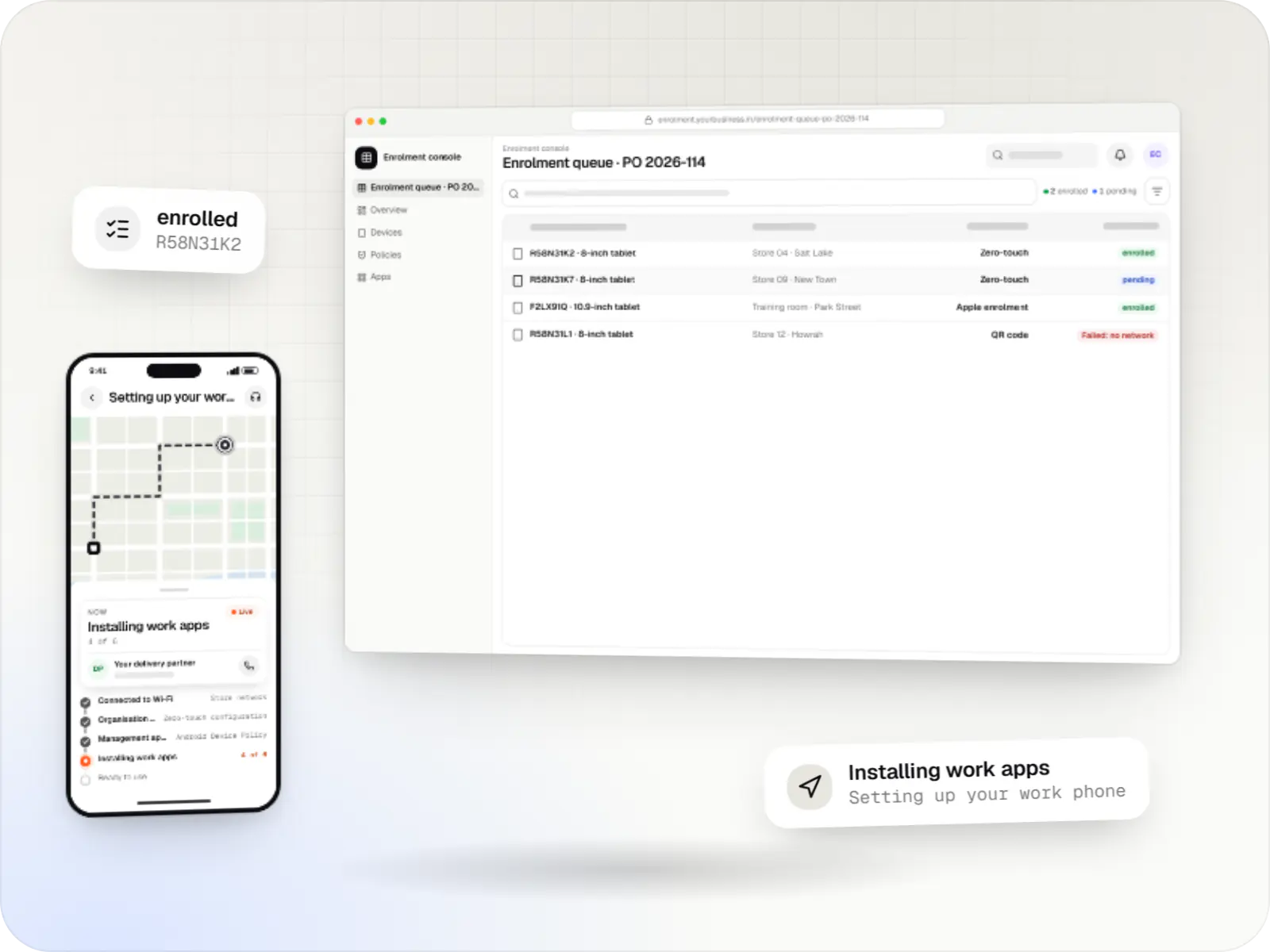
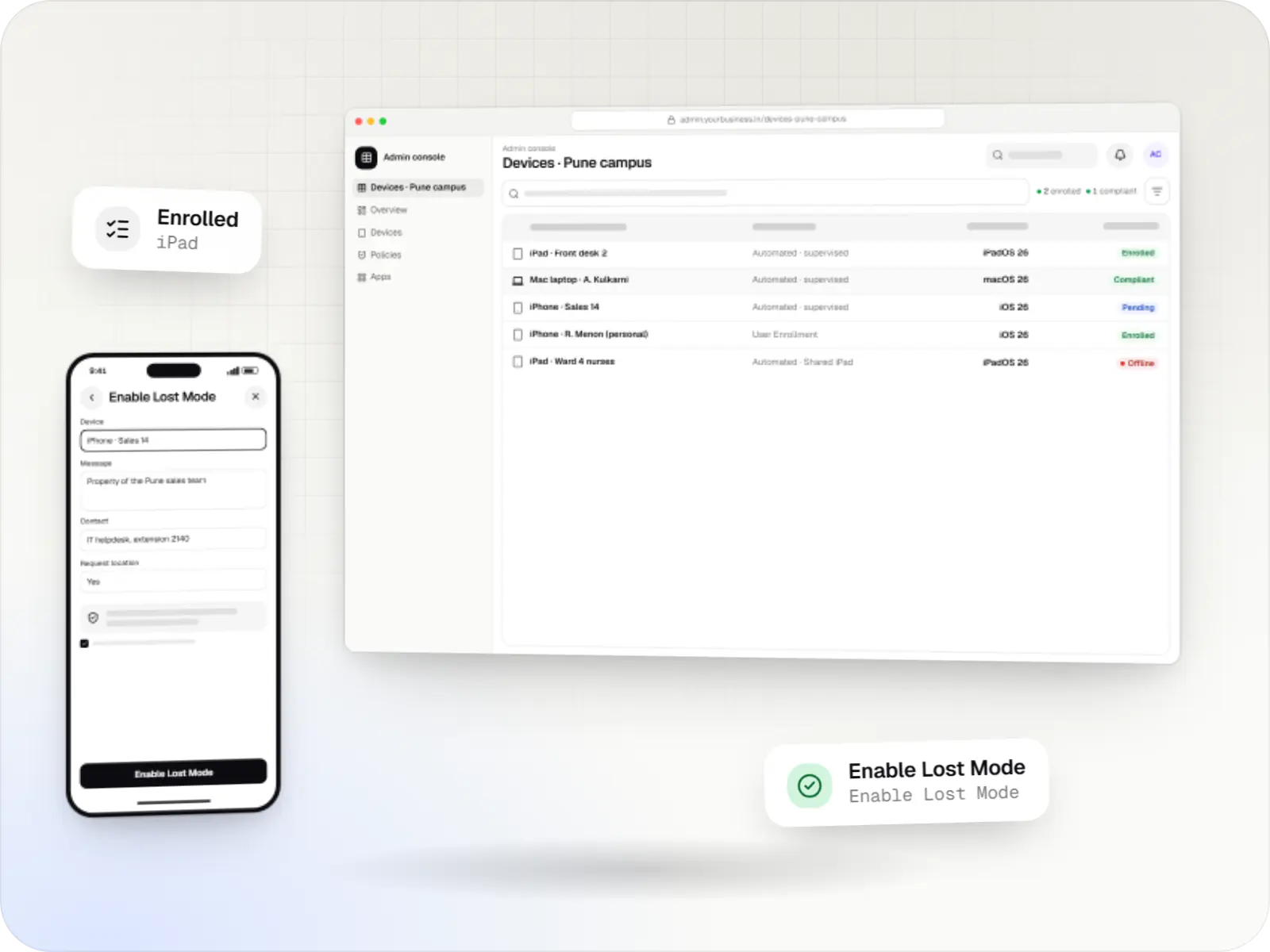
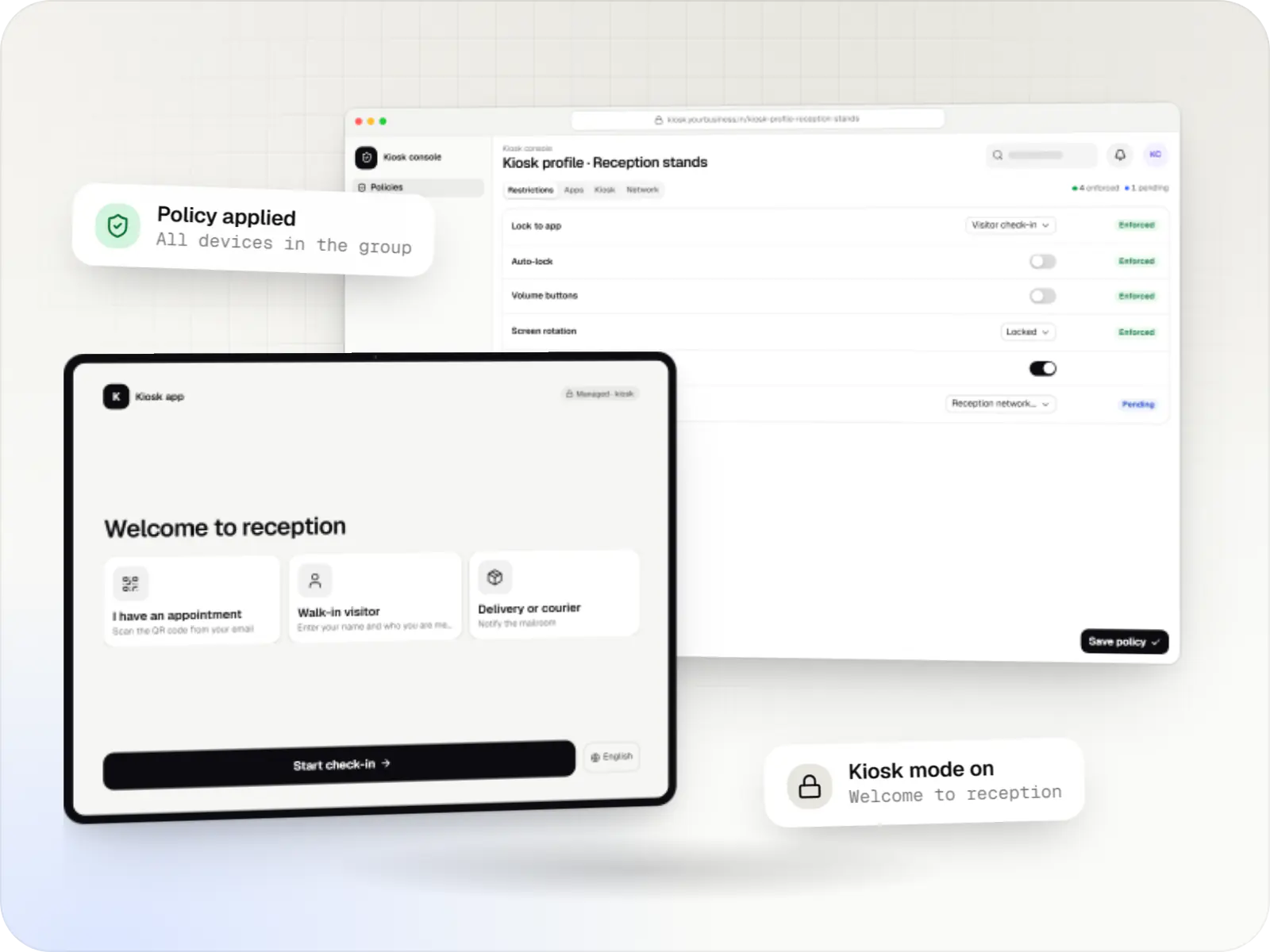
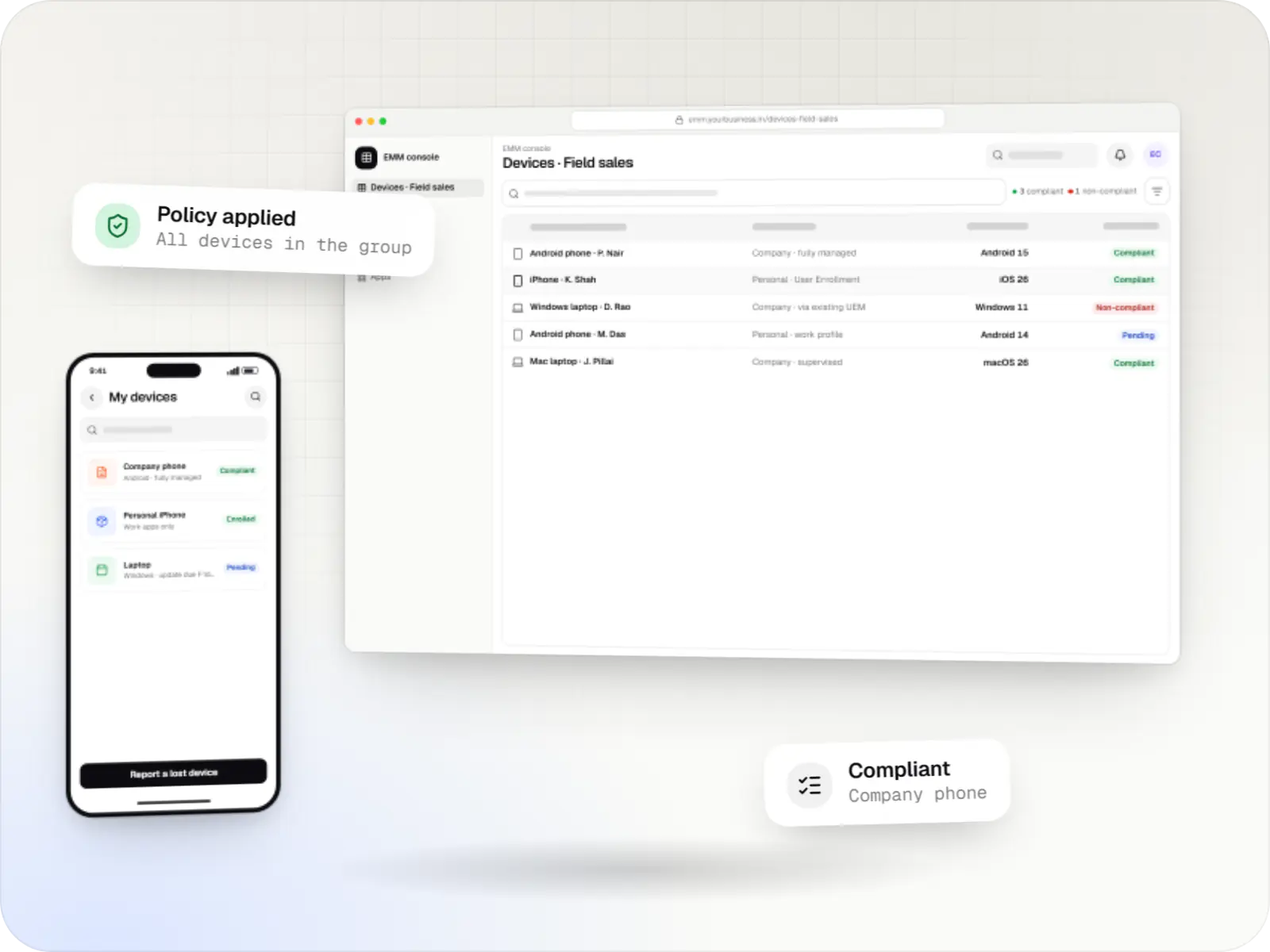
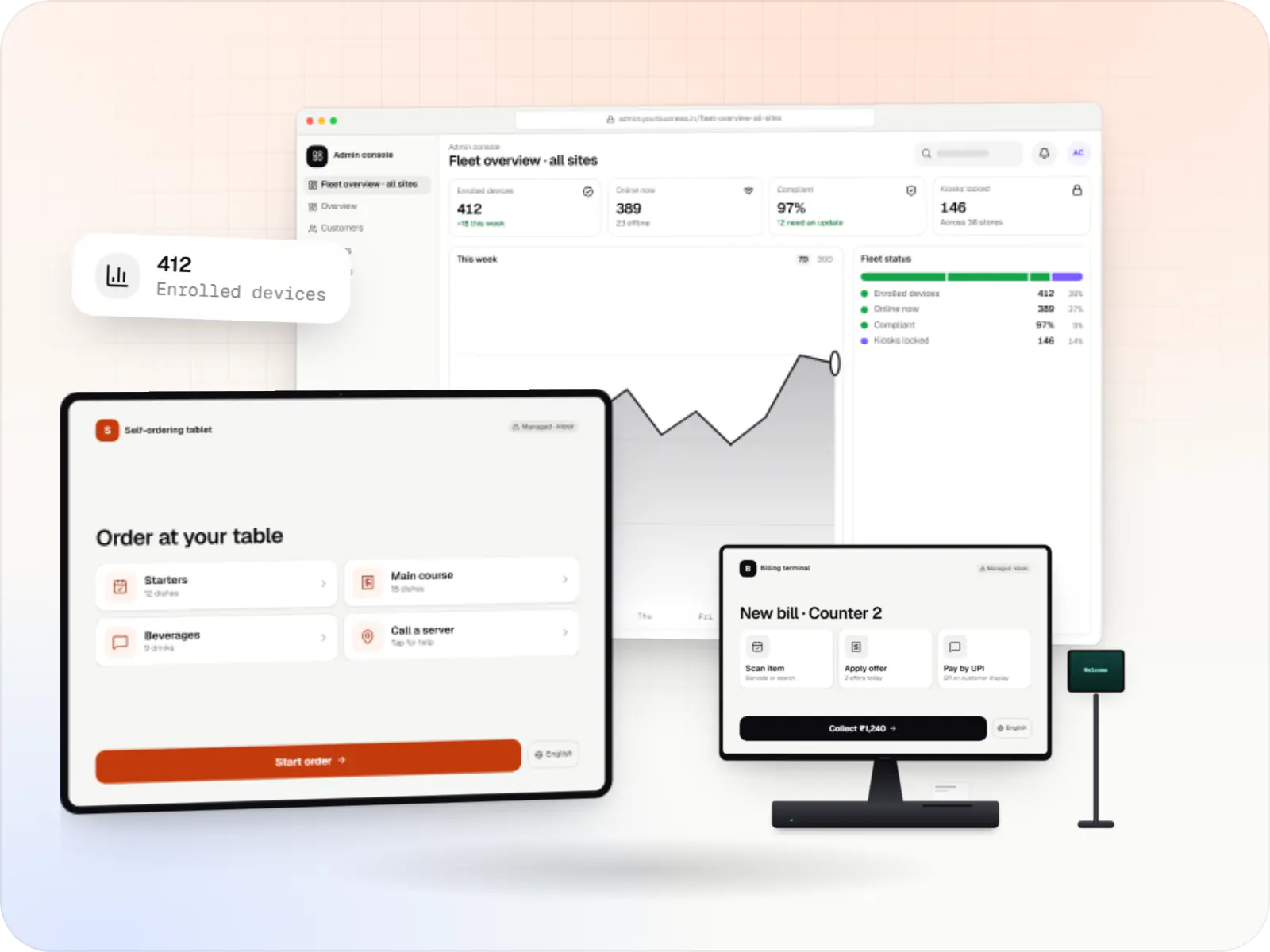
Device management and kiosk solutions screens: admin console in a browser, self-ordering tablet and billing terminal
Illustrative previewDevices locked to the job they do, set up and updated from one management console.

What device management means, in plain English

When a business has five tablets, someone can set each one up by hand. At fifty or five hundred, that stops working: apps drift out of date, a customer closes the ordering app and opens a video site, a lost phone stays signed in to the delivery app, and nobody knows which devices are even switched on.

Device management fixes this from one web console. Devices enrol once, receive the settings and apps they need, and report back their health. MDM (mobile device management) controls the device itself; EMM (enterprise mobility management) adds work apps, app settings and access to company data; UEM (unified endpoint management) brings phones, tablets and laptops into one console. Kiosk mode locks a device to one app, or a short list of apps, for self-ordering tablets, check-in screens, POS terminals and signage.

We are a software team, not a device reseller. We build on the platforms' public management APIs: consoles and backends, kiosk apps and launchers, device-owner apps, integrations with the EMM or UEM you already license, and the rollout plan that gets devices into people's hands. Device management sits alongside our main work on e-commerce, delivery, business software and AI, and often connects to it: the billing tablet, the delivery partner's phone and the store's menu screen all run apps we build.
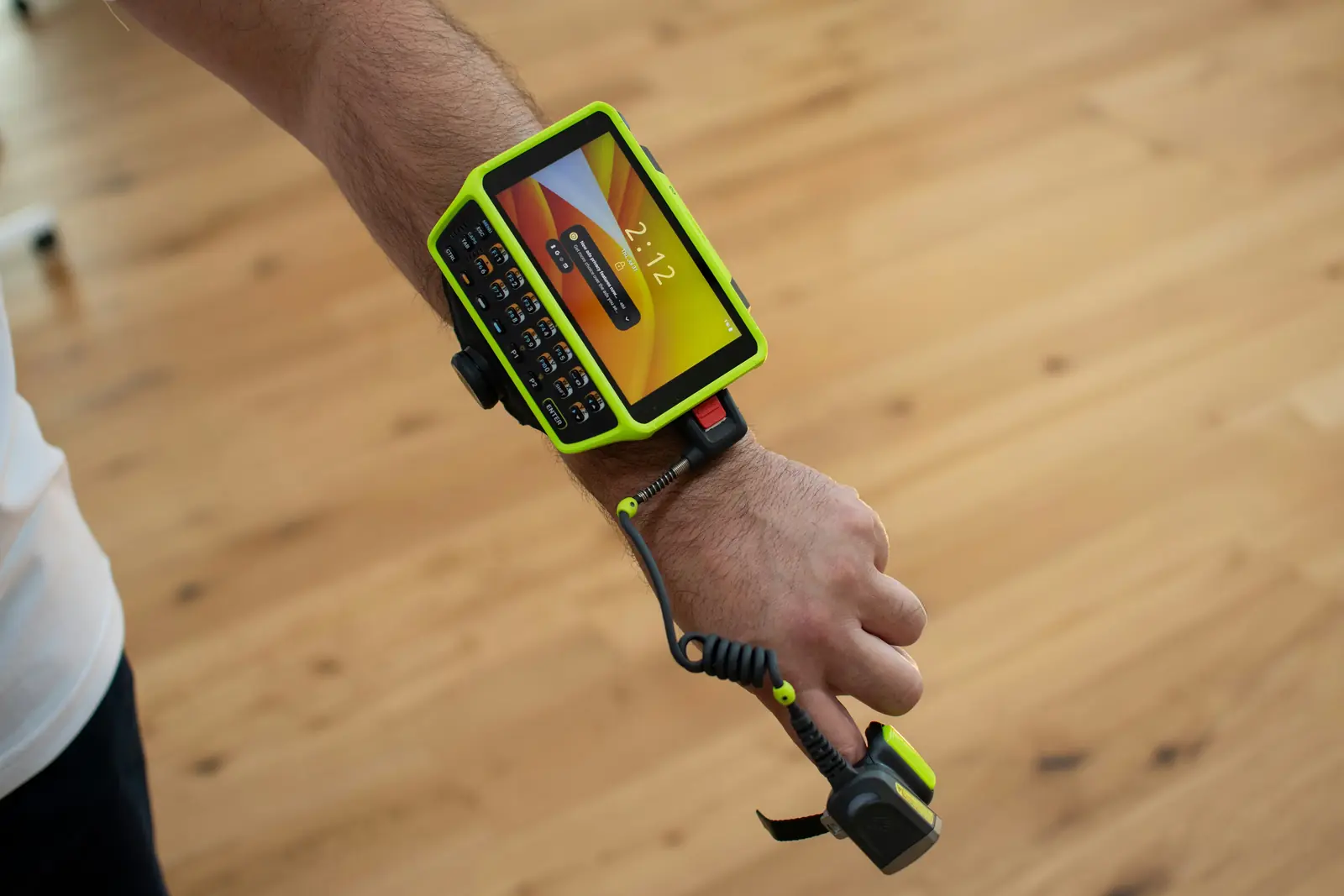
Wrist-mounted rugged mobile computer with a keypad, wired to a finger-worn ring barcode scanner on a worker's arm

Use cases

Who needs managed devices

  • Retail stores and supermarkets

    Billing tablets, price-check and catalogue kiosks, and staff handhelds that run only store apps and update overnight, not during the evening rush.

  • Restaurants and cafĂ©s

    Self-ordering tablets, kitchen display screens and POS terminals kept on the same menu version at every outlet.

  • Schools, colleges and training centres

    Shared class tablets that open only approved learning and test apps, and are reset cleanly between batches of students.

  • Hospitals and clinics

    Patient check-in kiosks, feedback tablets and ward devices locked to clinical apps, with a lost device locked from the console.

  • Logistics, warehouses and delivery

    Rugged scanners and proof-of-delivery phones shared across shifts, with apps pushed to hundreds of devices at once and faulty units swapped quickly.

  • Field service and sales teams

    Company phones for technicians and sales staff, with work apps, VPN and passcode rules, and a remote wipe if a phone is lost.

  • Hotels, lobbies and signage

    Lobby screens, menu boards and in-room tablets showing scheduled content, with health checks that flag a screen that has stopped playing.

  • Manufacturing

    Shop-floor tablets for work instructions and quality checklists, locked to the production app so they stay on the job.

Solutions

Device-management solutions we build

Pick the page closest to your situation; most projects combine two or three of them.

  • Android MDM consoles, backends and device agents built on the Android Management API or a custom device-owner app, for EMM products and specialised fleets.

  • Single-app and multi-app kiosks for Android tablets, phones and terminals: locked ordering, check-in and catalogue apps that customers cannot escape.

  • Company-owned Android phones and tablets set up as fully managed devices, with custom device-owner apps where standard EMM agents fall short.

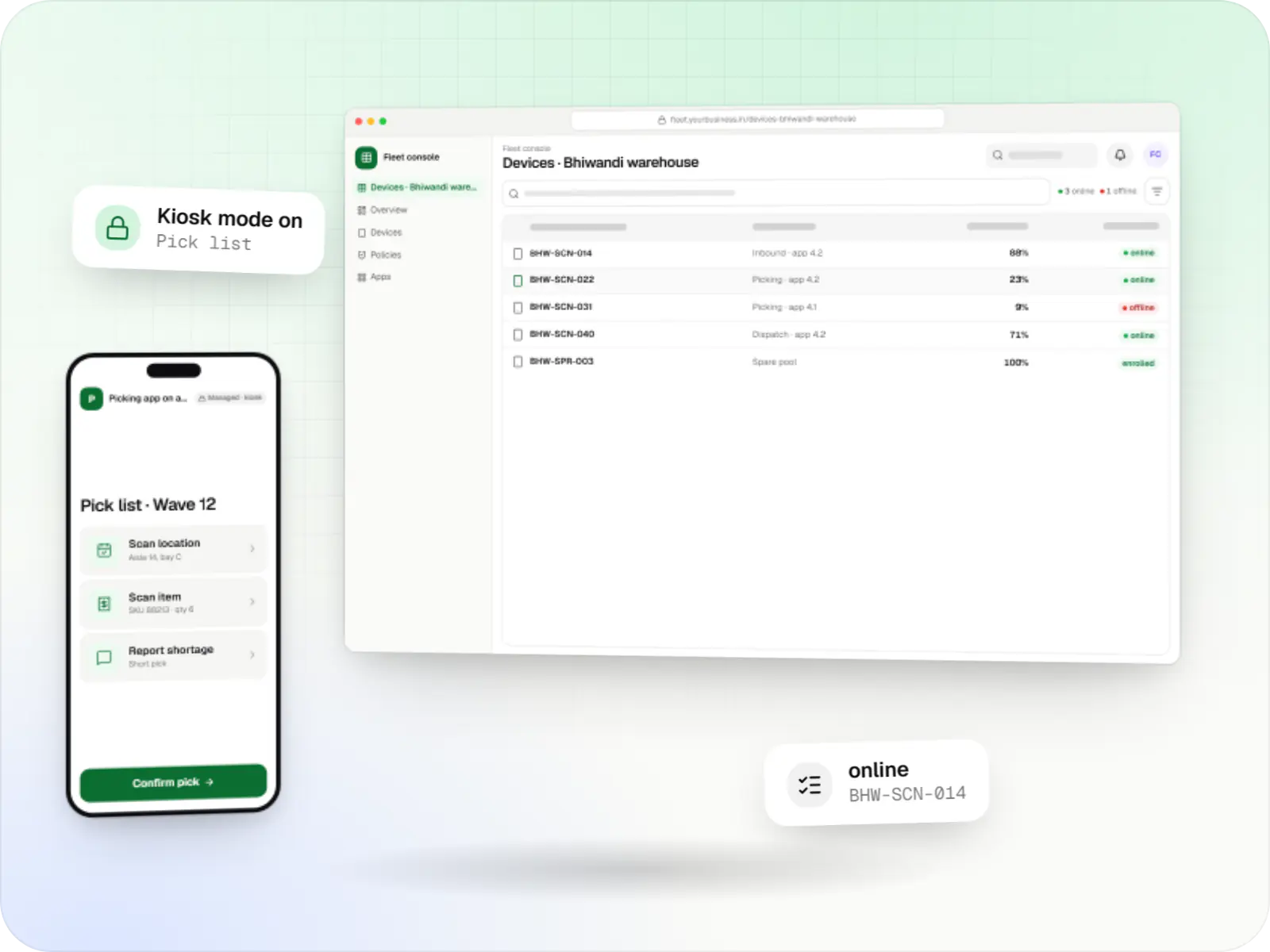
  • Fleet management for single-purpose Android devices: rugged scanners, delivery handhelds and shift tablets, kept charged, updated and healthy across sites.

  • Zero-touch, QR code, Knox Mobile Enrollment and Apple Automated Device Enrollment set-ups that take devices from the box to ready-to-use.

  • MDM for company iPhone, iPad and Mac devices: automatic enrolment, supervision, apps, OS updates and remote lock, as a custom build or an integration.

  • Kiosk mode for iPad with Single App Mode, Autonomous Single App Mode or Guided Access, plus the kiosk app and console, for check-in, ordering and forms.

  • One console for company Android, iPhone, iPad, Mac and Windows devices: enrolment, apps, access and offboarding, on platform APIs or your existing UEM.

  • Player apps, a scheduling console and device management for menu boards, promotions and queue screens on signage players and devices running Android TV.

  • Billing terminals locked to your billing and payment apps, with printers and scanners set up and updates held until after closing, in every outlet.

  • Compliance rules for Android, Apple and Windows devices: passcodes, encryption, OS updates, app lists, remote lock and wipe, audit logs and reports.

What is included

What we build, piece by piece

  • Platform: Managed devices

    Device-side apps

    • Kiosk apps and multi-app launchers for Android tablets, phones and terminals
    • Custom device-owner (DPC) apps where Google's own management agent does not fit, for example on devices without Google Play
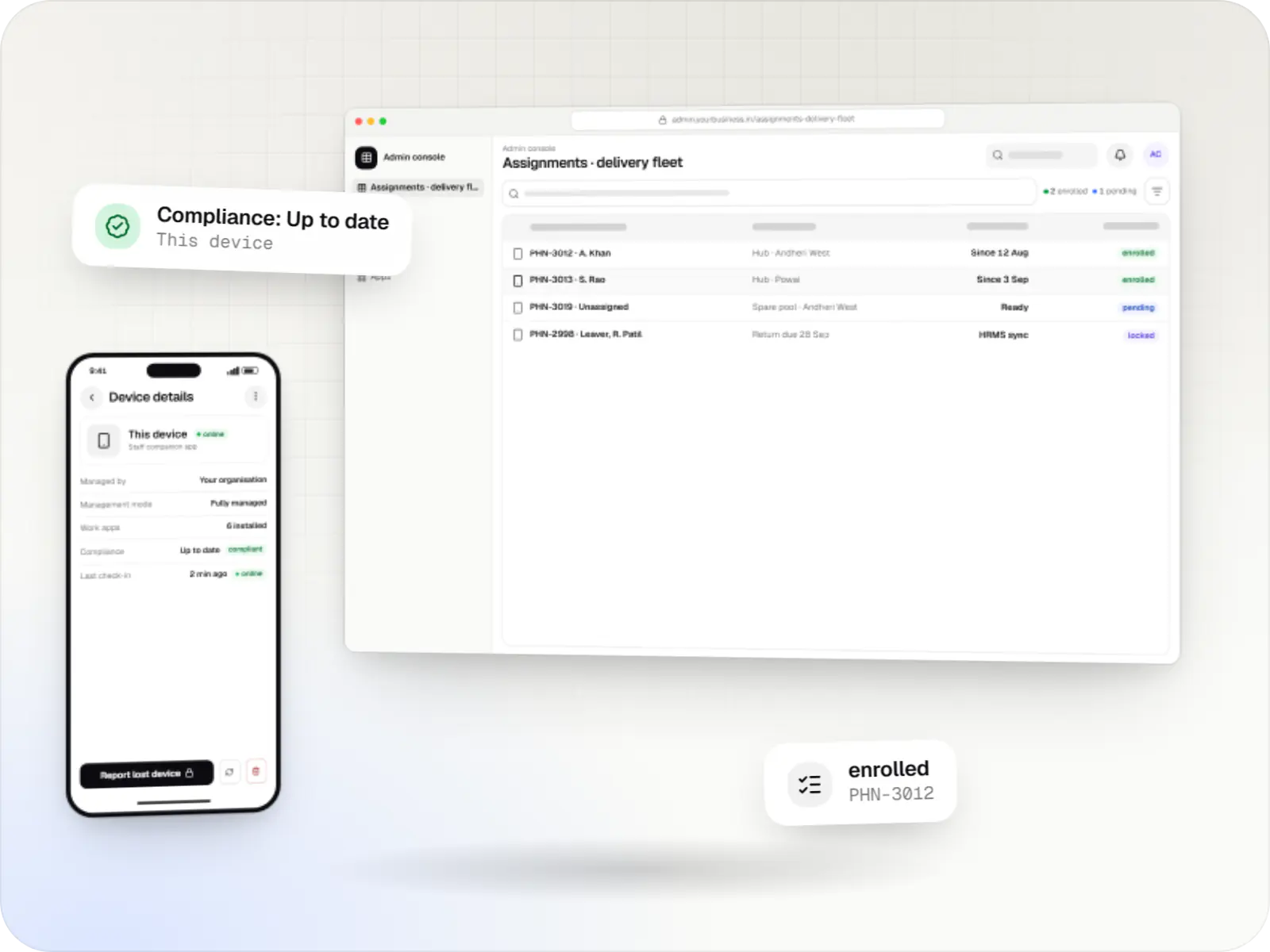
    • Companion apps that show staff what is managed and let them report a lost or faulty device
    • App configuration, so store codes, server addresses and printer settings arrive without anyone typing them
  • Platform: Admin dashboard

    Admin console

    • Device inventory with online and offline status, battery, OS version and last check-in
    • Device groups by site, role or shift, each with its own policy and apps
    • Policy and kiosk editors that only offer settings the selected platform supports
    • Remote lock, reboot, clear app data, lost mode and wipe, where the platform and management mode allow them
    • Roles for head office, regional managers and site staff, with an audit log of every action
  • Platform: Web app and APIs

    Backend and integrations

    • Connections to the Android Management API, a custom DPC channel or Apple's MDM protocol
    • Links to the EMM or UEM you already license, through its published APIs
    • Joiner-leaver sync with your HRMS or directory, asset registers and ticketing tools
    • Hosting in an Indian cloud region, on a cloud account you own
  • Platform: Admin dashboard

    Reports and alerts

    • Compliance reports: which devices have a passcode, current security patches and only approved apps
    • Alerts for offline kiosks, low battery, failed app installs and policy errors
    • Exports for audits and asset reconciliation

How it works

How a managed kiosk goes from box to counter

The same seven steps apply to one self-ordering tablet or four hundred billing terminals; mostly the enrolment method changes.

  1. Purchasing team

    Step 1: Device

    Choose models that support the management mode you need, ideally from a reseller that can register them for zero-touch or Apple enrolment.

  2. Setup screen or reseller

    Step 2: Enrolment

    On first start, the device finds its organisation through zero-touch, a QR code or Apple Business (formerly Apple Business Manager), and installs or activates its management agent.

  3. Admin console

    Step 3: Device policy

    Passcode, Wi-Fi, update windows and restrictions such as blocking factory reset or USB file transfer are applied automatically.

  4. Admin console

    Step 4: Kiosk configuration

    The device is locked to one app or an allowlisted set, with the status bar, notifications and power menu set for public use.

  5. Managed Google Play, Apple MDM or your server

    Step 5: App deployment

    Your apps and their settings install without prompts on managed devices and, where the platform allows it, update in a window you choose, such as 2 to 4 a.m.

  6. IT or operations team

    Step 6: Remote management

    Staff lock, reboot, regroup or wipe devices from the console, within what the platform allows for that device and mode.

  7. Reports and alerts

    Step 7: Monitoring and compliance

    Check-ins, battery, app versions and compliance status are tracked, and problems raise an alert before a customer notices.

Then it starts again at step 1: Device

Comparison

The platform landscape: what each ecosystem offers

Features differ by OS version, device model and management mode, so we confirm them on your exact devices before a rollout.

The platform landscape: what each ecosystem offers
Android EnterpriseApple (iPhone, iPad, Mac)Windows PCs
Management modesFully managed company devices, a work profile on company-owned or personal devices, and dedicated (kiosk) devicesSupervised company devices, standard device enrolment, and User Enrollment for personal devicesBuilt-in MDM enrolment of company PCs, usually through an existing UEM; Home editions support fewer management settings
Bulk enrolment without touching each deviceZero-touch enrolment for devices from participating resellers, Knox Mobile Enrollment for Samsung devices, QR codes for devices you already ownAutomated Device Enrollment through Apple Business or Apple School Manager; Apple Configurator for devices bought elsewhereEnrolment at first sign-in with a work account, or a pre-registered cloud set-up through your UEM
Kiosk optionsLock task mode: a single-app kiosk or an allowlisted multi-app launcherSingle App Mode and Autonomous Single App Mode on supervised devices; Guided Access for occasional use without MDMAssigned Access on Pro, Enterprise and Education editions: a single-app kiosk or a restricted multi-app desktop
App deliveryManaged Google Play with public and private apps, or direct installs by a device-owner appStore apps and privately distributed custom apps, licensed in Apple Business and assigned through MDMStore apps, or installers and line-of-business apps pushed by the UEM
How commands reach a deviceGoogle's Android Device Policy app (with the Android Management API) or your own device-owner appApple Push Notification service wakes the device, which then checks in with the MDM serverWindows' built-in management client syncs with the MDM server on a schedule or when prompted
What we usually buildConsoles on the Android Management API, kiosk apps and launchers, custom DPCs where neededMDM backends on Apple's protocol, integrations with an existing Apple MDM, kiosk apps for iPadIntegration with the UEM you already use, so PCs appear in the same reports

How to choose the right approach

  • Who owns the device?

    Company-owned devices can be fully managed or locked as kiosks. Staff-owned phones should get only a work profile or Apple's User Enrollment, which keeps personal apps and data out of the organisation's reach.

  • Is it a kiosk or a work device?

    A public-facing tablet needs lockdown, auto-restart and no escape routes. A staff phone needs work apps, VPN and a passcode, but otherwise normal use of the phone.

  • Do you already license an EMM or UEM?

    If it covers most needs, we configure it and build only what is missing, such as a kiosk app, a report or an integration. That is usually cheaper than a new console.

  • Are you building a product to sell?

    Google restricts the Android Management API to commercial EMM developers, device makers and a few similar providers, and since November 2025 a project needs Android Enterprise approval before it can enrol devices. SaaS companies building a management product can apply; a company managing only its own devices usually licenses an existing EMM or, for special needs, uses a custom device-owner app.

  • Do the devices have Google Play?

    Some low-cost POS terminals and signage players ship without Google Play services. They cannot use the Android Management API or zero-touch enrolment, which rely on those services, and need the maker's own tools or a custom device-owner app.

  • How many models and sites?

    Every extra model needs testing, and every site needs working Wi-Fi and a quick way to replace a broken device. Fewer models make a calmer rollout.

  • What data will the console keep?

    Decide up front what is recorded, who can see it and for how long. Location, where a platform supports it at all, needs a lawful basis under India's Digital Personal Data Protection Act, 2023, such as consent or a permitted employment purpose, and we always pair it with a clear notice to staff.

Platforms

Devices we manage

Company-owned phones and tablets, Apple devices, PCs, POS terminals and screens, plus the web console your team works in.

  • Mobile

    Android Enterprise devices

    Android phones, tablets and rugged handhelds with Google Play services, managed through Android Enterprise: company-owned devices as fully managed, dedicated (kiosk) or work-profile devices, and personal phones through a work profile only.

  • Mobile

    iPhone and iPad

    Organisation-owned or shared iPhone and iPad devices enrolled in MDM through Apple Business or Apple School Manager, supervised for Single App Mode and stricter restrictions.

  • Desktop

    Mac

    Mac computers enrolled in MDM for configuration profiles, app and package installs, disk encryption settings and software update rules, set up at first power-on when the purchase is linked to Apple Business.

  • Desktop

    Windows PCs

    Windows laptops and desktops managed through the MDM support built into Windows or an existing UEM, when PCs need to sit in the same console and reports as phones and tablets.

  • Point of sale

    POS terminals running Android

    Countertop and handheld billing terminals running Android-based software, locked to approved billing and payment apps where the terminal maker or supplier allows device-owner or SDK control.

  • Signage

    Digital signage displays

    Commercial displays and media players showing menus, offers and notices, with scheduled playlists, content updates and remote health checks through the player software.

  • TV

    Android TV devices

    TV screens and set-top boxes running Android TV for menus, lobbies and signage. The Android Management API does not support them at the time of writing, so control relies on a device-owner app or the maker's tools, confirmed model by model.

  • Back office

    Admin dashboard

    Back-office panels for operations, support and finance teams: orders, users, content, reports and permissions.

Technology

Management APIs and the stack around them

The platform APIs decide what is possible on a device; the console, database and hosting we build around them decide how easy it is to run.

  • Device management

    Android Management API

    A Google cloud API for device-management products: your console sets the rules, and a Google app on each Android device applies them.

    Used for

    • Kiosk products for stores
    • EMM and MDM products
    • Policy-based device fleets
    • QR and zero-touch setup
  • Built-in Android APIs that let one trusted app control a company device: kiosk lock, silent app updates and restrictions, even without Google Play.

    Used for

    • Custom kiosk launchers
    • Devices without Google Play
    • POS and signage agents
    • Silent app updates
  • Device management

    Apple MDM protocol

    The management channel built into iPhone, iPad and Mac: an MDM server sends settings, apps and commands, and devices apply them remotely.

    Used for

    • iPad kiosks
    • Company iPhone fleets
    • Mac setup and updates
    • School iPad programmes
  • The Apple portal for organisations, now called Apple Business: devices bought from Apple or linked resellers are assigned to your MDM and set up at first power-on.

    Used for

    • Zero-touch device setup
    • iPhone, iPad and Mac rollouts
    • Volume app licences
    • Managed Apple Accounts
  • Apps built specifically for Android, with full access to the phone's hardware, background location and company-managed devices.

    Used for

    • Apps for Android
    • Delivery partner apps
    • Billing and POS apps
    • Field staff apps
  • Backend

    NestJS

    A structured way to build back ends on Node.js, so large business systems stay organised, testable and easy to hand over.

    Used for

    • Business app back ends
    • SaaS platforms
    • Marketplaces
    • Admin panel back ends
  • A reliable database for the records your business runs on: orders, payments, bookings and stock, kept accurate and easy to report on.

    Used for

    • Orders and customers
    • Payments and ledgers
    • Stock and inventory
    • Bookings
  • Builds interactive screens in the browser, such as dashboards, admin panels and portals, that respond instantly as your team works.

    Used for

    • Web apps
    • Admin panels
    • Dashboards
    • Customer portals
  • Cloud & DevOps

    AWS

    Cloud hosting for your app, website and data, with data centres in India and room to grow when traffic rises.

    Used for

    • App hosting
    • File and photo storage
    • Backups
    • Busy sale days

Plain-English glossary

Device-management terms, in plain English

MDM
Mobile device management: software that enrols devices and controls their settings, apps and security from one console. It is what stops a lost tablet staying signed in to your billing system.
EMM
Enterprise mobility management: MDM plus control of work apps, their settings and access to company data. Most business needs today are EMM, even when people say MDM.
UEM
Unified endpoint management: one console for phones, tablets and laptops, so IT does not run a separate tool for each platform.
Kiosk mode
A locked state where a device shows only one app, or a short list of approved apps, and nobody can reach settings or the home screen. Android calls it lock task mode; on iPad it is Single App Mode.
Company-owned vs personally owned
Who owns the device decides how much control is fair and possible. Company devices can be fully managed; on a staff member's own phone, only a separate work area is managed and personal data stays private.

Privacy & security

What device management can and cannot see

  • Personal phones stay personal

    With a work profile or User Enrollment, the organisation manages work apps and data only. It cannot read personal messages, photos or browsing, and a wipe removes only the work data.

  • Location only where lawful and disclosed

    Some modes let a lost company device report its location. We build that only with a visible notice to staff and a documented purpose, never as covert tracking.

  • A wipe means different things

    On a company-owned device, a wipe is a factory reset. On a personally owned device, it removes only the work profile or the managed apps and their data.

  • Least-privilege consoles

    Store managers see their own store's devices; only named administrators can wipe. Every action is logged with who, what and when.

  • Your data, your cloud account

    Consoles we build run in your own cloud account, in an Indian region if you prefer, and you own the code and the device records.

Product preview

The console and the devices it manages

Illustrative screens: a fleet overview for head office, a locked self-ordering tablet, a staff launcher, a billing terminal and a menu screen.

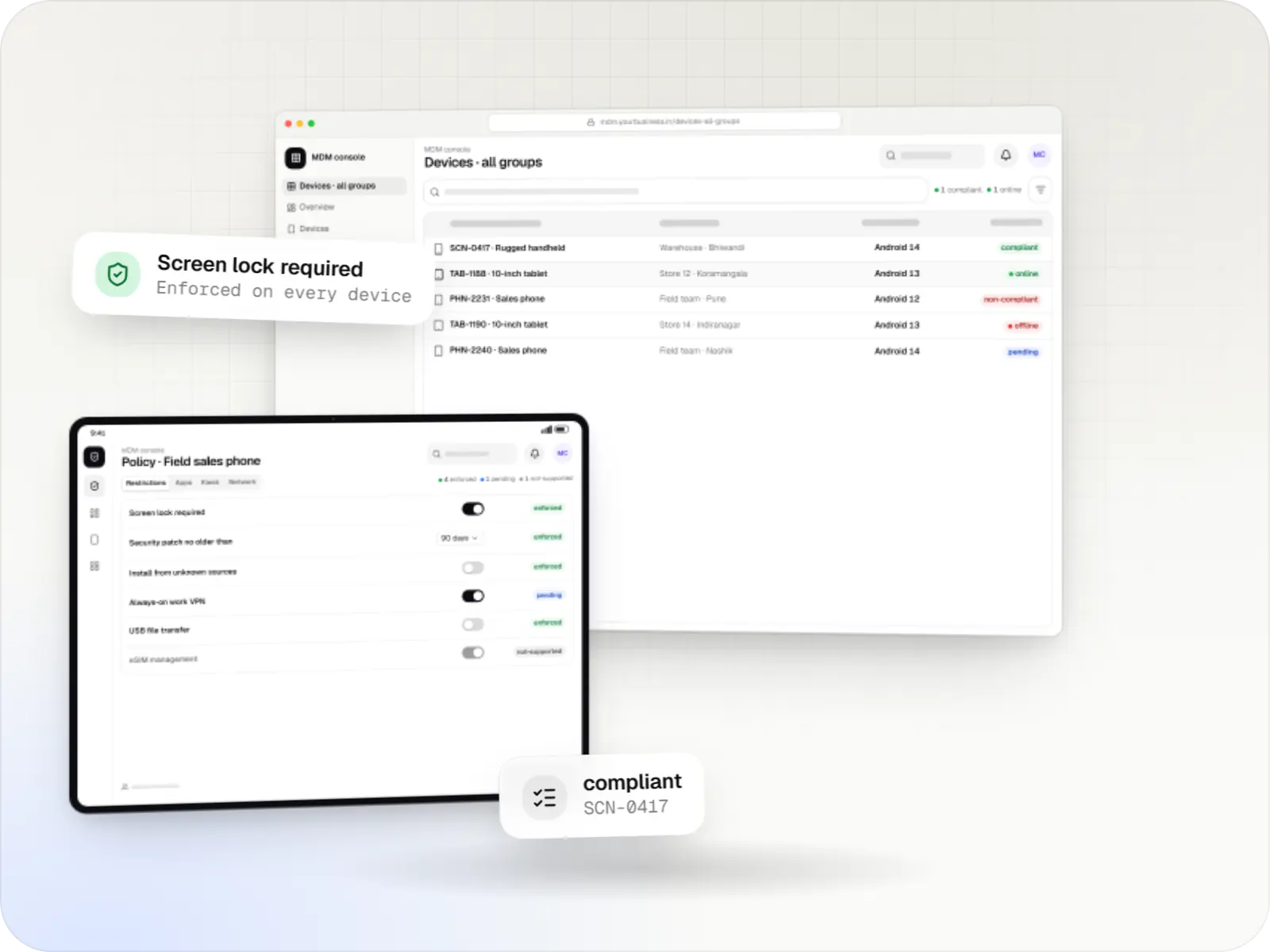
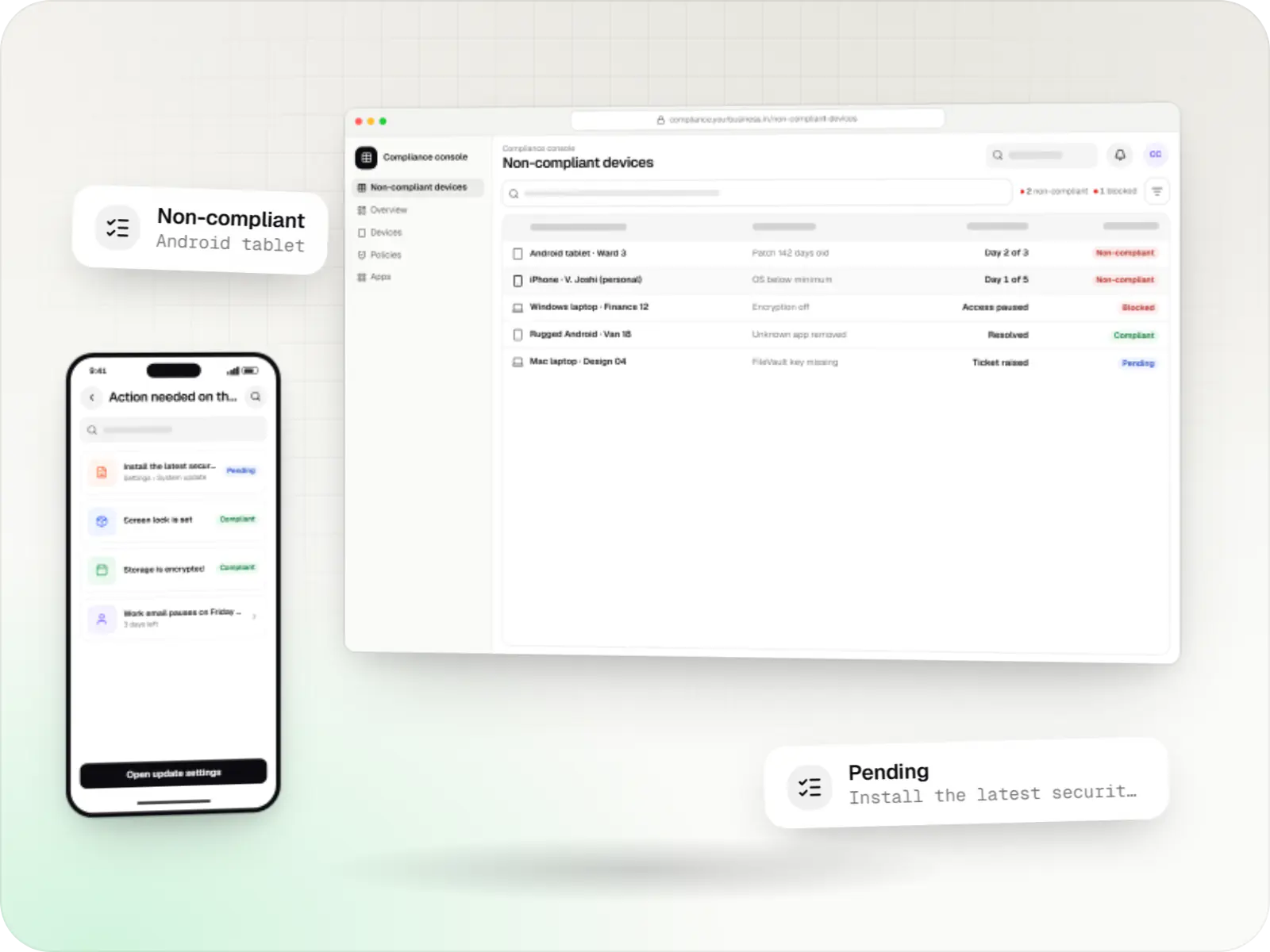
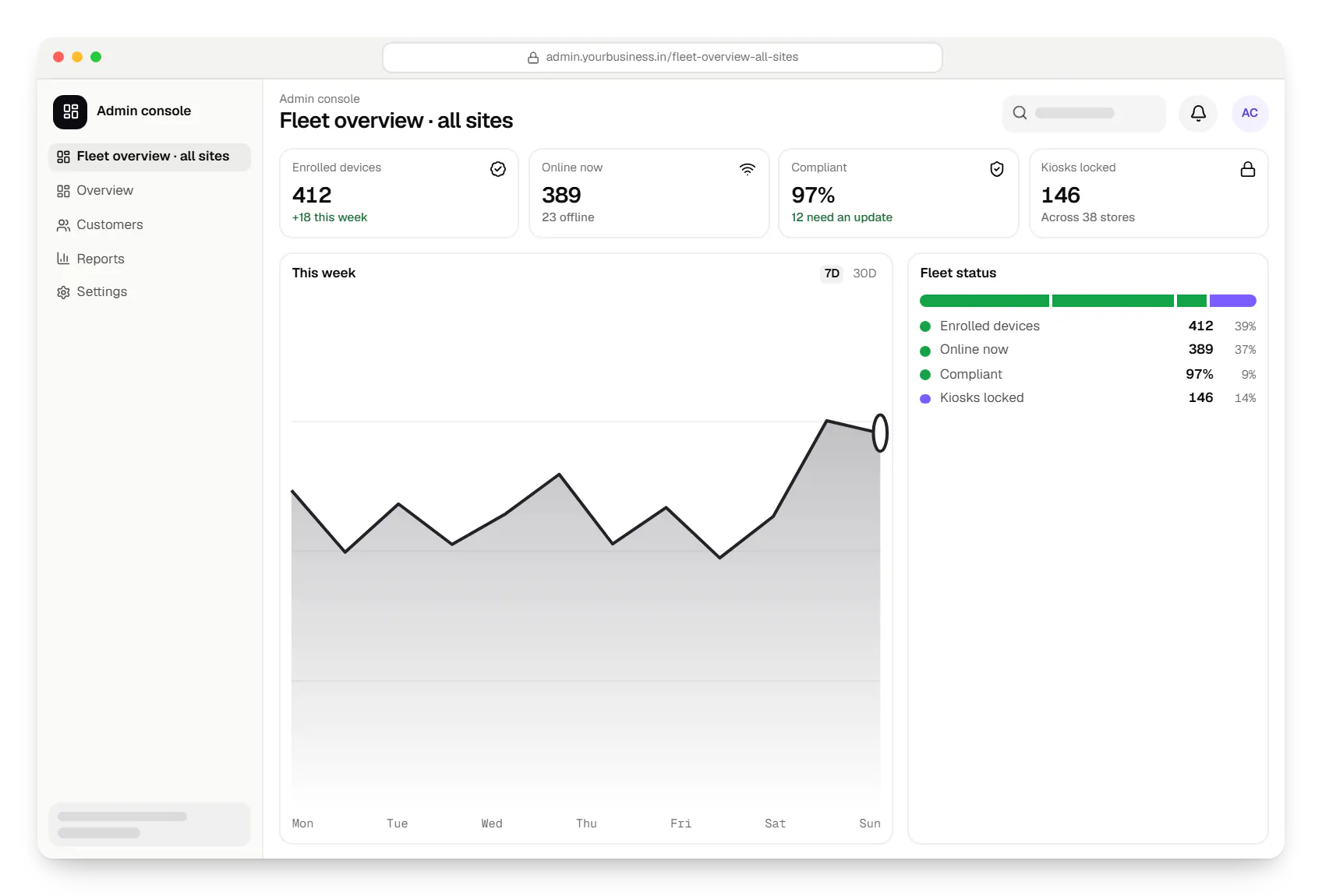
  • Device management and kiosk solutions admin console dashboard in a web browser, with key figures and a chart
    Admin console. Head office sees every managed device in one place: how many are online, which need attention and whether they meet your security rules.
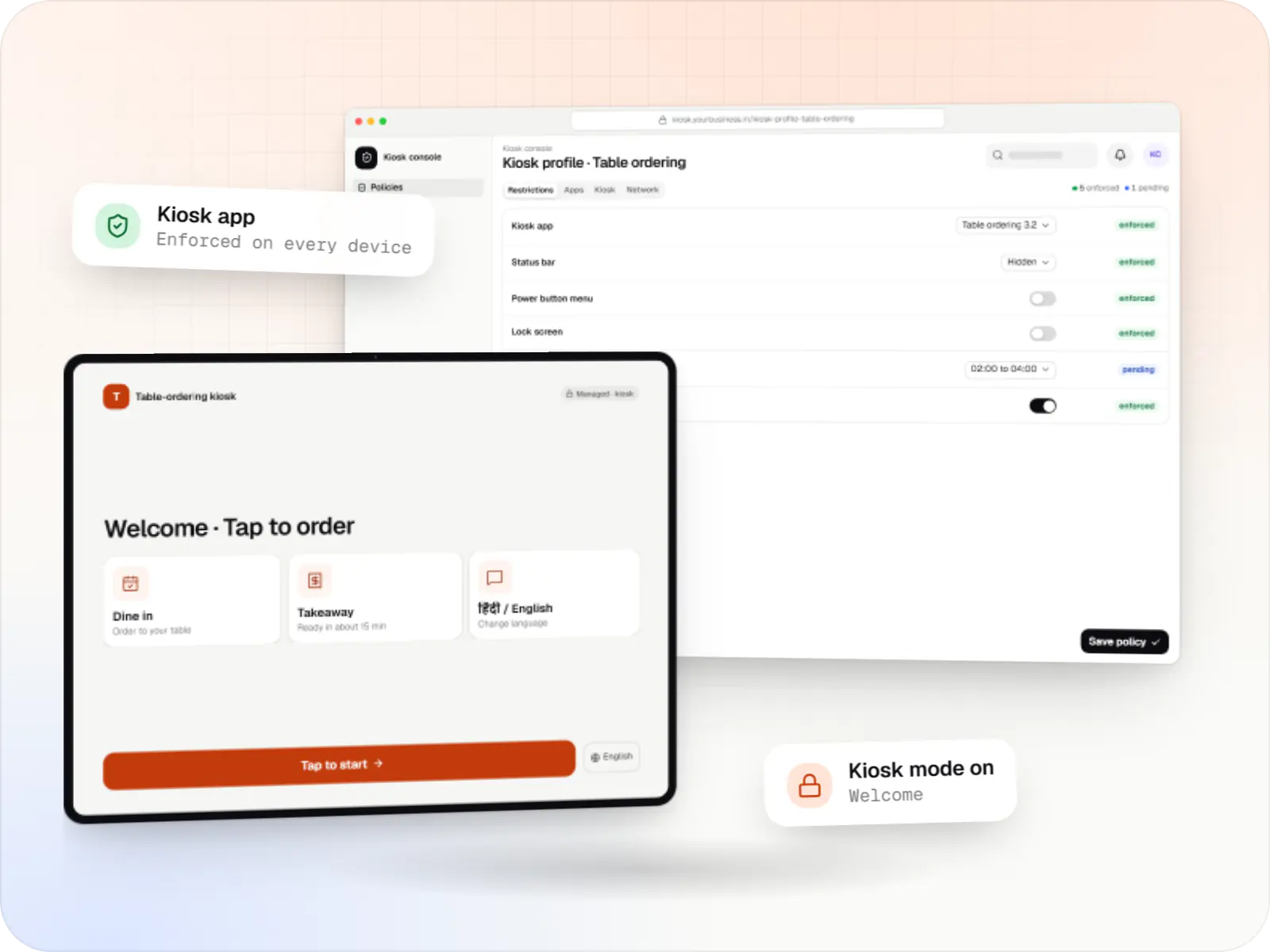
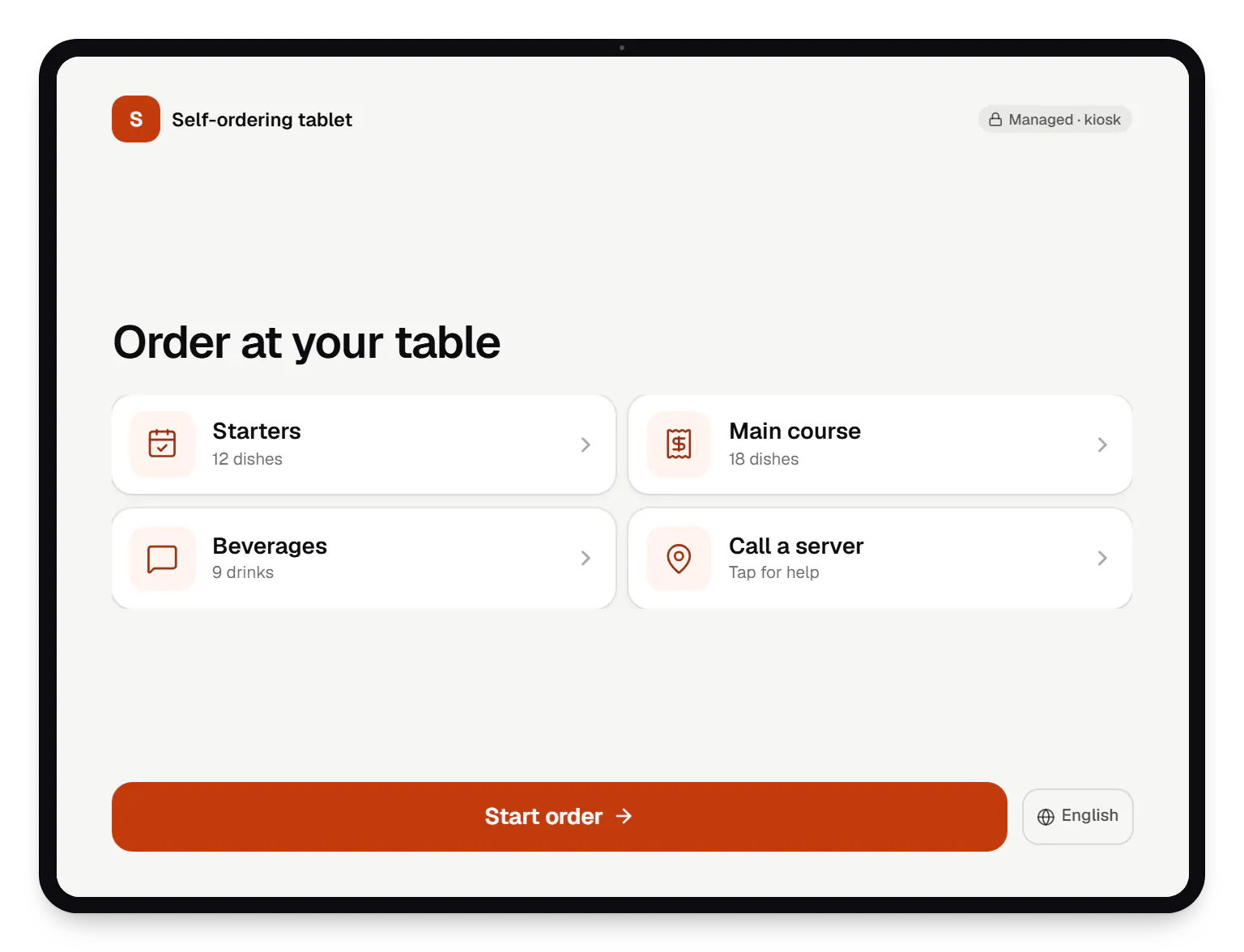
  • Device management and kiosk solutions self-ordering tablet locked kiosk screen on a tablet
    Self-ordering tablet. A customer-facing tablet locked to one ordering app: no home screen, no notifications and no way into settings, so it is always ready for the next guest.
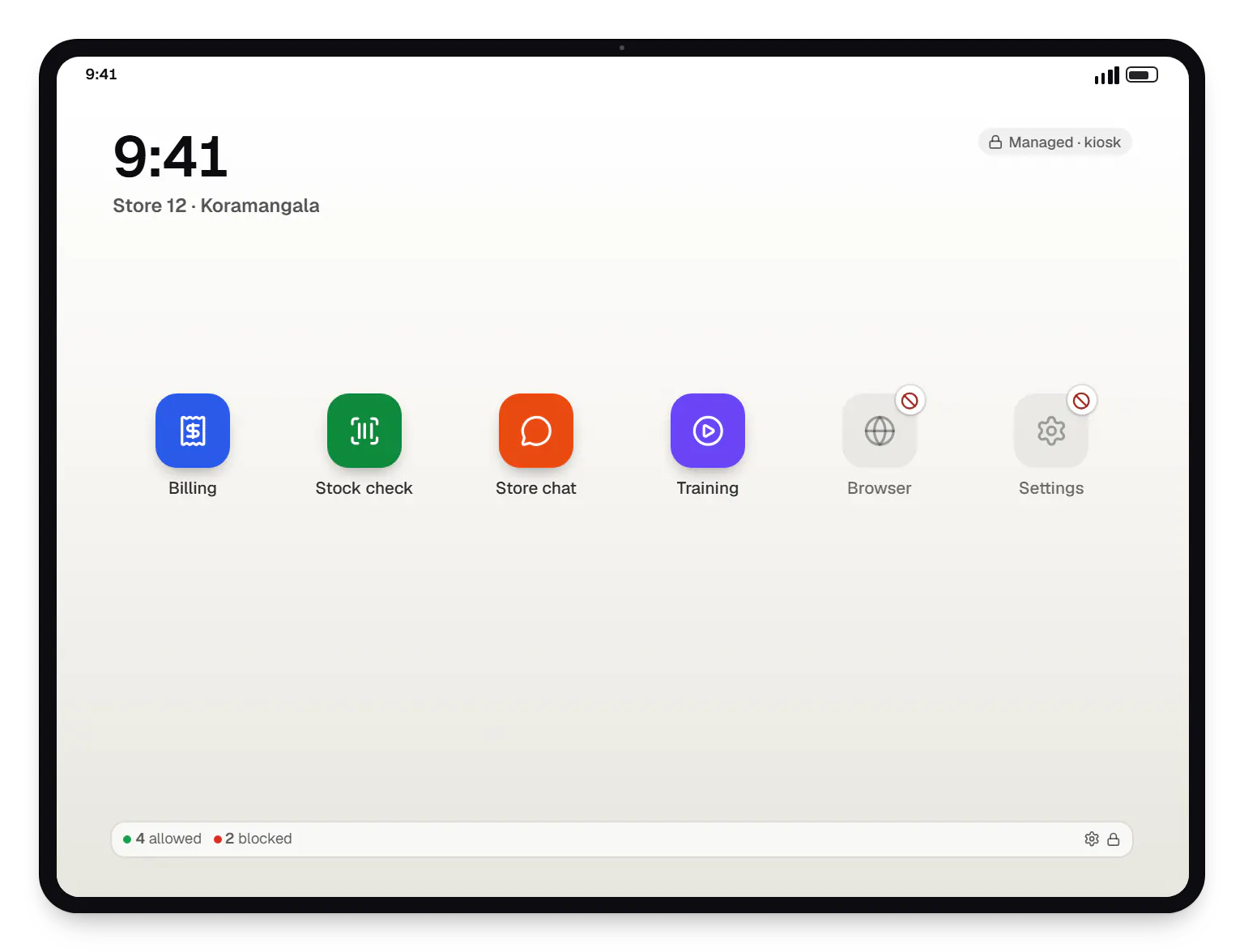
  • Device management and kiosk solutions staff launcher app launcher on a tablet
    Staff launcher. A multi-app kiosk for staff: only the approved work apps appear, and everything else on the tablet stays blocked.
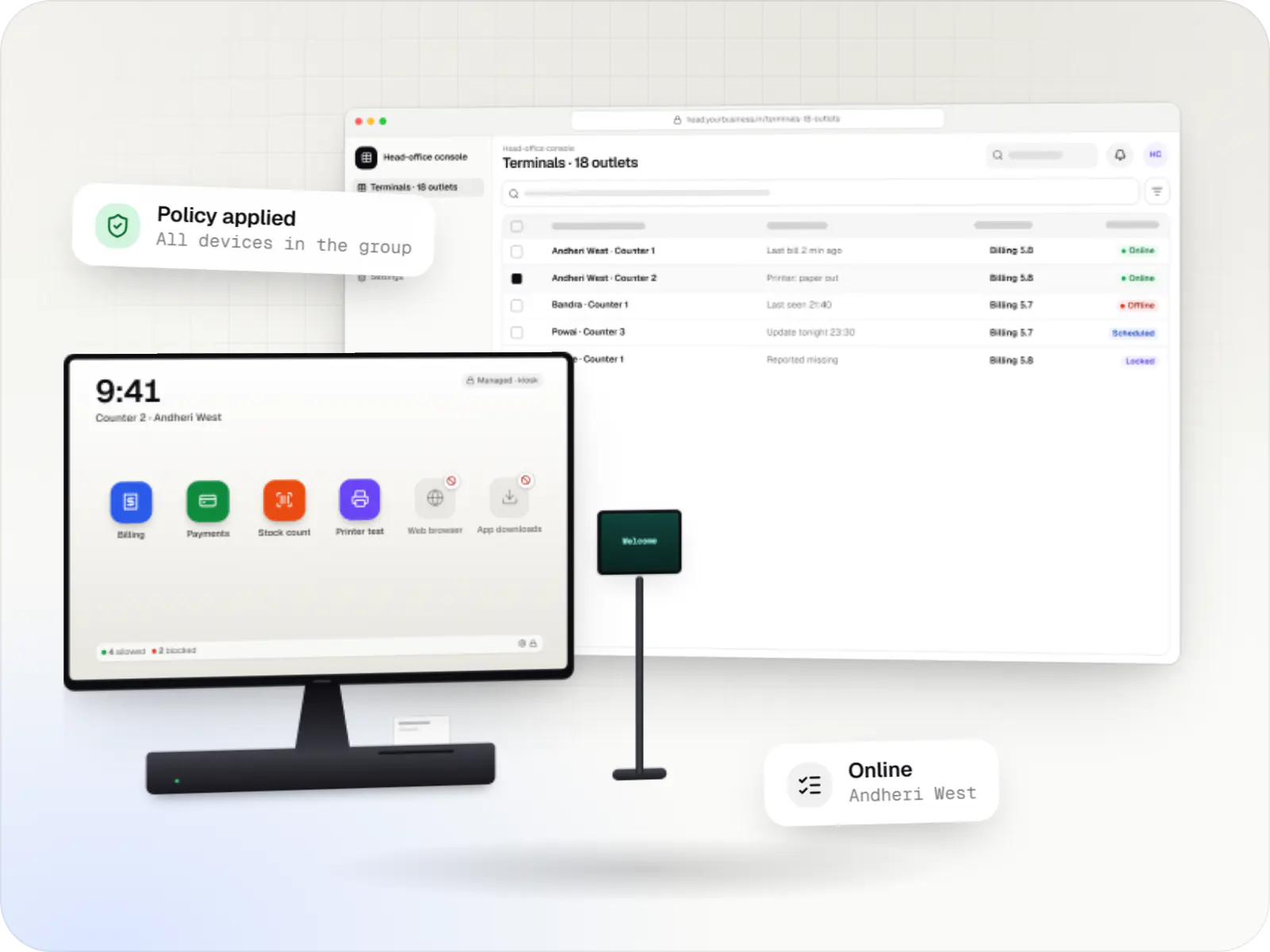
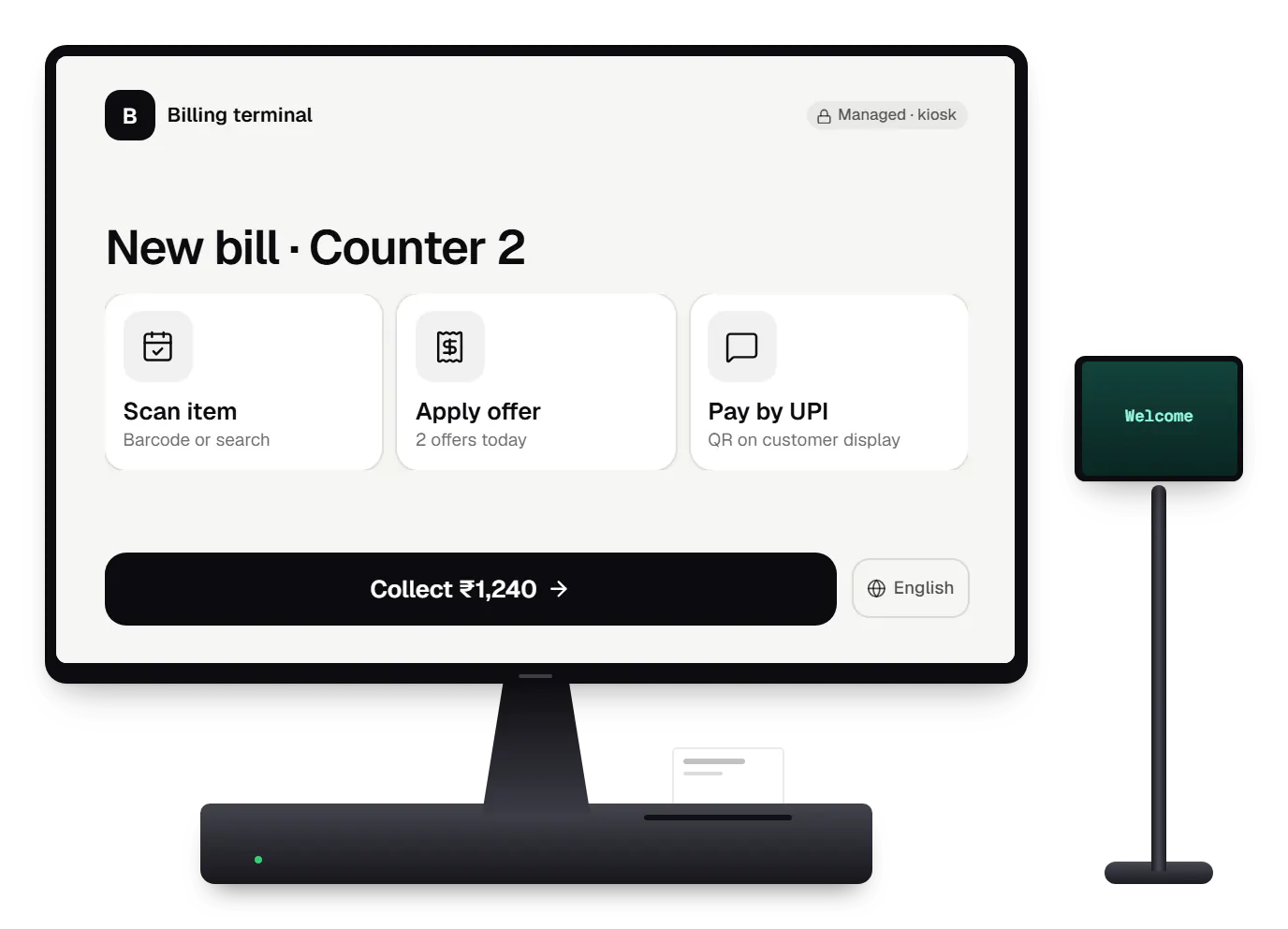
  • Device management and kiosk solutions billing terminal locked kiosk screen on a countertop POS terminal
    Billing terminal. A POS terminal running Android, locked to the billing app, with the printer and payment apps allowed and app updates held until the store closes.
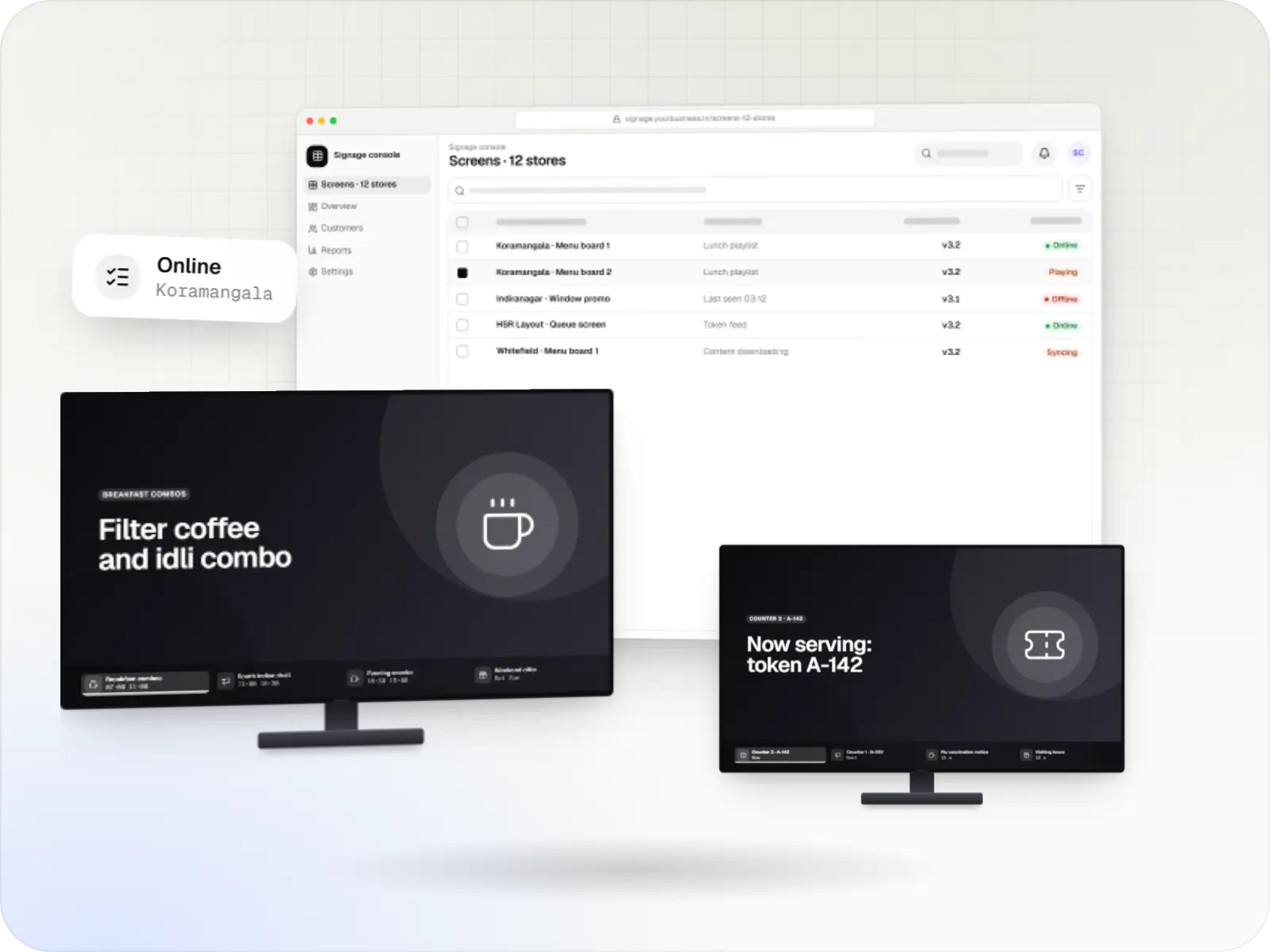
  • Device management and kiosk solutions menu screen signage playlist on a TV display
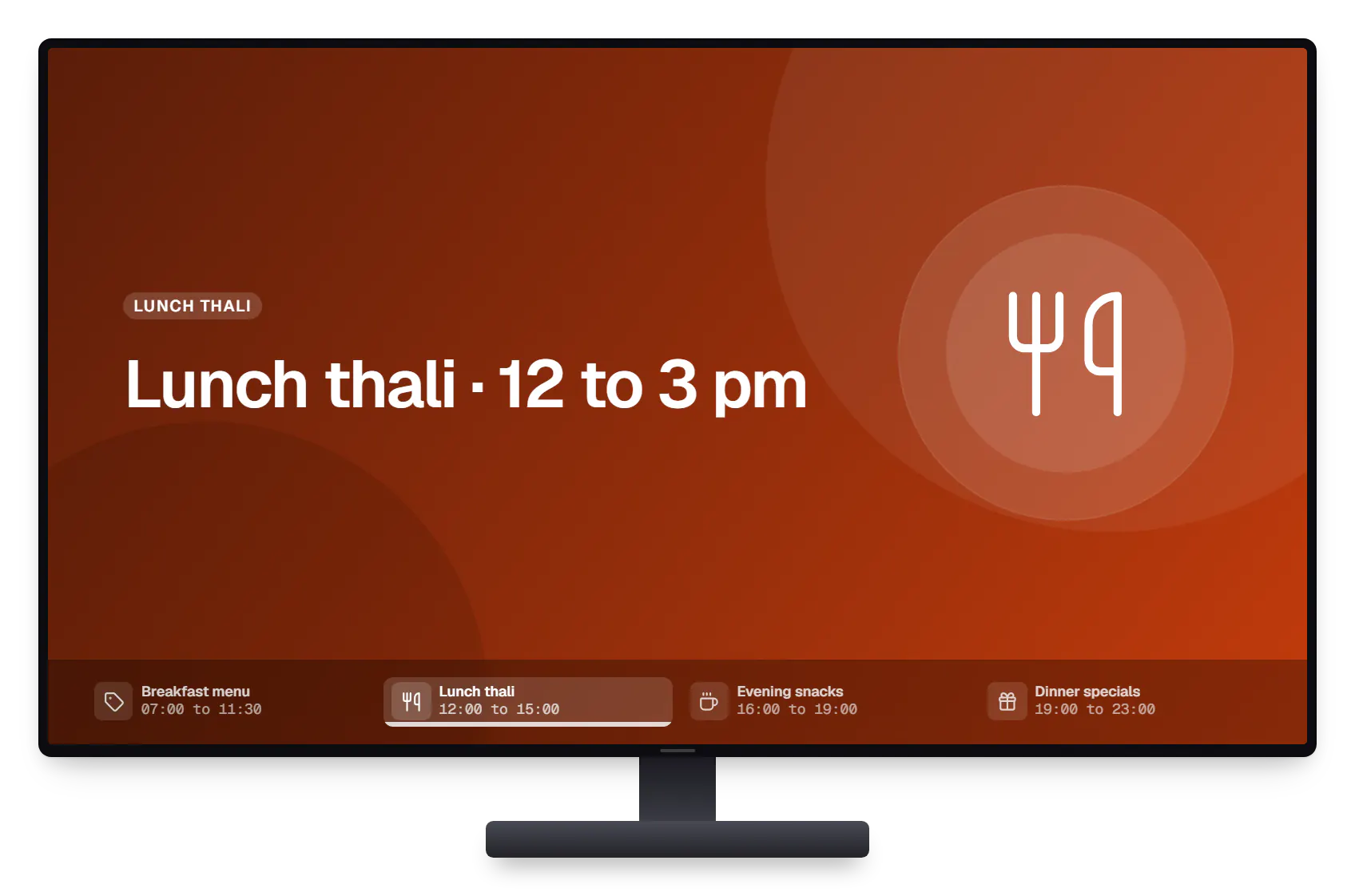
    Menu screen. A menu board that follows a schedule set in the console, with a health check that flags a screen that has stopped playing.
Illustrative preview

Sample screens: names, prices and figures are examples, not client data.

Work

Illustrative sample projects

  • Device management & kiosk solutions

    Illustrative sample

    Android kiosk and device management platform for retail stores

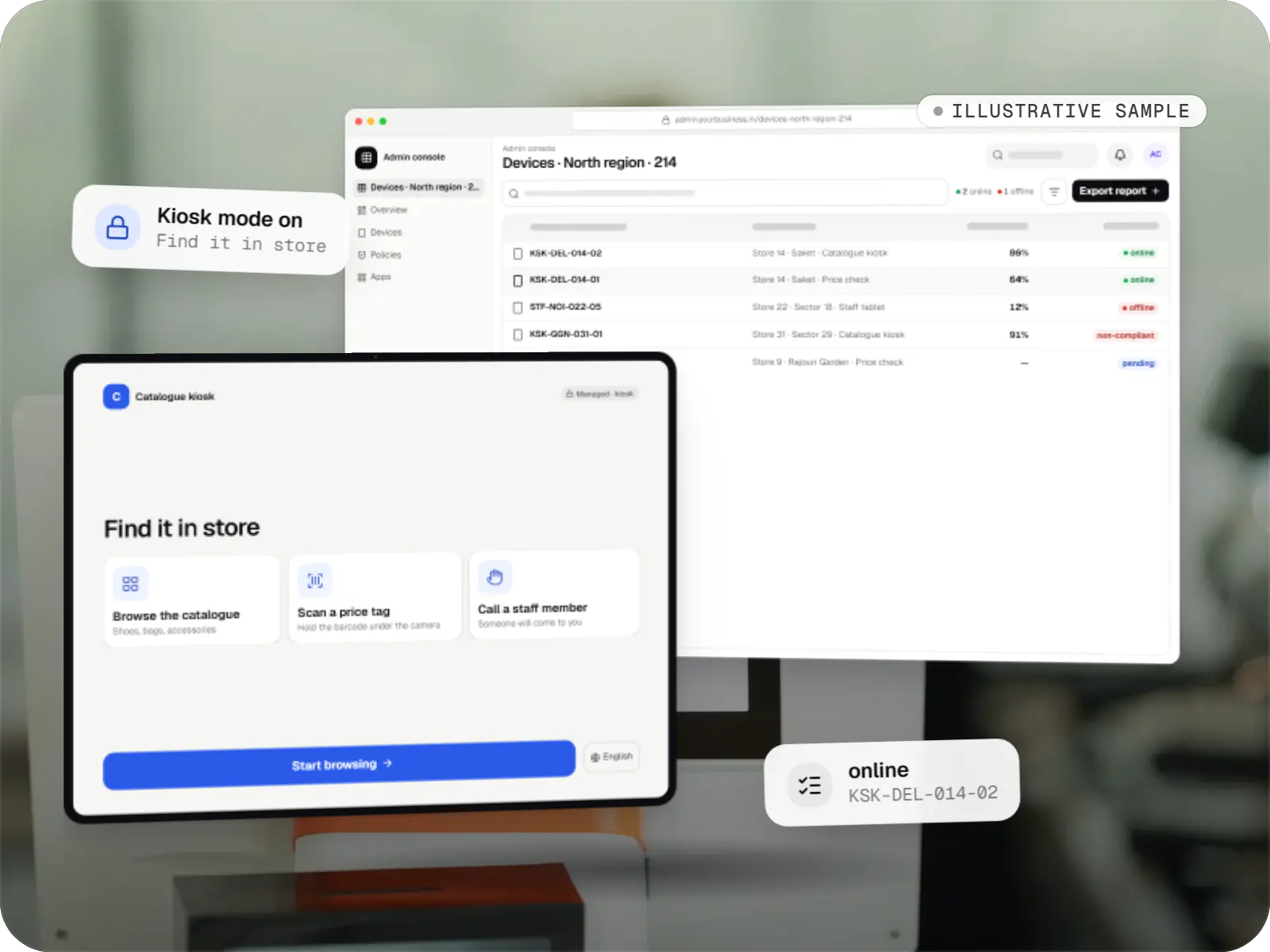
    An illustrative kiosk product for retail chains: locked Android tablets for catalogues and price checks, a staff launcher, and a console to enrol, update and monitor every device.

    • Retail
    • Device management platform

    Runs on

    • Android Enterprise
    • Admin
    • Web app

    Built with

    • Next.js
    • React
    • Android (Kotlin)
    • NestJS
    • PostgreSQL
    • +1 more
  • Device management & kiosk solutions

    Illustrative sample

    Tablet management console for schools

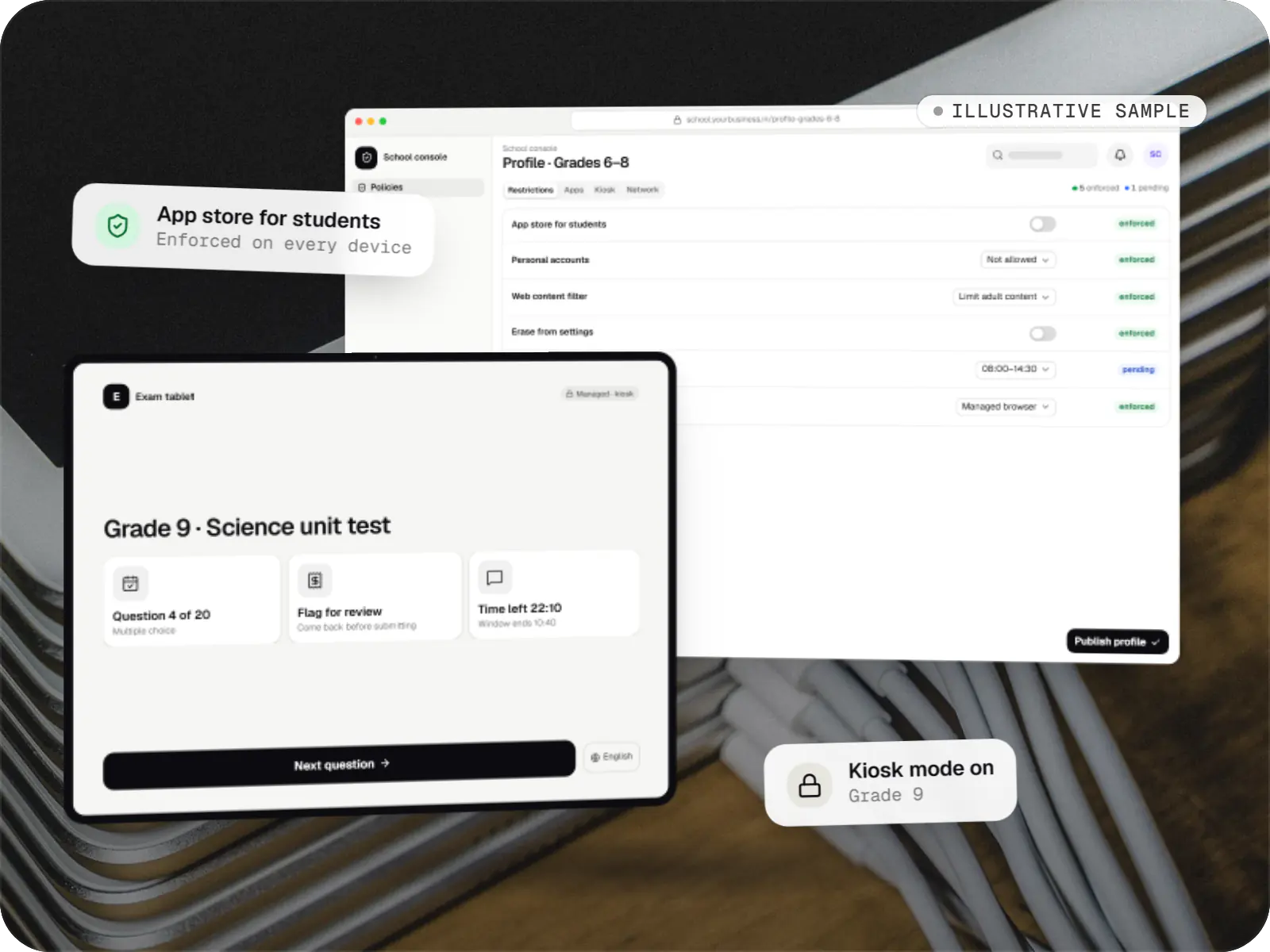
    An illustrative console for school tablets: iPad devices through Apple School Manager and MDM, Androidâ„¢ tablets through Android Enterprise, with class-based rules teachers can follow.

    • Schools
    • Device management SaaS

    Runs on

    • iPhone and iPad
    • Android Enterprise
    • Admin
    • Web app

    Built with

    • Next.js
    • NestJS
    • PostgreSQL
    • Redis
    • AWS
    • +1 more

Process

How a device-management project runs

  1. Device and workflow audit

    We list the device models, OS versions, who uses each device and what it must never do. We also check what you already license, so nothing is rebuilt needlessly.

    You getDevice matrix and recommended approach

  2. Proof on real devices

    Two or three of your actual models are enrolled and locked down in a test set-up, to confirm every feature before anyone commits to a rollout.

    You getFeature confirmation per model

  3. Build

    Console, kiosk app, device-owner app or integrations are built in fortnightly releases you can try on test devices.

    You getWorking builds every sprint

  4. Pilot at one site

    One store, ward or depot runs for two to four weeks; we watch check-ins, fix edge cases and write the runbook for site staff.

    You getPilot report and runbook

  5. Staged rollout

    Sites move over in batches, with enrolment done by the reseller, your team or ours, and a spare-device plan for each site.

    You getRollout plan and tracker

  6. Support and OS updates

    Each new Android, iOS or iPadOS release is tested on your models first, using the update delays each platform allows, so it reaches the whole fleet only after it has passed.

    You getMonthly support and release notes

FAQ

Frequently asked questions

What is the difference between MDM, EMM and UEM?

MDM (mobile device management) controls the device: enrolment, passcodes, restrictions, remote lock and wipe. EMM (enterprise mobility management) adds work apps, their settings and access to company data, and is what most businesses actually need. UEM (unified endpoint management) extends the same console to laptops and desktops, so phones, tablets, Mac computers and Windows PCs are managed together. The terms overlap in practice, so we focus on which devices you have and what each must do.

Do we need a custom-built MDM, or can we use an existing one?

Most organisations managing their own devices should license an established EMM or UEM and configure it well. We then build the pieces it lacks: a kiosk app, a branded launcher, a report, or an integration with your HRMS or asset register. A full custom console makes sense for SaaS companies and device makers building a management product, and for unusual fleets such as devices without Google Play. We will tell you which case you are in before any build starts.

Can one console manage Android and Apple devices together?

Yes, but each platform is managed through its own channel: the Android Management API or a device-owner app for Android, and Apple's MDM protocol for iPhone, iPad and Mac. One console can show both in a single inventory, apply equivalent rules and report compliance together. Some settings exist on only one platform, so a well-built console marks them as not supported instead of pretending a rule applies everywhere.

Can our existing tablets be turned into kiosks, or do we need new ones?

Existing devices usually work, but full lockdown needs a fresh start. Android devices must be factory reset and set up as company-owned devices, for example with a QR code. iPad devices must be supervised, which means erasing them and setting them up again, usually after adding them to Apple Business or Apple School Manager with Apple Configurator. We test your models first, because very old OS versions or unusual builds may lack the features you need.

Can device management track staff or read their personal data?

On staff-owned phones, no: a work profile or Apple's User Enrollment keeps personal apps, messages and photos out of the console's reach. On company-owned devices the console sees device details such as model, apps and compliance, and some modes can locate a lost device. We build location features only with a visible notice to staff and a lawful purpose under India's DPDP Act, 2023, and never as hidden tracking.

Are you a Google, Apple or Microsoft partner?

No. We hold no Android Enterprise partner status, Apple authorisation or Microsoft certification, and we do not claim any. We build on the public, documented management APIs and programmes those companies publish. Where a platform requires approval, such as Android Enterprise approval for Android Management API access or verification of a custom device-owner app, you or your product company applies, and we prepare the technical material for the application.

How long does a rollout take?

A proof on your device models typically takes two to three weeks, and a pilot at one site two to four weeks after that. A custom console or kiosk app adds build time, often eight to fourteen weeks for a first release. The rollout itself depends on how many sites you have and whether devices arrive pre-registered for zero-touch or Apple enrolment, which saves the most time on site.

Next step

Tell us about your devices

Share the device models, how many you have and what each should do. We will suggest the simplest approach, whether that is configuring what you already own or building something new.

Or reach us directly

Mon–Sat, 10:00–19:00 IST