Skip to content
Softcoderz

Enrolment and provisioning

Device enrolment and zero-touch provisioning for Android™ and Apple devices

Company phones, tablets and Mac computers that enrol themselves when switched on, with the right apps and settings, whether they come from a reseller or out of your storeroom.

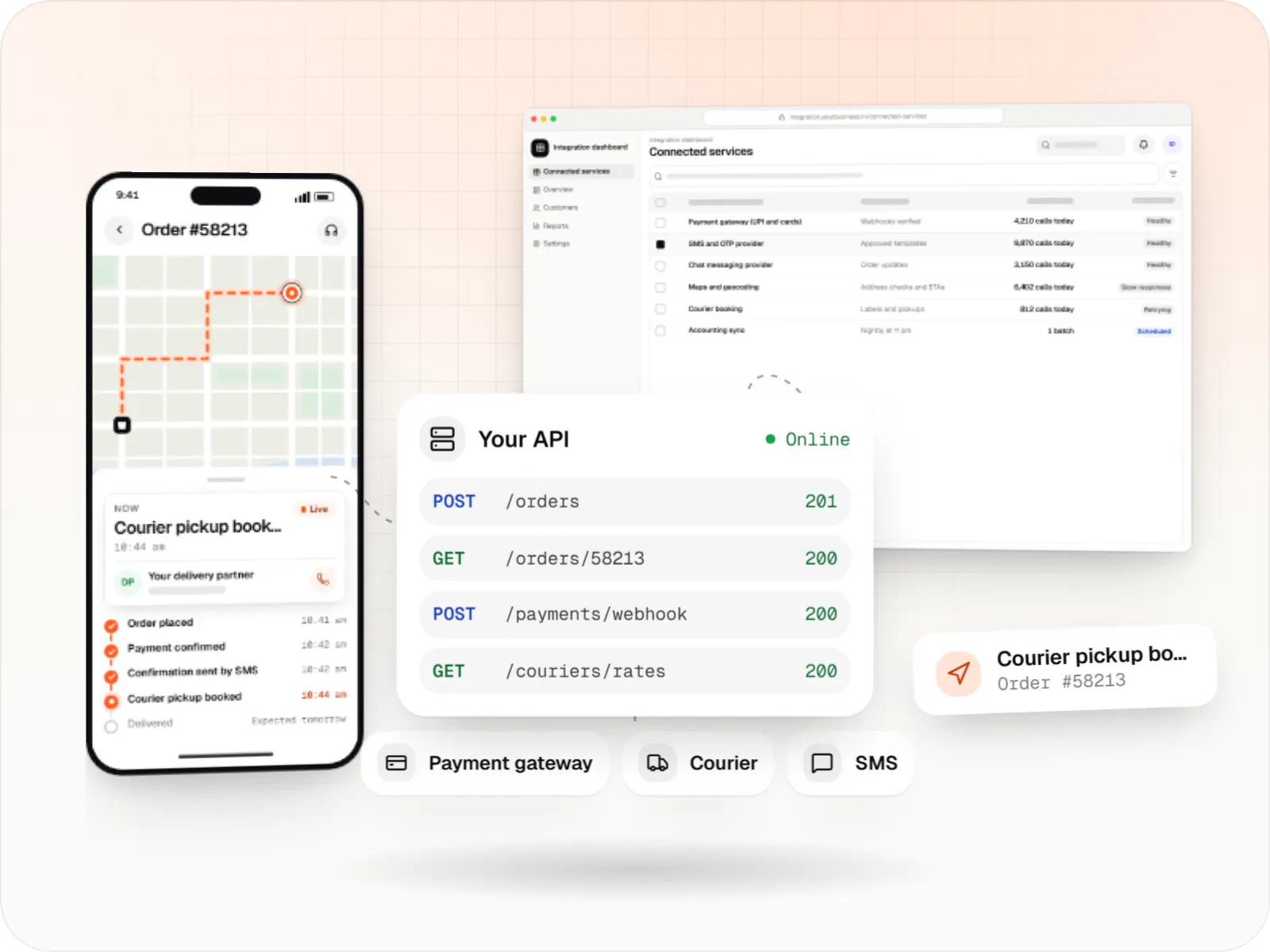
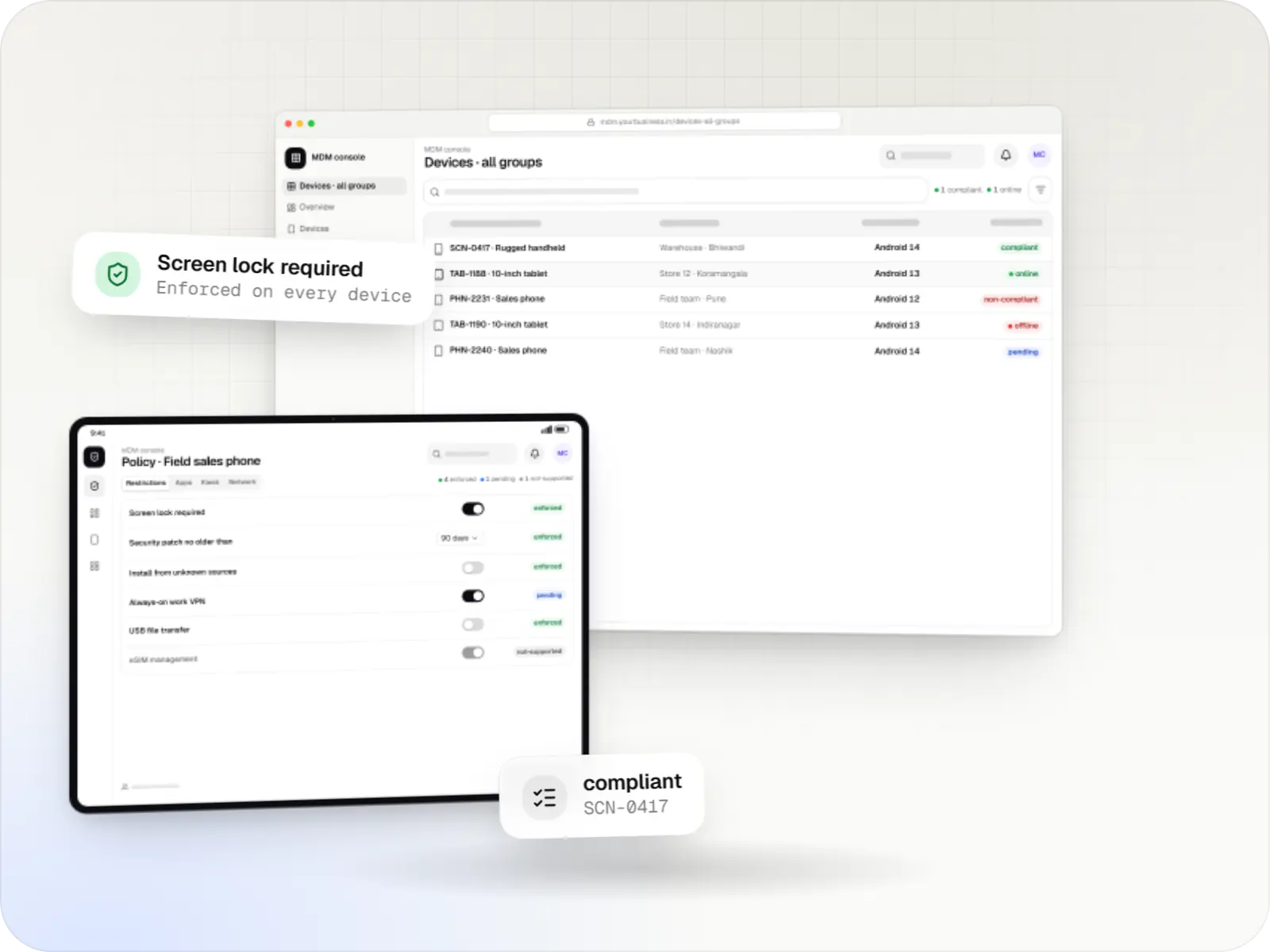
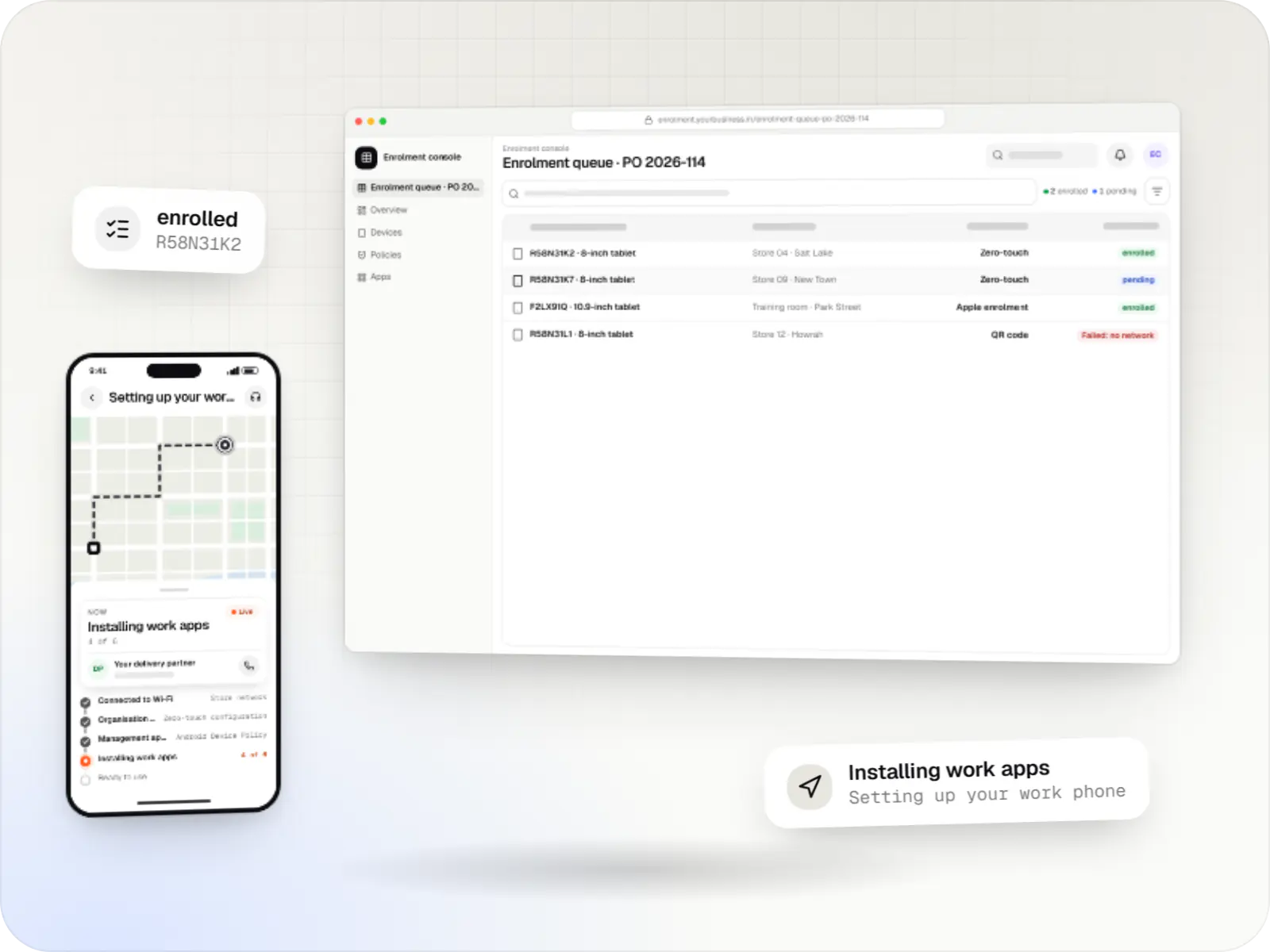
Device enrolment screens: enrolment console in a browser and device setup order tracking on a phone
Illustrative previewDevices locked to the job they do, set up and updated from one management console.

At a glance

The short version

What it is

Zero-touch, QR code, Knox Mobile Enrollment and Apple Automated Device Enrollment set-ups that take devices from the box to ready-to-use.

What you get
  • Reseller and portal set-up
  • Enrolment in the console
  • First-run experience
  • Re-enrolment and release
How it works
  1. Purchasing team
  2. Reseller
  3. IT team or console
  4. Staff member
  5. 2 more
Runs on
  • Android Enterprise
  • iPhone and iPad
  • Mac
  • Admin
Cost depends on
  • Number of methods
  • Devices already in use
  • Console work
and 2 more factors

How to start

Tell us what you need in your own words. You talk to the developers who would build it and get a written, line-item estimate.

Get a project estimate

Why enrolment decides how smooth a rollout is

Every managed device has to be enrolled once: linked to your organisation, given its management agent and handed its first policy. The method you choose decides how much hands-on work each device needs, whether a factory reset brings it back under management, and whether a staff member can remove it.

For new devices, the lowest-effort routes are Google's zero-touch enrolment for Android, Knox Mobile Enrollment for Samsung devices, and Apple's Automated Device Enrollment through Apple Business (formerly Apple Business Manager) or Apple School Manager. The reseller registers the devices to your account, and they configure themselves on first start.

For devices you already own, a QR code or the afw#setup code on Android, and Apple Configurator for iPhone, iPad and Mac, bring them into the same management after a reset.

We choose the methods for each device type, set up the portals and configurations with you as the account owner, and build the console views that show every device from purchase order to first check-in.

Comparison

Enrolment methods compared

Enrolment methods compared
Suited toReset neededHands-on effort per deviceAfter a factory reset
Zero-touch enrolment (Android)New company devices with Google Play services, bought from a participating reseller; Android 9 or later, supported Android 8 devices, or Pixel phones on Android 7Runs at first setup, new or resetMinimal: switch on and connect to a networkEnrols again automatically while the device stays registered
Knox Mobile Enrollment (Samsung)Samsung phones and tablets uploaded by a participating reseller, or, on Android 10 or later, enrolled with a Knox Mobile Enrollment QR code during setupRuns at first setup, new or resetMinimal with reseller upload; a QR scan otherwiseEnrols again while the device stays registered
QR code (Android)Devices you already own on Android 7.0 or later, bought through any channelYesTap the welcome screen six times, then scanScan again
afw#setup code (Android)Devices you already own, for Android Management API-based set-upsYesType the code at the account sign-in step of setupEnter the code again
NFC tap (Android)Fully managed set-up only, from a programmer device, where both devices have NFCYesTap the two devices togetherTap again
Work profile by app or link (Android)Staff-owned phonesNoStaff follow a link or install the management appNot applicable
Automated Device Enrollment (Apple)iPhone, iPad and Mac bought through Apple or a participating reseller or carrierRuns at first setup, new or erasedMinimal: connect to a network and the device finds your MDM during setupEnrols again after erase
Apple Configurator (Apple)iPhone, iPad and Mac you already own, added to Apple Business or Apple School ManagerYes, the device is erasedConnect to a Mac, or scan with an iPhone running Apple ConfiguratorEnrols again, unless the user released it during the 30-day provisional period

What is included

What we set up and build

  • Platform: Google, Samsung and Apple portals

    Reseller and portal set-up

    • Zero-touch customer account linked to your resellers, with a configuration per device role
    • Knox Mobile Enrollment profiles for Samsung devices
    • Apple Business or Apple School Manager linked to your MDM server, with a default assignment per device type
    • Configurations that pass site codes or group names to the management agent at enrolment
  • Platform: Admin dashboard

    Enrolment in the console

    • QR codes and enrolment tokens per group, with expiry dates, single-use or shared by a batch
    • Enrolment queue: devices expected, enrolled, pending or failed
    • Purchase order and serial number import, so you know which devices have not arrived or not been switched on
    • Automatic group assignment by serial number, order or QR code
  • Platform: Managed devices

    First-run experience

    • Setup messages that tell staff the device belongs to the organisation
    • Required apps installed before the home screen appears, on set-ups that support it
    • Wi-Fi and certificates delivered during setup, so devices never need a personal network
  • Platform: Admin dashboard

    Re-enrolment and release

    • Reset devices enrol again into the same group, where the method supports it
    • A release process for sold or recycled devices, removing them from zero-touch or Apple Business

How it works

From purchase order to a ready-to-use device

This is the zero-touch or Automated Device Enrollment path. QR-code enrolment starts at step four, with a reset device.

  1. Purchasing team

    Step 1: Order from a participating reseller

    Devices are ordered with your zero-touch, Knox or Apple customer details, so the reseller can register them to you.

  2. Reseller

    Step 2: Devices registered to you

    The reseller adds the serial numbers or IMEIs to your zero-touch, Knox or Apple Business account.

  3. IT team or console

    Step 3: Configuration assigned

    Each device, or the whole order, is given a configuration: which management service and which group or role.

  4. Staff member

    Step 4: Switched on at the site

    The device connects to Wi-Fi or mobile data and, during setup, learns that it belongs to your organisation.

  5. Management agent

    Step 5: Management installed

    Android installs the management app; Apple devices enrol their built-in MDM client. The first policy is applied.

  6. Console

    Step 6: Apps and settings arrive

    Required apps, Wi-Fi, certificates and restrictions install before the home screen appears, where the set-up supports it.

  7. Console

    Step 7: First check-in

    The device shows as enrolled against its purchase order, and IT can see any that have not been switched on yet.

Platforms

Devices we enrol

Android Enterprise devices, iPhone and iPad, Mac computers, and the console where enrolment is tracked.

  • Mobile

    Android Enterprise devices

    Android phones, tablets and rugged handhelds with Google Play services, managed through Android Enterprise: company-owned devices as fully managed, dedicated (kiosk) or work-profile devices, and personal phones through a work profile only.

  • Mobile

    iPhone and iPad

    Organisation-owned or shared iPhone and iPad devices enrolled in MDM through Apple Business or Apple School Manager, supervised for Single App Mode and stricter restrictions.

  • Desktop

    Mac

    Mac computers enrolled in MDM for configuration profiles, app and package installs, disk encryption settings and software update rules, set up at first power-on when the purchase is linked to Apple Business.

  • Back office

    Admin dashboard

    Back-office panels for operations, support and finance teams: orders, users, content, reports and permissions.

Technology

Enrolment technology, and why it matters

Each platform has its own enrolment service; our console ties them to your purchase records, so no device gets lost between the reseller and the site.

  • Device management

    Android Management API

    A Google cloud API for device-management products: your console sets the rules, and a Google app on each Android device applies them.

    Used for

    • Kiosk products for stores
    • EMM and MDM products
    • Policy-based device fleets
    • QR and zero-touch setup
  • Built-in Android APIs that let one trusted app control a company device: kiosk lock, silent app updates and restrictions, even without Google Play.

    Used for

    • Custom kiosk launchers
    • Devices without Google Play
    • POS and signage agents
    • Silent app updates
  • The Apple portal for organisations, now called Apple Business: devices bought from Apple or linked resellers are assigned to your MDM and set up at first power-on.

    Used for

    • Zero-touch device setup
    • iPhone, iPad and Mac rollouts
    • Volume app licences
    • Managed Apple Accounts
  • Device management

    Apple MDM protocol

    The management channel built into iPhone, iPad and Mac: an MDM server sends settings, apps and commands, and devices apply them remotely.

    Used for

    • iPad kiosks
    • Company iPhone fleets
    • Mac setup and updates
    • School iPad programmes
  • Backend

    NestJS

    A structured way to build back ends on Node.js, so large business systems stay organised, testable and easy to hand over.

    Used for

    • Business app back ends
    • SaaS platforms
    • Marketplaces
    • Admin panel back ends
  • A reliable database for the records your business runs on: orders, payments, bookings and stock, kept accurate and easy to report on.

    Used for

    • Orders and customers
    • Payments and ledgers
    • Stock and inventory
    • Bookings
  • Builds interactive screens in the browser, such as dashboards, admin panels and portals, that respond instantly as your team works.

    Used for

    • Web apps
    • Admin panels
    • Dashboards
    • Customer portals

Plain-English glossary

Enrolment terms, in plain English

Zero-touch enrolment
Google's service for company-bought Android devices: the reseller registers them to your account, and each device sets itself up under your management the first time it is switched on.
Participating reseller
A device seller signed up to a vendor's enrolment programme. Only devices bought through one can be registered for zero-touch, Knox or Apple automated enrolment at the time of purchase.
Provisioning
Everything that happens during first setup: installing the management agent, applying the policy, and adding apps, Wi-Fi and certificates until the device is ready for its user.
Automated Device Enrollment
Apple's automatic enrolment for iPhone, iPad and Mac. Devices listed in Apple Business or Apple School Manager and assigned to your MDM server enrol during setup, and management can be set so the user cannot remove it.
afw#setup
A code typed at the account sign-in step of a new or reset Android device's setup. It tells the device to download Google's Android Device Policy app and continue enrolment.
Knox Mobile Enrollment
Samsung's service for enrolling Samsung phones and tablets in bulk, usable without a licence (some advanced options need a paid Knox plan). It works much like zero-touch and is often used alongside it in mixed fleets.

Before you order devices

  • Ask the reseller about enrolment programmes

    Confirm they take part in zero-touch, Knox Mobile Enrollment or Apple's programme, and give them your customer details with every order.

  • Decide the default configuration

    Choose which management service and group new devices join if nobody assigns them, so an unassigned device still ends up managed.

  • Prepare networks for first start

    Devices need internet during setup. Plan Wi-Fi details or mobile data at each site, and allow the enrolment services through your firewall.

  • Keep serial numbers and IMEIs

    Import them from invoices, so the console can match devices to orders and sites.

  • Plan for devices you already own

    List which will be reset and enrolled by QR code or Apple Configurator, and back up anything stored on them first.

Product preview

Enrolment on the device and in the console

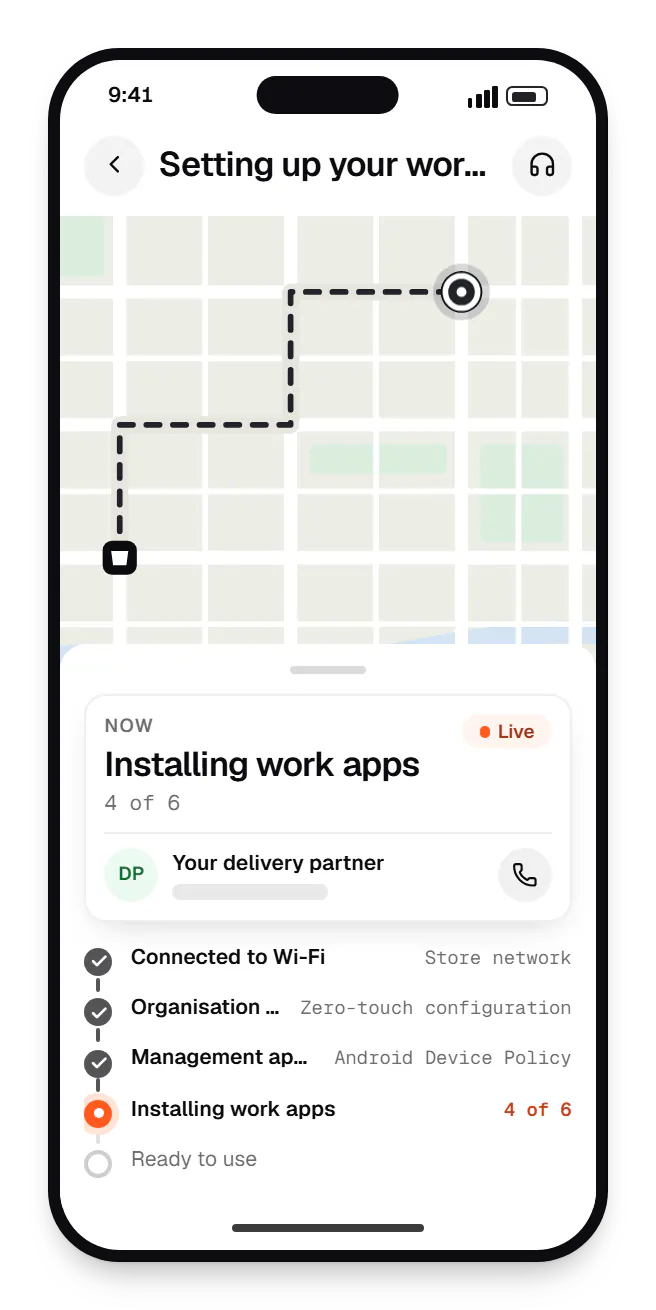
  • Enrolment device setup order tracking on a phone, with live status steps
    Device setup. What staff see on first start: the device says it belongs to the organisation and installs its apps before the home screen appears.
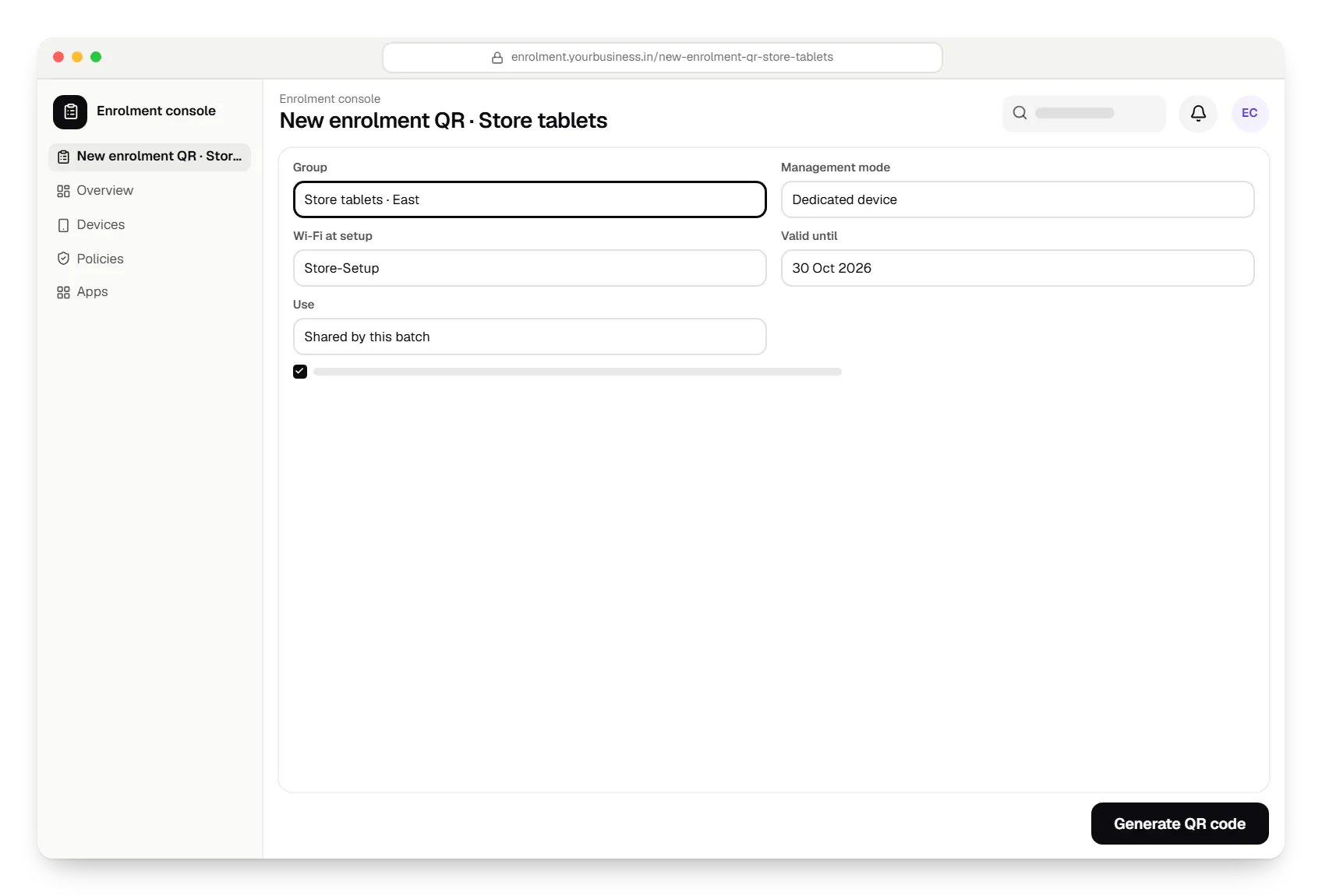
  • Device enrolment console new enrolment QR in a web browser, with input fields and an action button
    Enrolment console. For devices you already own: the console creates a QR code for a group, with the Wi-Fi details built in and an expiry date, so a batch can be enrolled in one sitting.
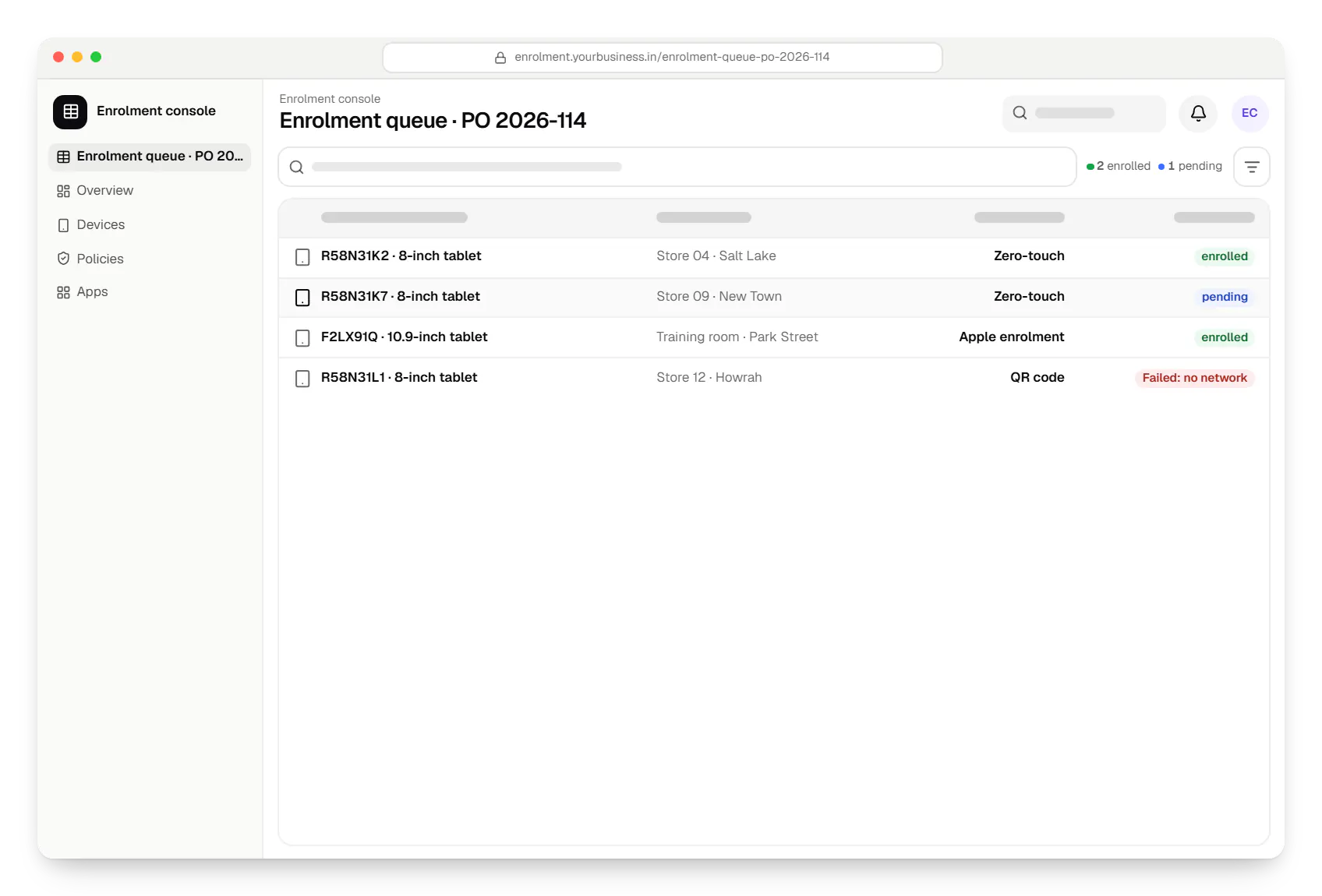
  • Device enrolment console enrolment queue table in a web browser, with 4 rows and status labels
    Enrolment console. Devices listed against the purchase order, so IT sees which have enrolled, which are waiting to be switched on and which failed.
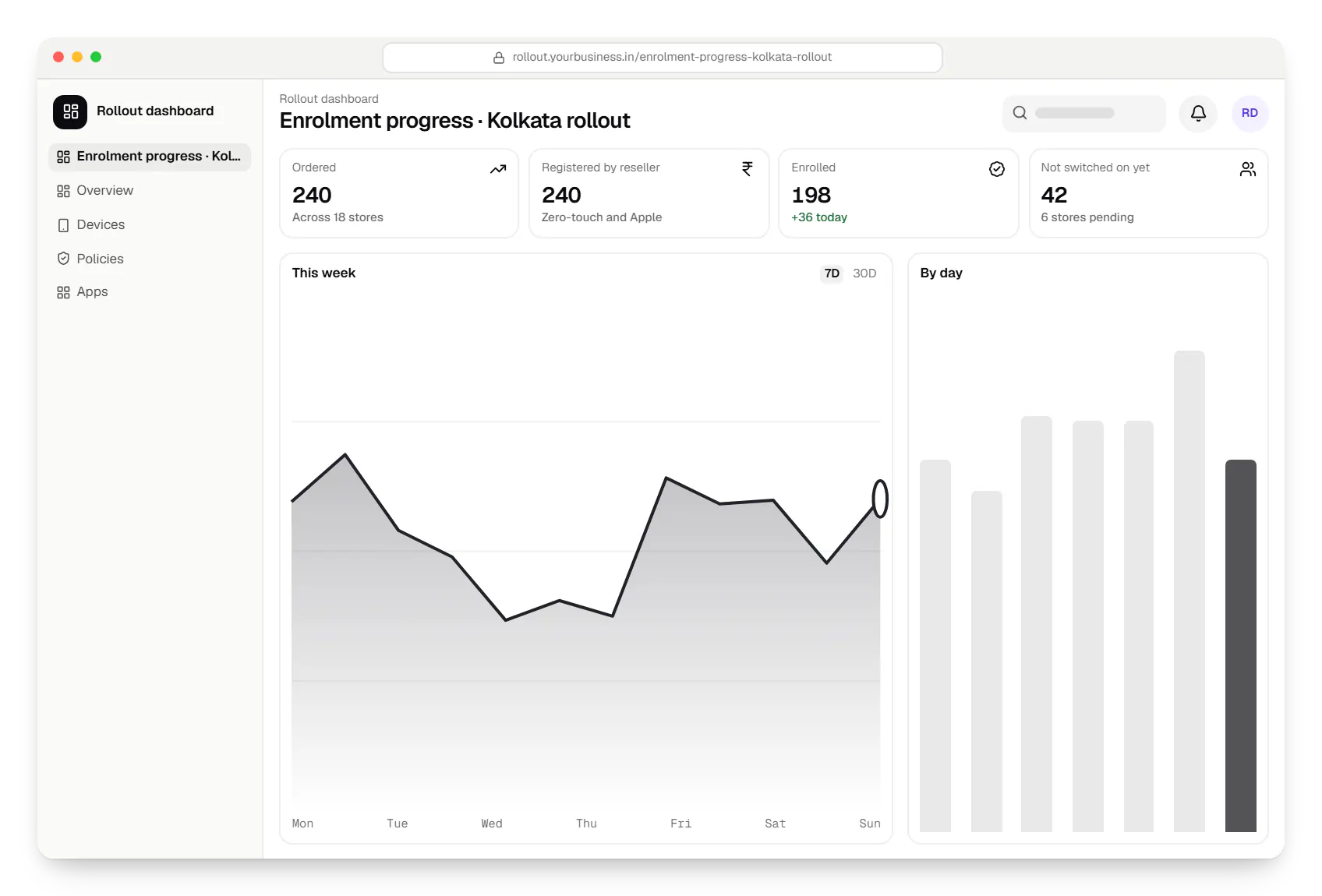
  • Device enrolment rollout dashboard in a web browser, with key figures and a chart
    Rollout dashboard. A rollout view for managers: how many ordered devices are registered, enrolled and in use, site by site.
Illustrative preview

Sample screens: names, prices and figures are examples, not client data.

Cost drivers

What shapes the cost of an enrolment set-up

  1. Number of methods

    One method for all devices is simplest. Mixing zero-touch, Knox, QR codes and Apple enrolment means more configurations and more testing.

  2. Devices already in use

    Existing devices need backup, reset and re-enrolment, often on site, which takes more effort than new devices from a reseller.

  3. Console work

    An enrolment queue matched to purchase orders, automatic grouping and alerts is development work; portal configuration alone is not.

  4. Sites and networks

    Every site needs a working network at first start; guest Wi-Fi sign-in pages and firewalls can block enrolment and need testing.

  5. Platforms covered

    Android, iPhone and iPad, and Mac each have their own portal, enrolment flow and test cycle.

Estimates are written from your scope, with the effort and assumptions behind each line item.

How pricing works

Process

How we set up enrolment

  1. Device and purchase review

    Models, OS versions, resellers, and how many devices are new or already in use.

    You getEnrolment method per device type

  2. Accounts and portals

    Your zero-touch, Knox and Apple Business or Apple School Manager accounts set up and linked to your management service, with your organisation as the account owner.

    You getLinked portals and configurations

  3. Test enrolments

    Two or three devices of each model enrolled by each method, including a reset to prove re-enrolment.

    You getTested configurations

  4. Console and imports

    Purchase order and serial number import, enrolment queue and group rules, built and tested.

    You getEnrolment dashboard

  5. Rollout support

    Site guides, a help line for the first days and a daily list of devices that have not yet enrolled.

    You getRollout tracker

Services

Services involved

The disciplines a project like this draws on.

  • Custom software development

    Software shaped around how your business runs, from approvals and inventory to billing and reports, replacing spreadsheets and disconnected tools.

  • Admin panel development

    Back-office dashboards built around your team's daily tasks: order queues, approvals, catalogue management, payouts, reports and audit logs.

  • API development

    Secure, documented REST and GraphQL APIs, plus integrations that connect your apps to payment, logistics, GST, messaging and business systems.

  • Android app development

    Native Android apps in Kotlin and Jetpack Compose, designed for entry-level phones, patchy networks and the background limits of popular Android brands.

  • iOS app development

    Native iPhone and iPad apps in Swift and SwiftUI, built to Apple's review guidelines and privacy rules and tested on the devices your customers use.

FAQ

Frequently asked questions

Can we use zero-touch with devices we have already bought?

Only if the seller takes part in zero-touch and can register those devices to your account; devices bought from ordinary consumer retail cannot be added. For devices outside the programme, we use QR-code or afw#setup enrolment after a factory reset. That gives the same management, but someone has to start each device, and a later reset needs the same step again.

Does zero-touch cost anything?

Google states that its zero-touch APIs are free to use, and Samsung offers Knox Mobile Enrollment without a licence (some advanced options need a paid Knox plan), although some resellers charge for registering devices or bundle it with other services. The main costs sit elsewhere: your management service (an EMM licence or your own console), the devices themselves and the set-up work. Apple's programmes have their own terms, which we check for your organisation at the time.

What happens if someone factory resets an enrolled device?

With zero-touch, Knox Mobile Enrollment or Apple's Automated Device Enrollment, the device enrols into your management again during setup, so a reset does not free it. With QR-code or afw#setup enrolment, a reset removes management and someone must enrol it again. That is why we block reset from the settings menu on company-owned devices, and set factory reset protection tied to company accounts, which asks for an approved account after a reset from the recovery menu.

Can staff remove management from an iPhone or iPad?

Not from a device enrolled through Automated Device Enrollment with a non-removable enrolment: it is supervised and the management stays. Devices added later with Apple Configurator have a 30-day provisional period in which the user can release them. Devices a user enrolled manually, and personal devices using User Enrollment, can be removed by the user, which also removes the managed apps and data.

Do devices need Wi-Fi during setup?

Yes, or mobile data. Zero-touch, QR and Apple enrolment all contact online services during setup, and the first apps download straight away. Guest Wi-Fi that asks you to accept terms in a browser often blocks enrolment. We give your IT team the list of services the firewall must allow, and an Android QR code can carry the Wi-Fi details so nobody types a password on each device.

Can enrolment put devices into the right group automatically?

Yes. Zero-touch and Knox configurations can pass extra details to the management app, and Apple Business can assign devices to an MDM server by order or device type. Our console then maps each device to a group by serial number, purchase order, site code or the QR code used, so a tablet for Store 12 arrives with Store 12's apps and settings.

Next step

Ordering or re-enrolling devices?

Tell us how many devices, which models and where you buy them. We will recommend enrolment methods and send a line-item estimate.

Or reach us directly

Mon–Sat, 10:00–19:00 IST