


Mobile
Android (Kotlin)
Apps built specifically for Android, with full access to the phone's hardware, background location and company-managed devices.
Used for
- Apps for Android
- Delivery partner apps
- Billing and POS apps
- Field staff apps
Digital signage
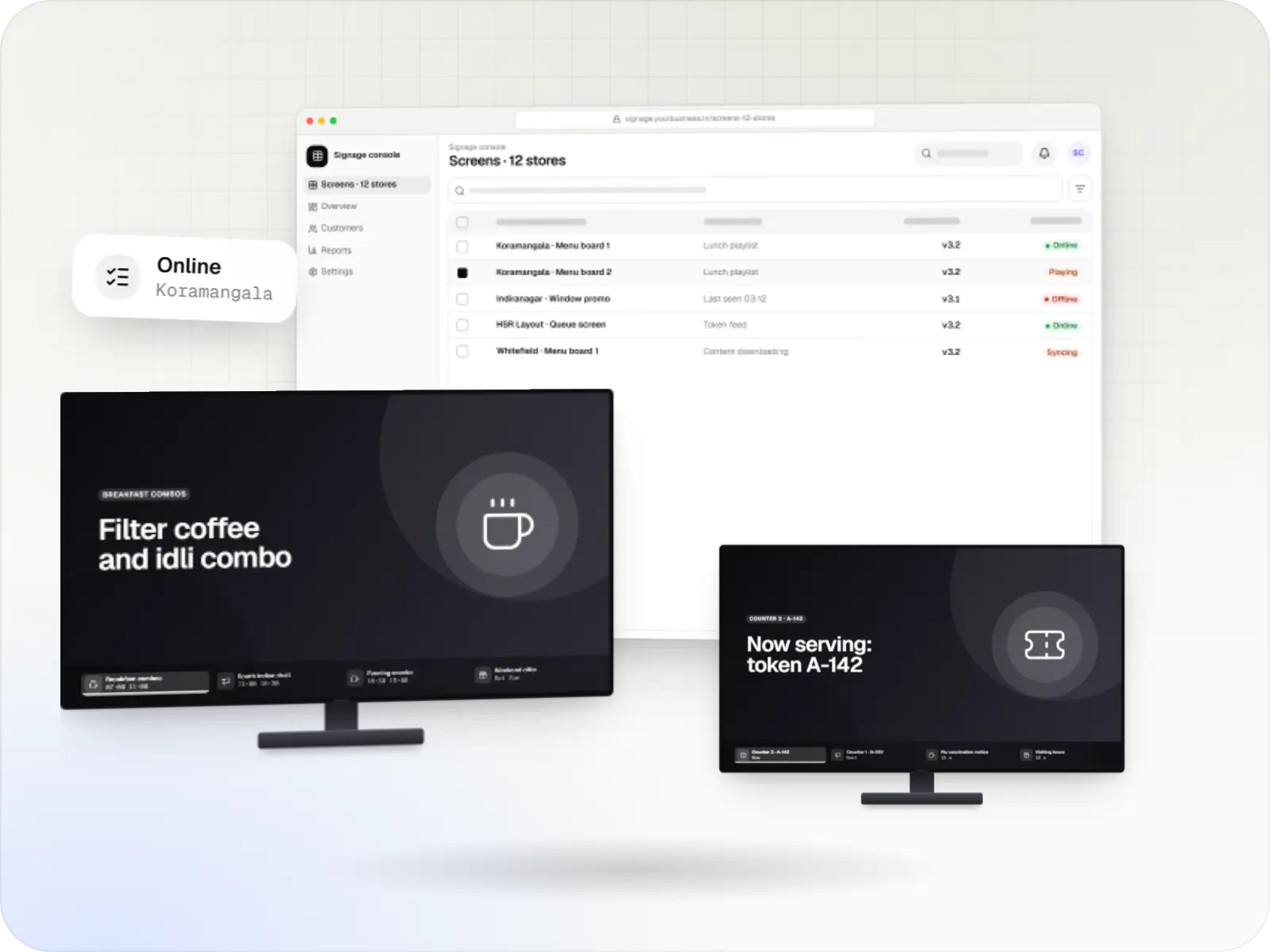
Menu boards, promotions and queue screens that show the right content at the right hour, keep playing offline and tell you when something is wrong.
At a glance
What it is
Player apps, a scheduling console and device management for menu boards, promotions and queue screens on signage players and devices running Android TV.
How to start
Tell us what you need in your own words. You talk to the developers who would build it and get a written, line-item estimate.
Get a project estimatePutting a video on a TV is easy. Keeping forty screens across a city showing the right menu at breakfast and at lunch, recovering after power cuts and updating without a site visit is the real work.
A managed signage setup has three parts. A player app runs full screen on each display and is locked in, so nobody can exit to the TV's home screen. A web console lets marketing or operations schedule playlists by store, screen and time of day. Device management keeps the players updated, restarts them when needed and reports which screens are offline.
On players that run Android, the strongest lock comes from making the player app the device owner, which works only on models that support it. Many consumer TVs and streaming boxes do not, so the choice of hardware matters as much as the software.
What is included
Platform: Signage player or device running Android TV
Platform: Web app
Platform: Admin dashboard
Platform: API
How it works
Each step is checked on your exact display or player model during the pilot.
The display and player are mounted, connected to power and the network, and labelled with a screen ID.
On a freshly reset device, our player app becomes the device owner where the model allows it, and the screen registers with the console.
Lock task mode keeps the player full screen; restart times and, where the display supports it, on and off times are set for the site.
Marketing or operations assign playlists by store, zone and time of day, with an approval step.
The player downloads new content ahead of time, overnight where possible, and keeps the last good schedule.
Content switches on schedule even without internet; proof-of-play records upload when the connection returns.
Offline screens, full storage and old app versions raise alerts, and a snapshot shows what the player is showing.
Then it starts again at step 1: Screen installed
Signage hardware varies widely. These checks decide what remote management is possible on your screens.
Can our player app become the device owner after a reset? Many consumer TVs and streaming boxes do not support this.
After a power cut, does the display come back on and open the player without anyone pressing a button?
Can the home or settings buttons on a remote take the screen out of the player, and can that be blocked?
Can the panel switch on and off on a schedule, through the display's own scheduler, its maker's software or HDMI-CEC?
Is there room for a day of cached content, and does the hardware play your video formats smoothly?
Does the maker still ship OS and security updates, and can they be held until overnight?
Is the display rated for the hours it will run each day? Consumer TVs often are not.
Platforms
Devices running Android TV where the model supports management, commercial signage displays and players, the player app and the console your team uses.
TV screens and set-top boxes running Android TV for menus, lobbies and signage. The Android Management API does not support them at the time of writing, so control relies on a device-owner app or the maker's tools, confirmed model by model.
Commercial displays and media players showing menus, offers and notices, with scheduled playlists, content updates and remote health checks through the player software.
Apps for Android phones and tablets, tested on budget and mid-range devices and published on Google Play or privately.
Back-office panels for operations, support and finance teams: orders, users, content, reports and permissions.
Technology
A native player app, device-owner APIs for the lock, and a cloud backend for schedules, content delivery and screen health.
Mobile
Apps built specifically for Android, with full access to the phone's hardware, background location and company-managed devices.
Used for
Device management
Built-in Android APIs that let one trusted app control a company device: kiosk lock, silent app updates and restrictions, even without Google Play.
Used for
Device management
A Google cloud API for device-management products: your console sets the rules, and a Google app on each Android device applies them.
Used for
Backend
Runs the server side of apps: fast, scalable back ends that power your app, website and integrations.
Used for
Data
A reliable database for the records your business runs on: orders, payments, bookings and stock, kept accurate and easy to report on.
Used for
Data
Keeps frequently used data in fast memory, so apps stay quick on busy days and live features like order tracking feel instant.
Used for
Web
Builds interactive screens in the browser, such as dashboards, admin panels and portals, that respond instantly as your team works.
Used for
Cloud & DevOps
Cloud hosting for your app, website and data, with data centres in India and room to grow when traffic rises.
Used for
Cloud & DevOps
Ready-made building blocks for mobile apps, such as push notifications, phone OTP login and crash reports, so you launch sooner.
Used for
Plain-English glossary
Product preview
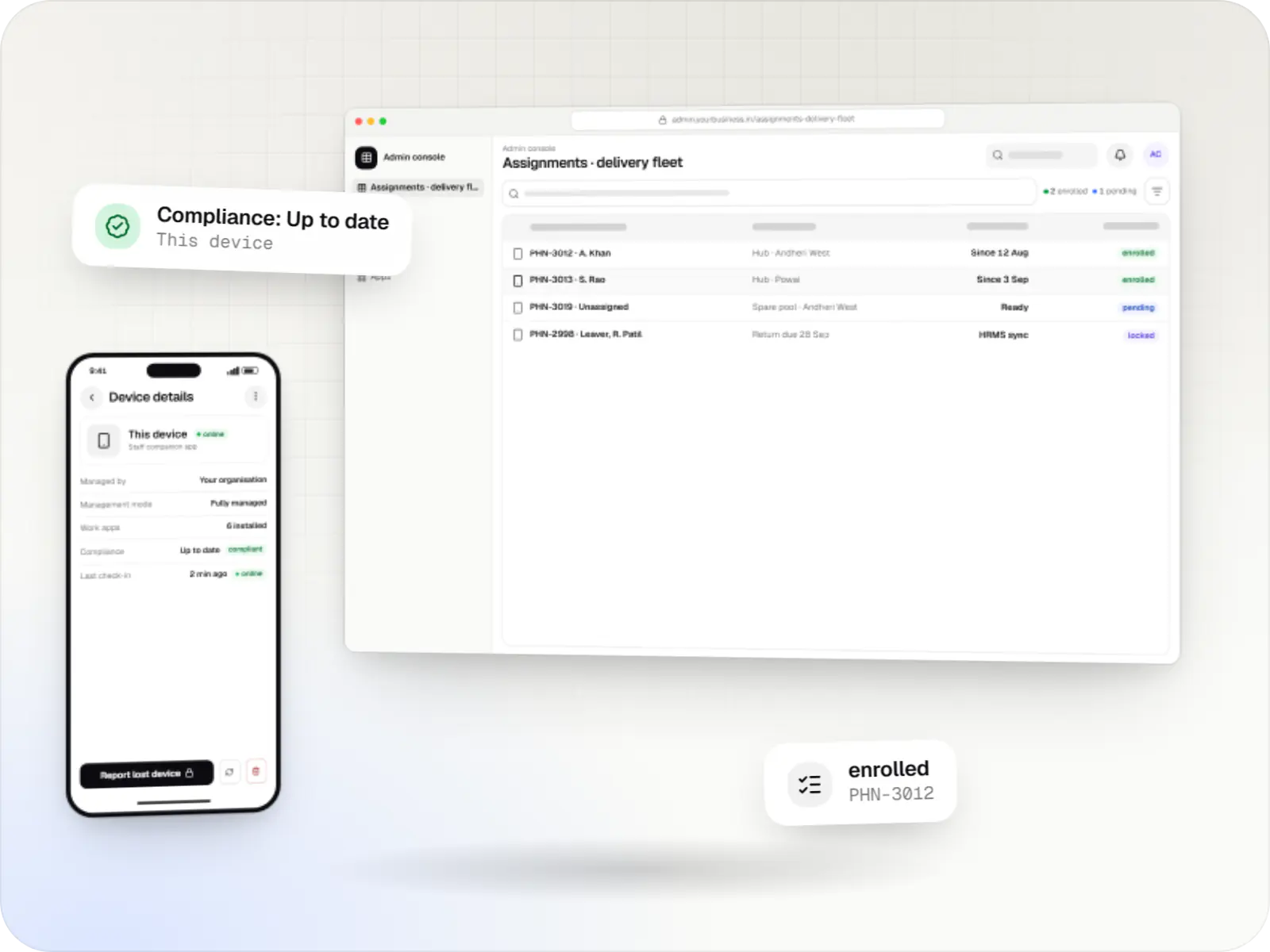
Illustrative screens; stores, menus and numbers are samples.
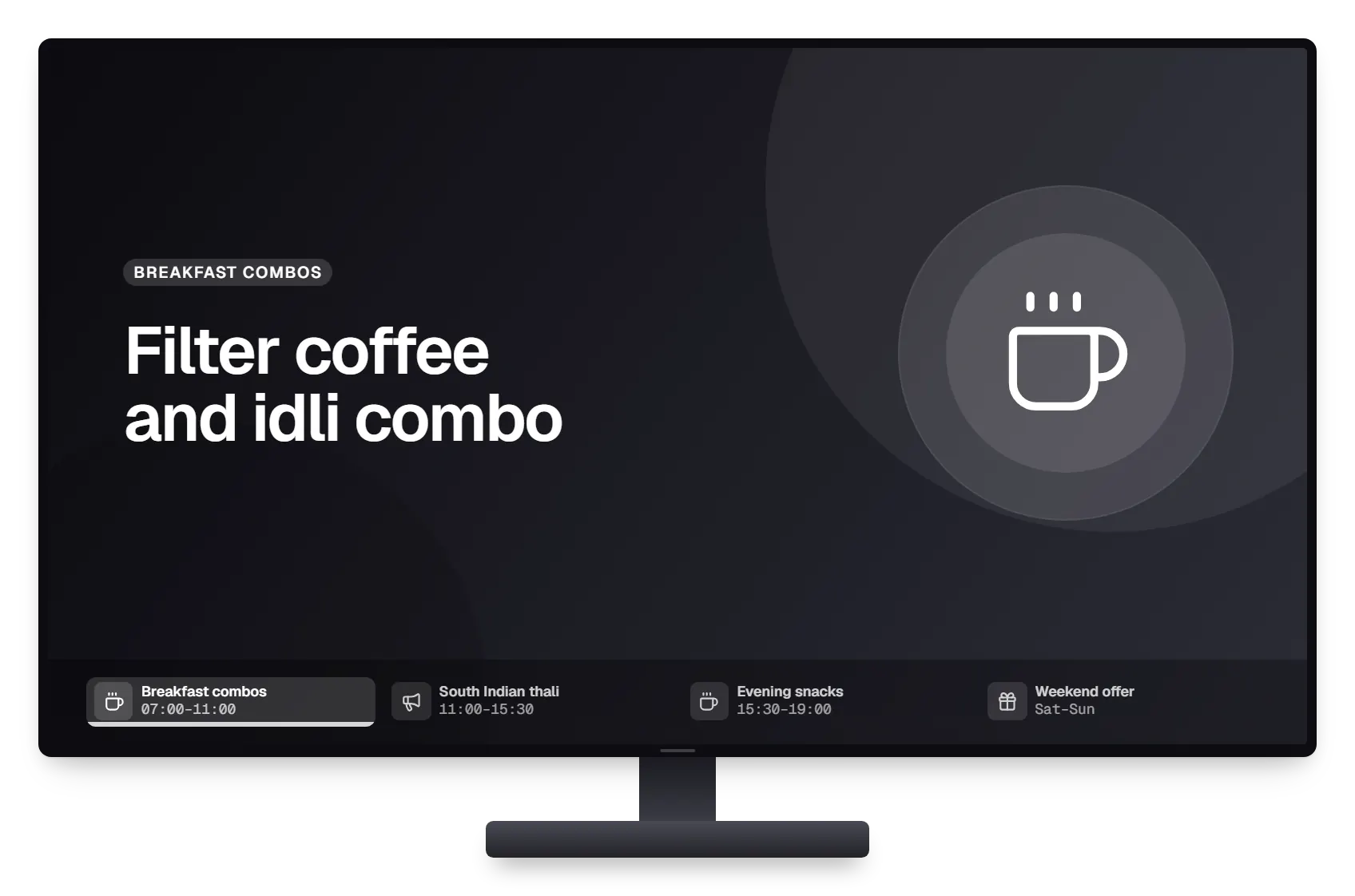
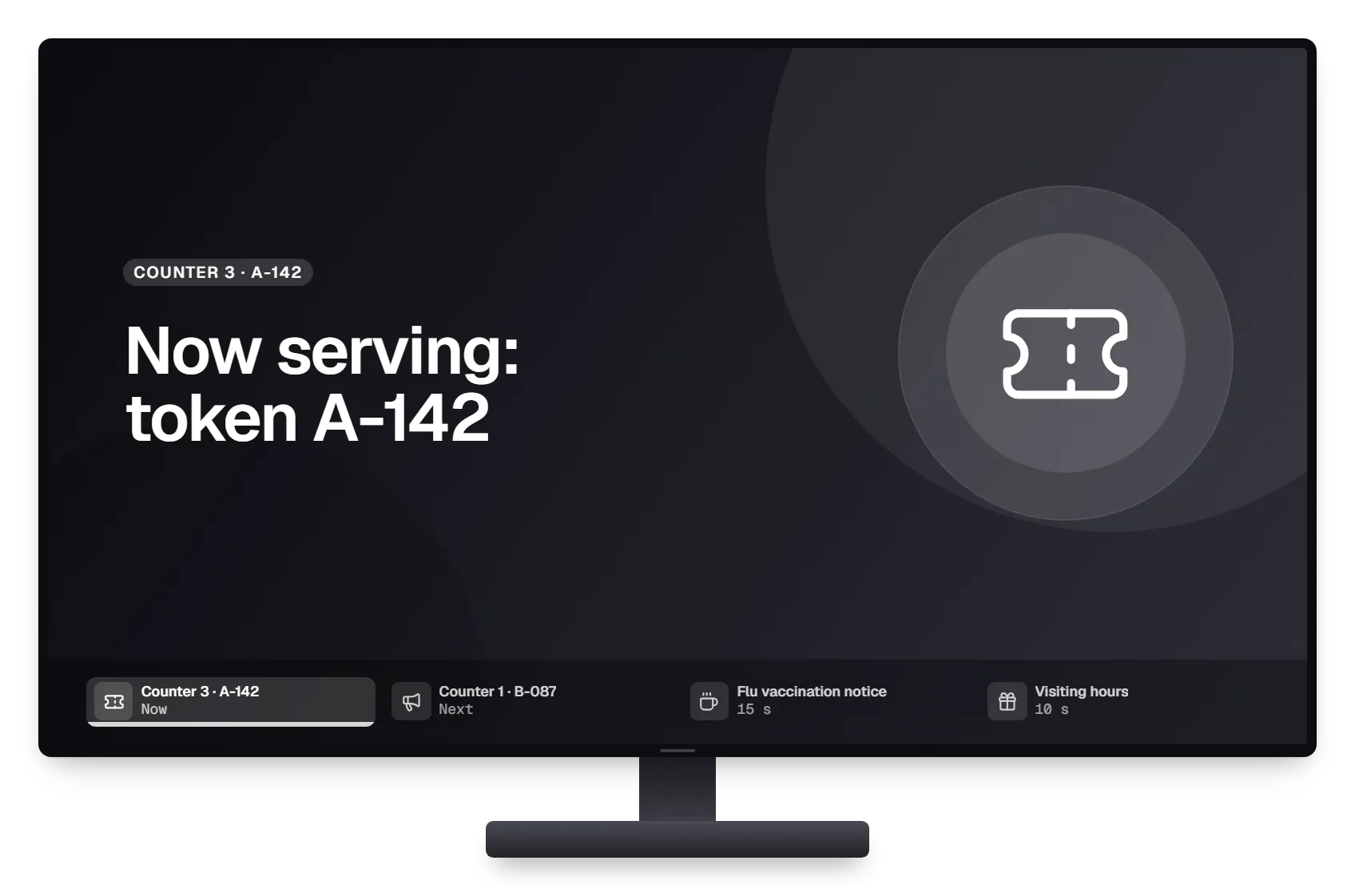
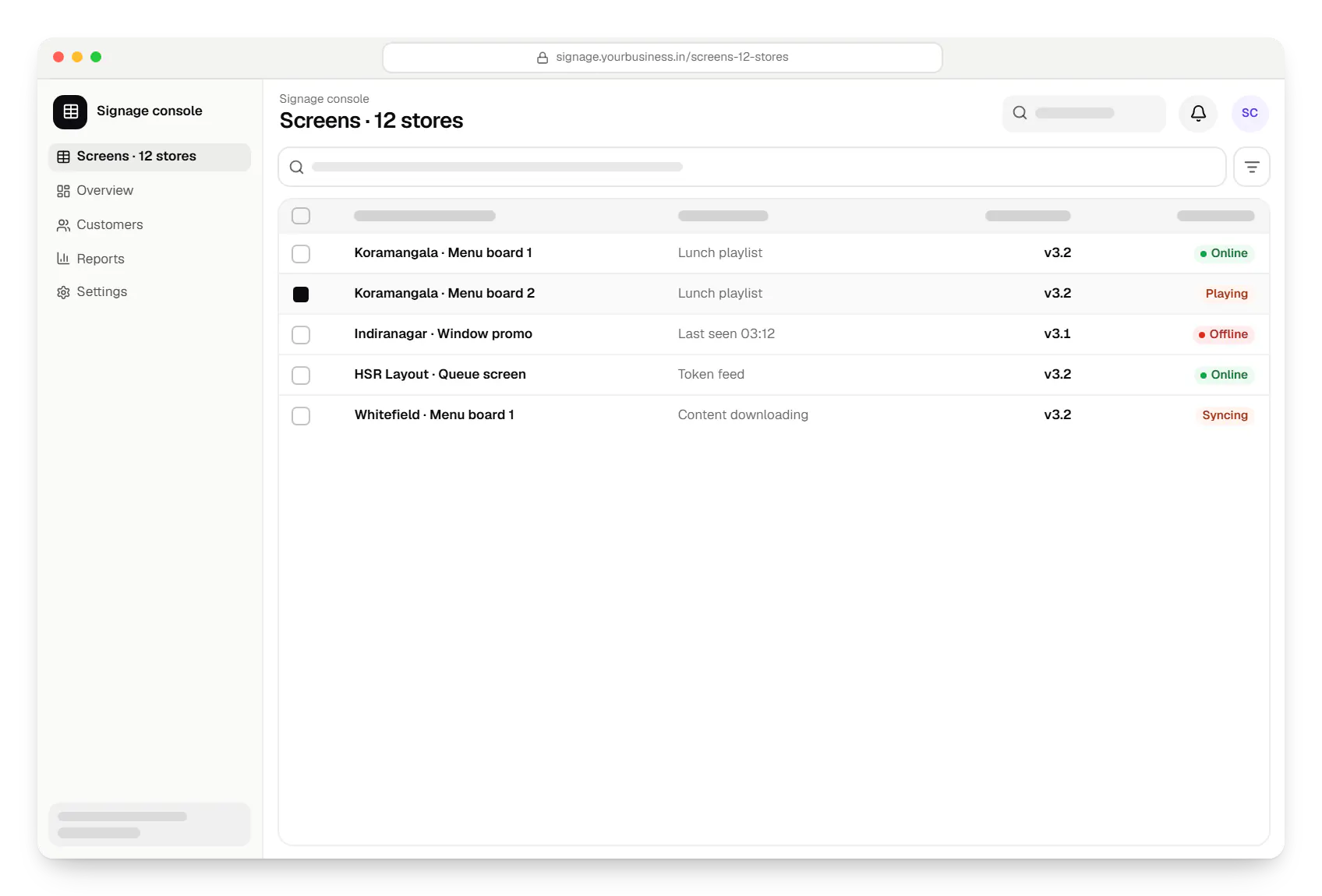
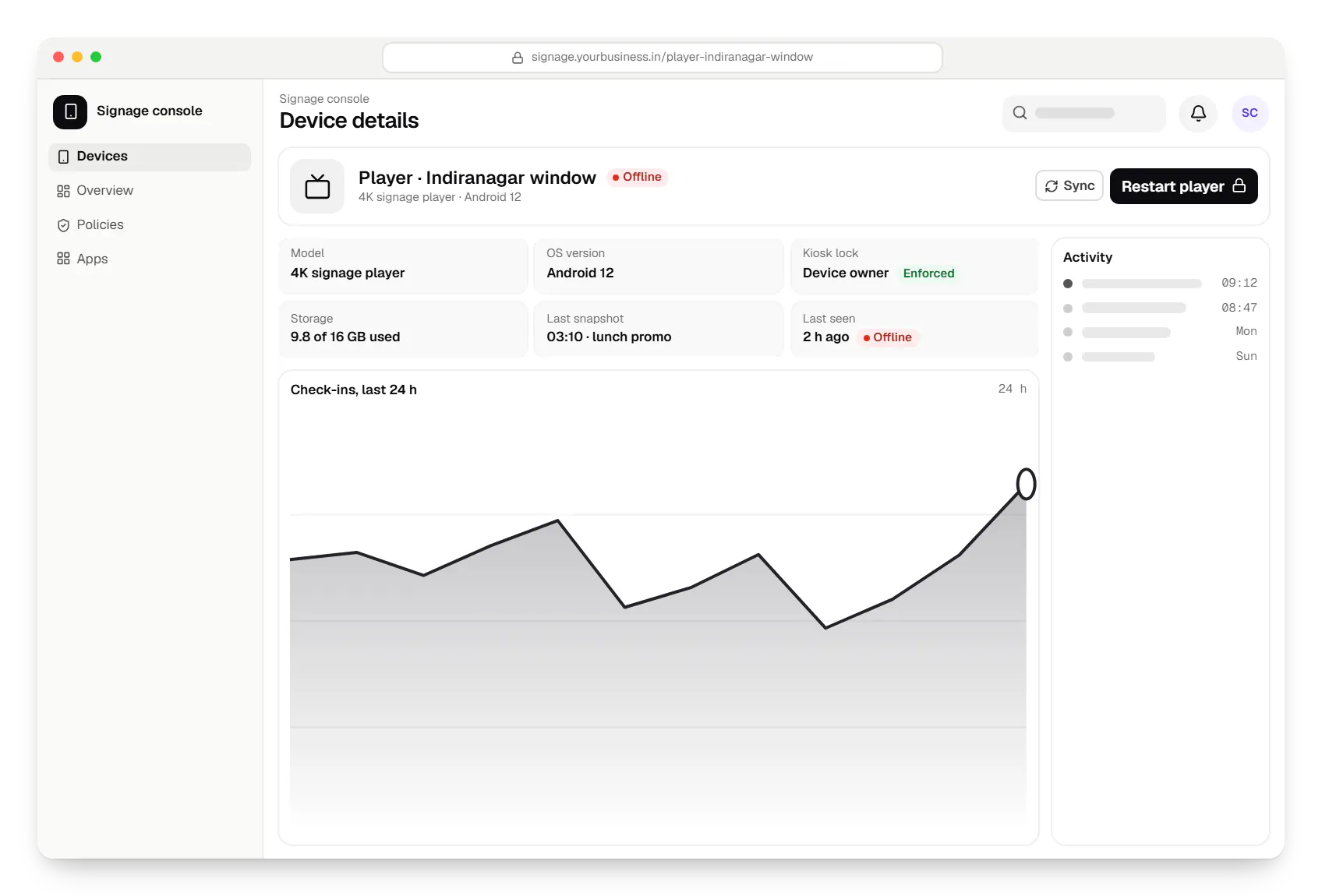
Sample screens: names, prices and figures are examples, not client data.
Work
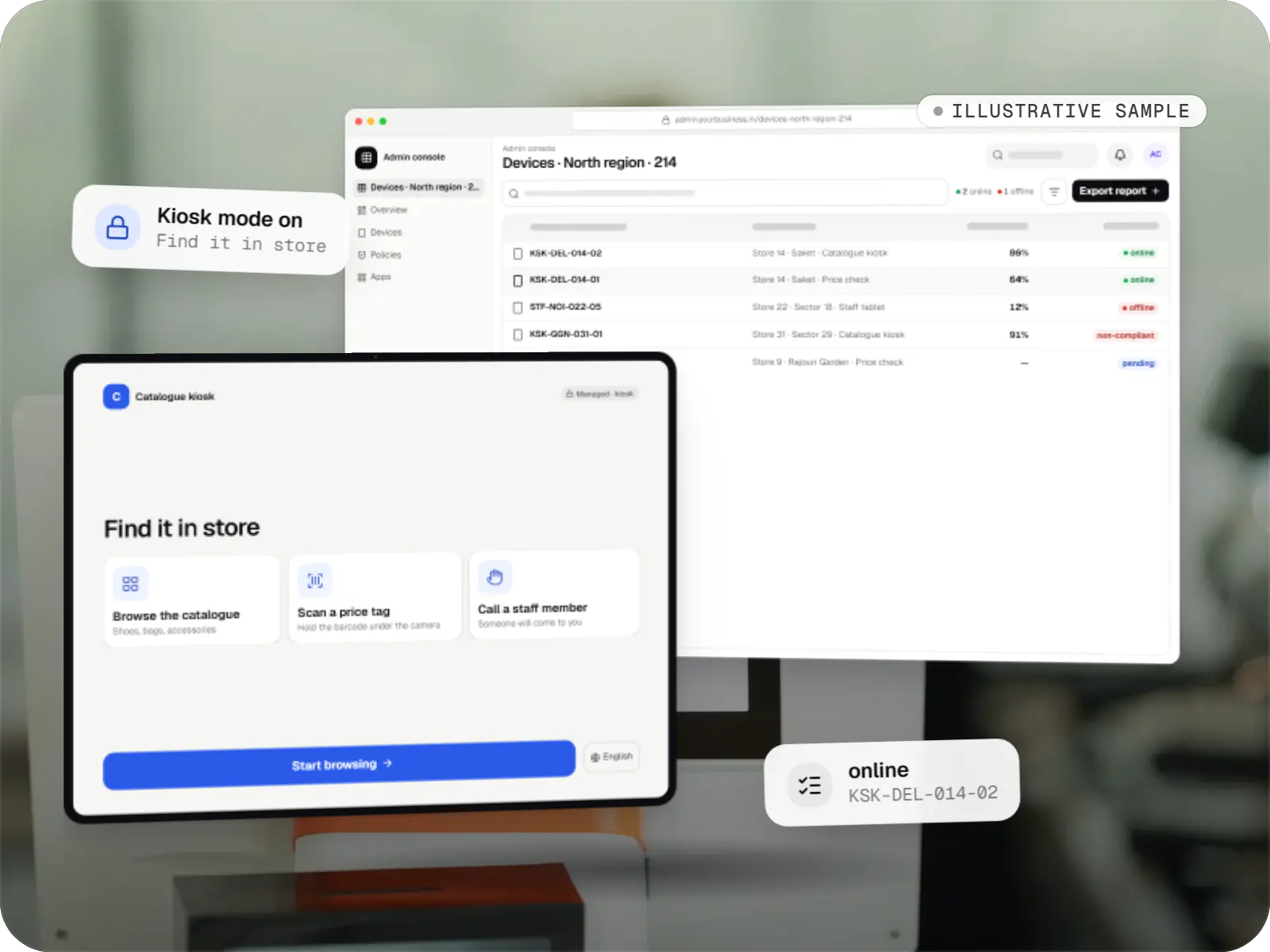
Device management & kiosk solutions
An illustrative kiosk product for retail chains: locked Android tablets for catalogues and price checks, a staff launcher, and a console to enrol, update and monitor every device.
Runs on
Built with
Cost drivers
One player model is simplest. Each extra model adds provisioning, playback and remote-control tests.
Images and video are straightforward; live data such as queue numbers, prices from a POS or web widgets adds integration work.
Dayparting, store-level overrides, approvals and campaign dates each add console features.
Device-owner lock, remote restart, snapshots and overnight updates depend on the hardware and add testing per model.
More stores mean more installation coordination, network checks and support.
Reports for advertisers or landlords need reliable logging, storage and exports.
Estimates are written from your scope, with the effort and assumptions behind each line item.
How pricing worksProcess
We test your candidate displays and players against the checklist above before you buy in volume.
You getHardware report
We map screens per site, the playlists and the times they change, with the people who will run them.
You getScreen and schedule plan
The player app and content console are built together and tested on the chosen hardware.
You getWorking player and console
One store runs for two weeks, including a planned power cut and a network outage test.
You getPilot findings
Sites go live in batches with installation guides; we watch health alerts and fix issues remotely.
You getSupport plan
Solutions
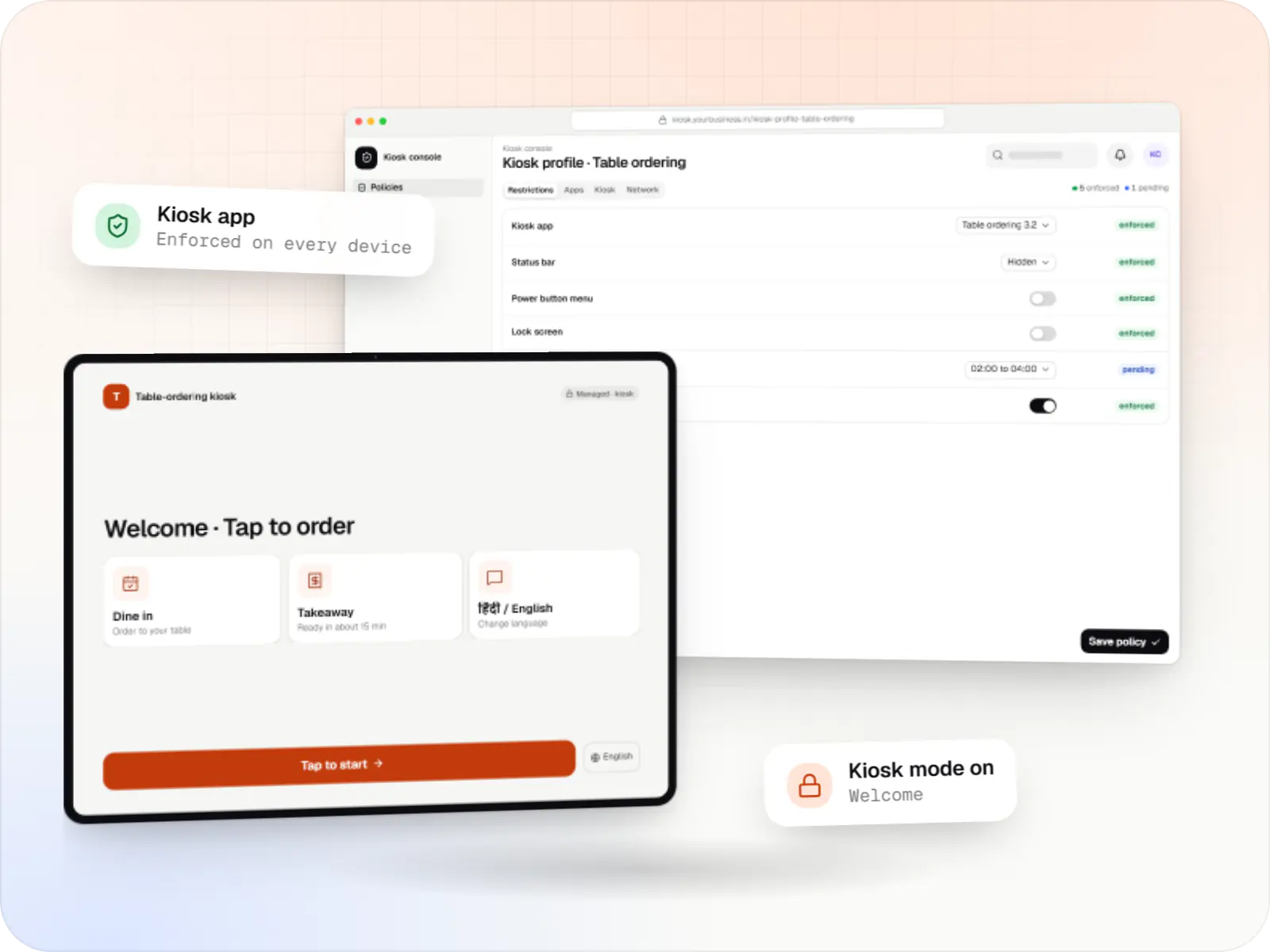
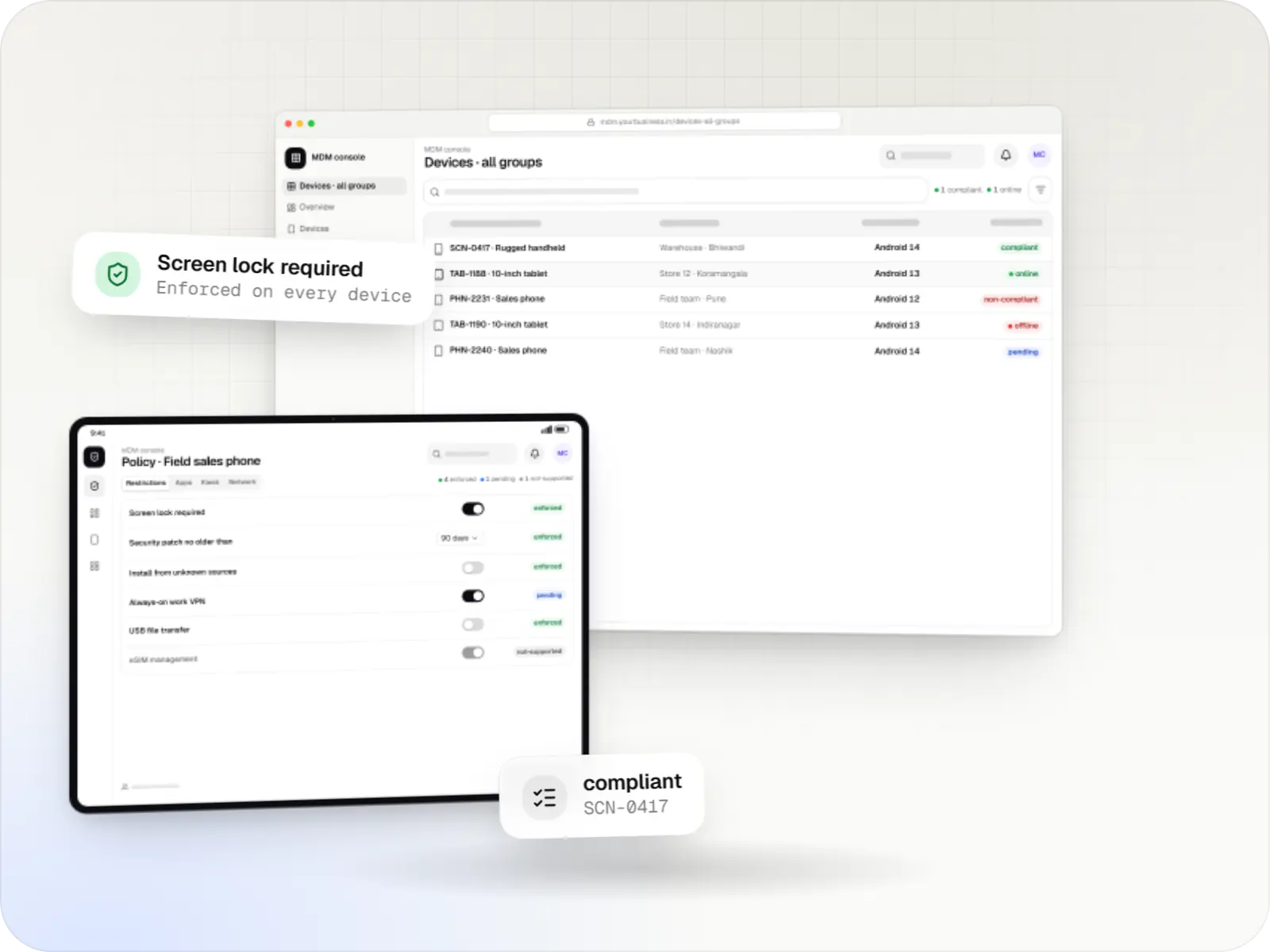
Single-app and multi-app kiosks for Android tablets, phones and terminals: locked ordering, check-in and catalogue apps that customers cannot escape.
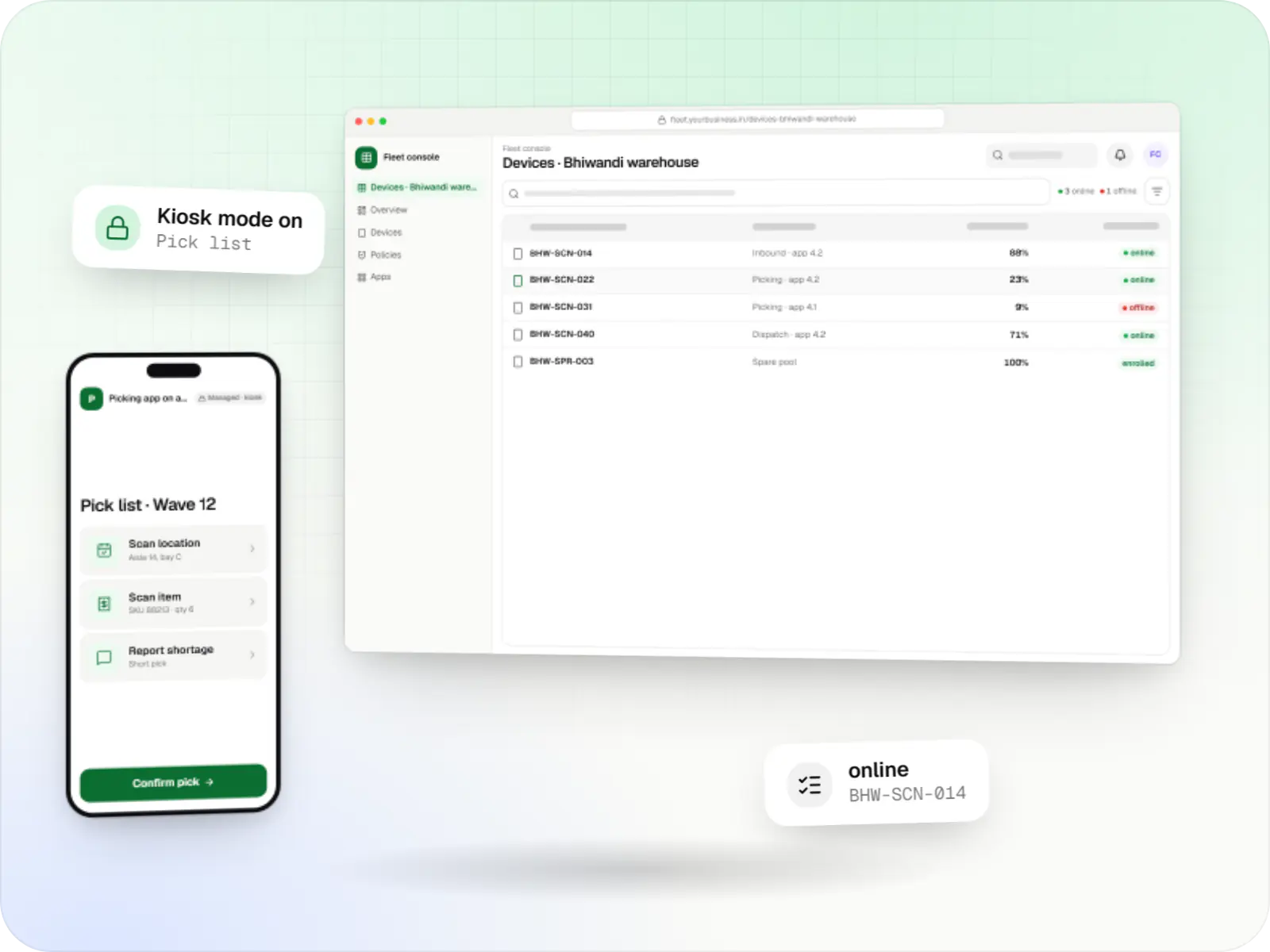
Fleet management for single-purpose Android devices: rugged scanners, delivery handhelds and shift tablets, kept charged, updated and healthy across sites.
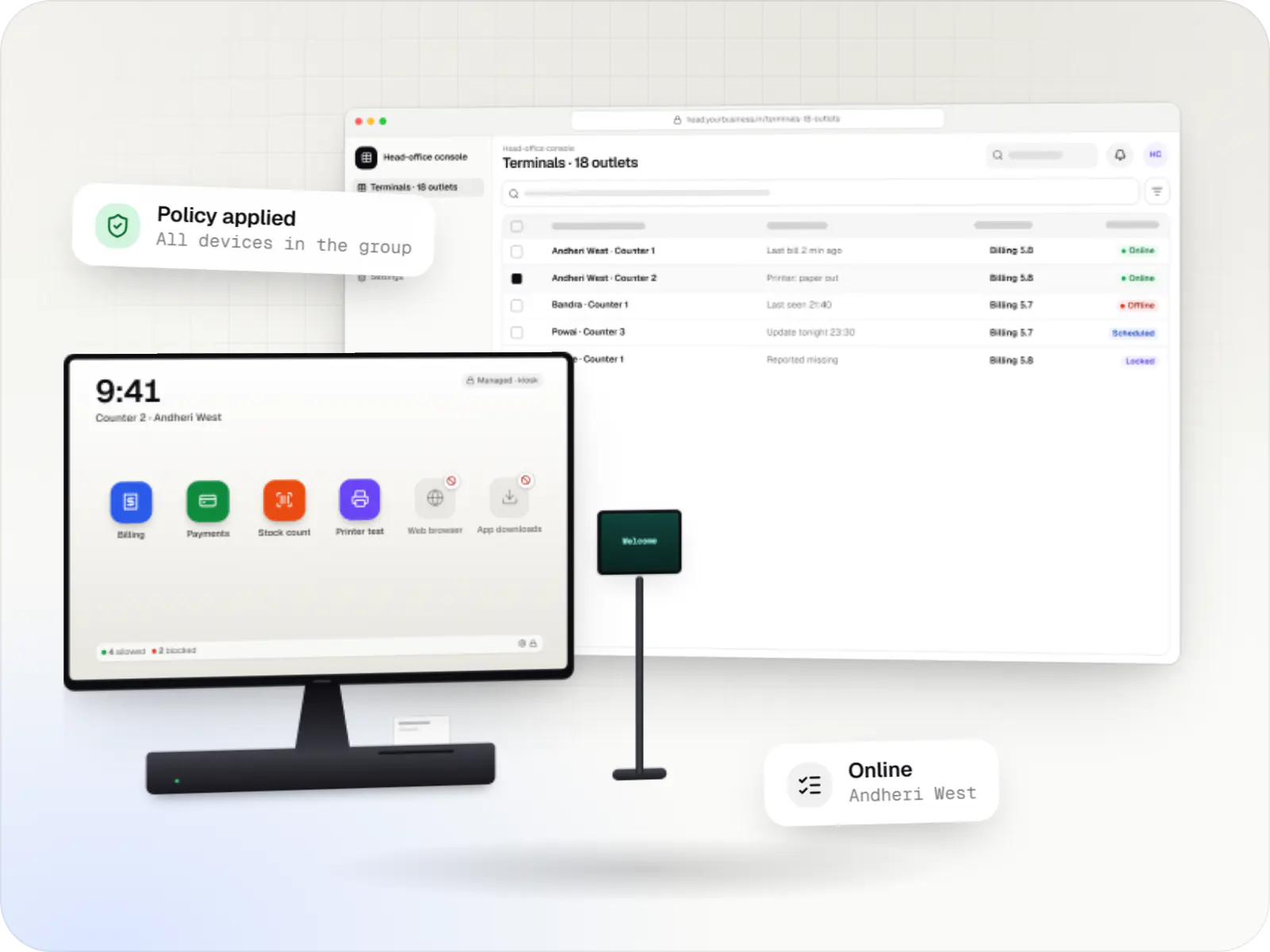
Billing terminals locked to your billing and payment apps, with printers and scanners set up and updates held until after closing, in every outlet.
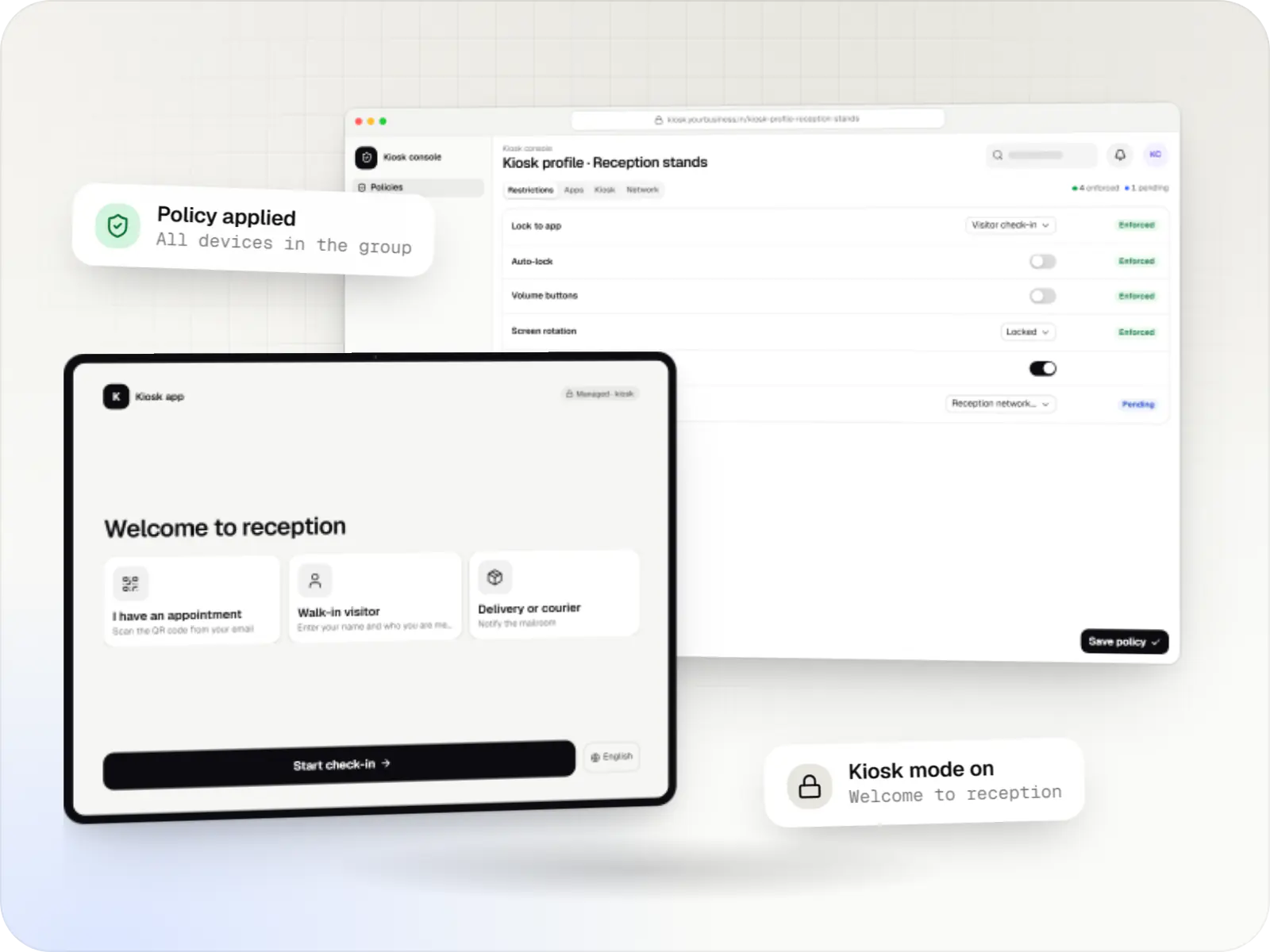
Kiosk mode for iPad with Single App Mode, Autonomous Single App Mode or Guided Access, plus the kiosk app and console, for check-in, ordering and forms.
Services
The disciplines a project like this draws on.
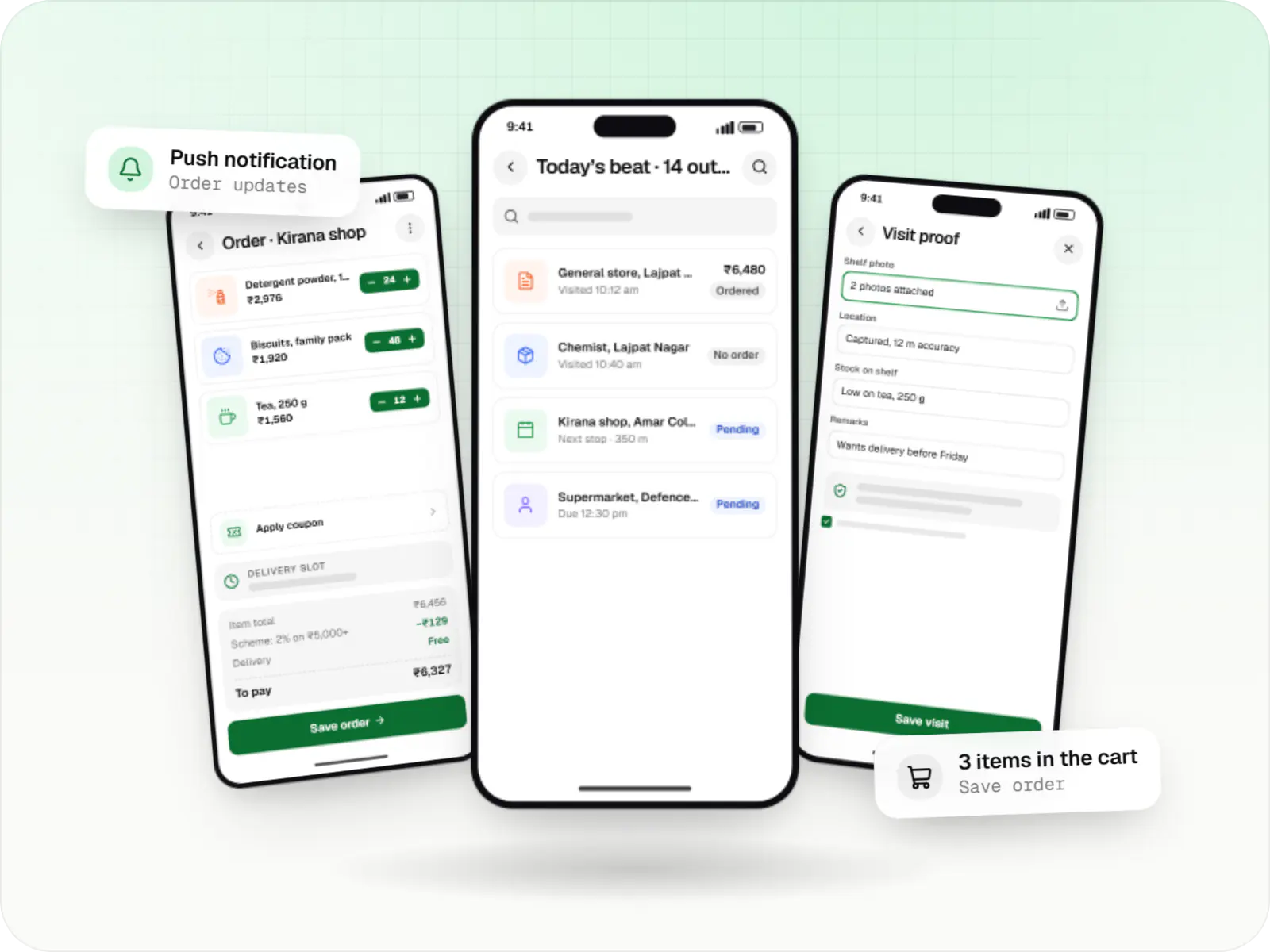
Native Android apps in Kotlin and Jetpack Compose, designed for entry-level phones, patchy networks and the background limits of popular Android brands.
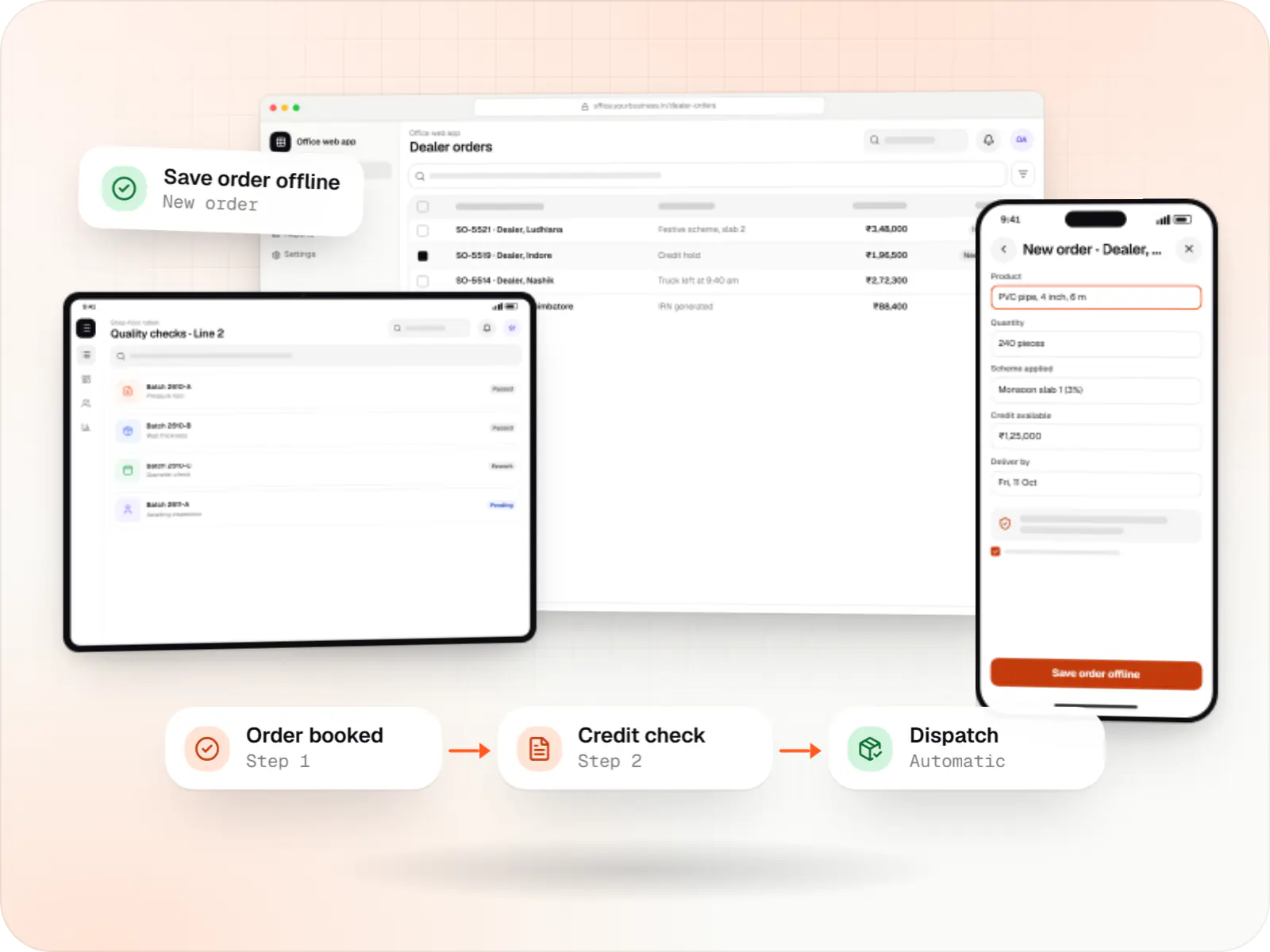
Software shaped around how your business runs, from approvals and inventory to billing and reports, replacing spreadsheets and disconnected tools.
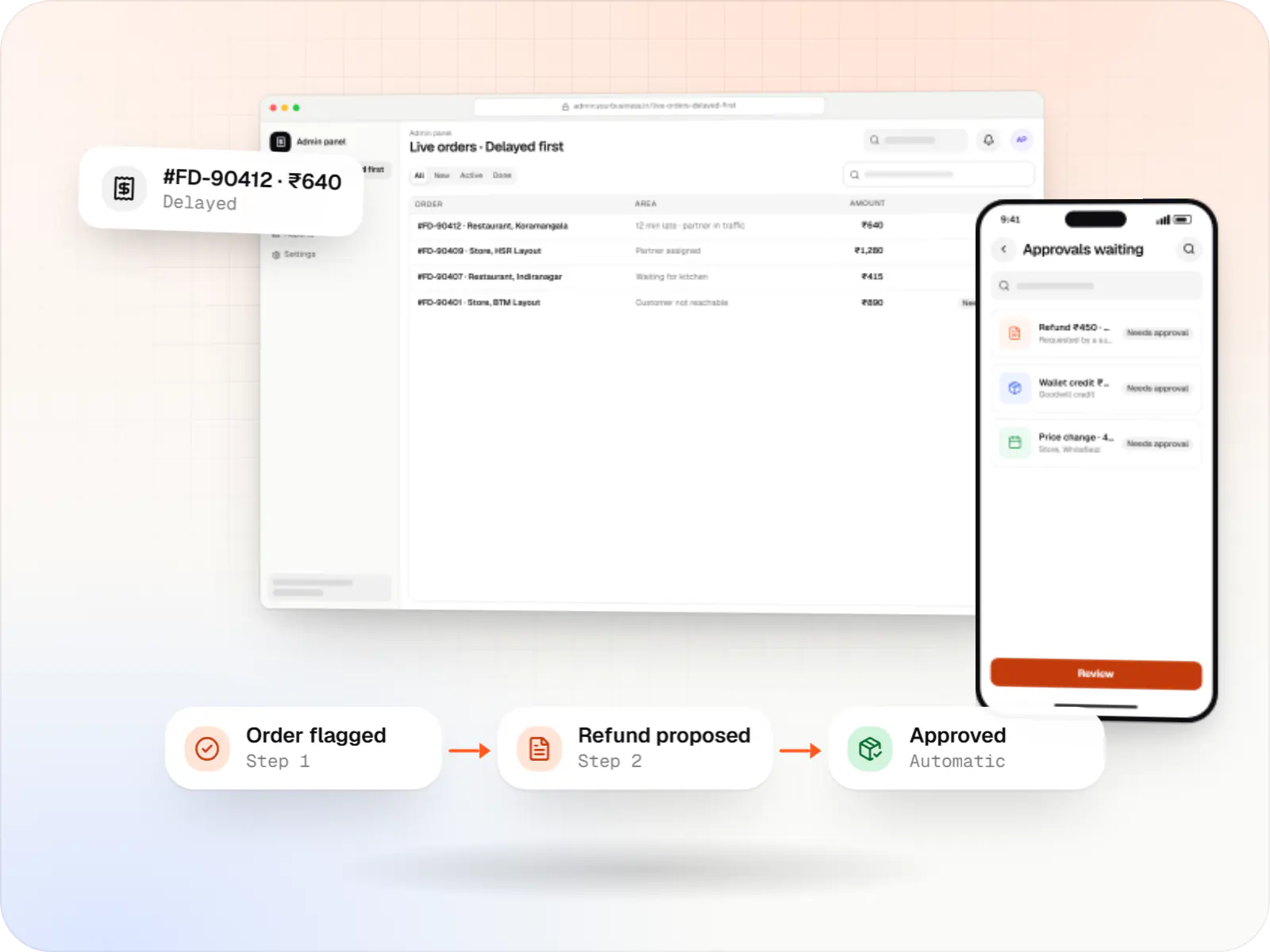
Back-office dashboards built around your team's daily tasks: order queues, approvals, catalogue management, payouts, reports and audit logs.
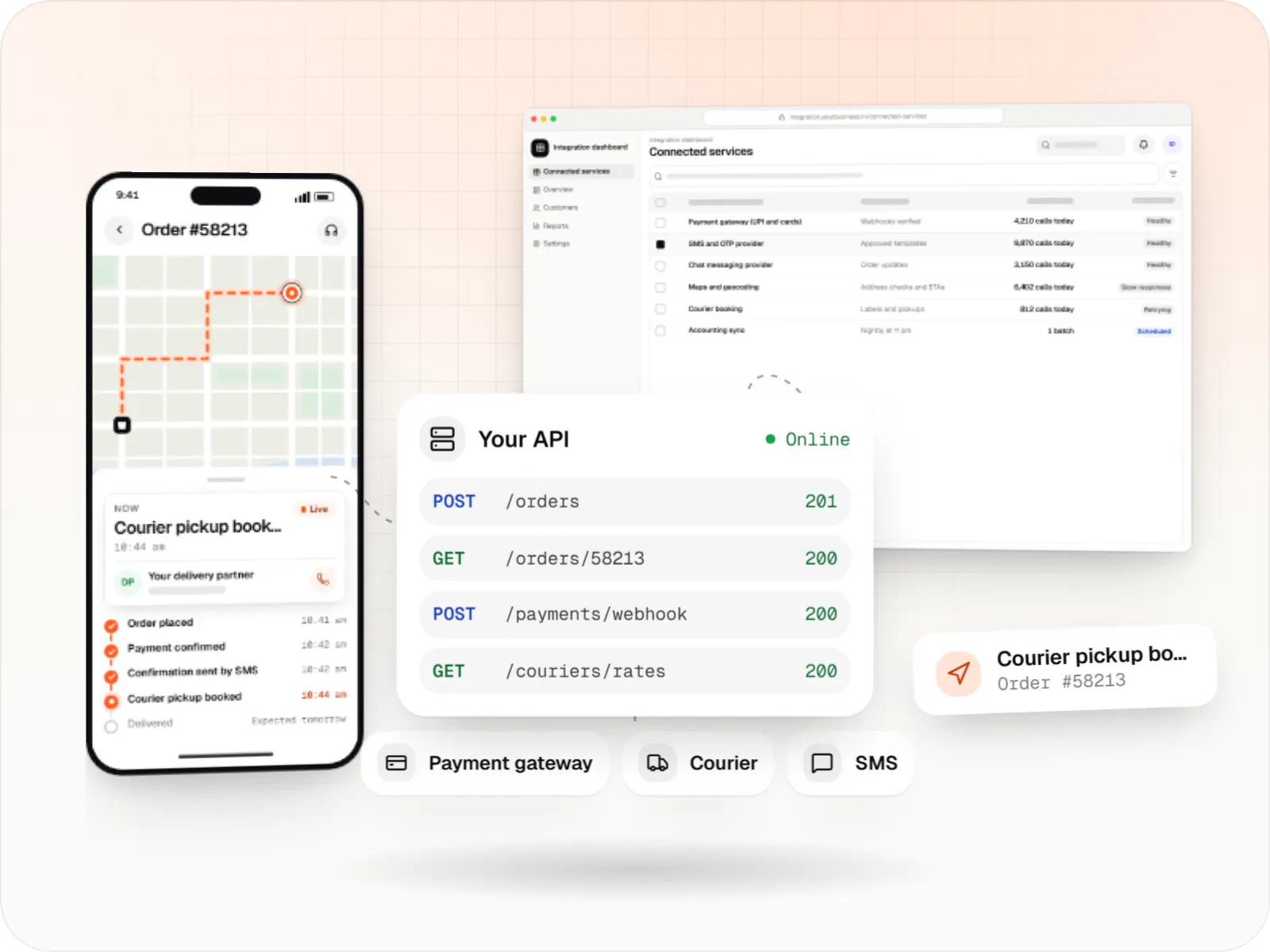
Secure, documented REST and GraphQL APIs, plus integrations that connect your apps to payment, logistics, GST, messaging and business systems.
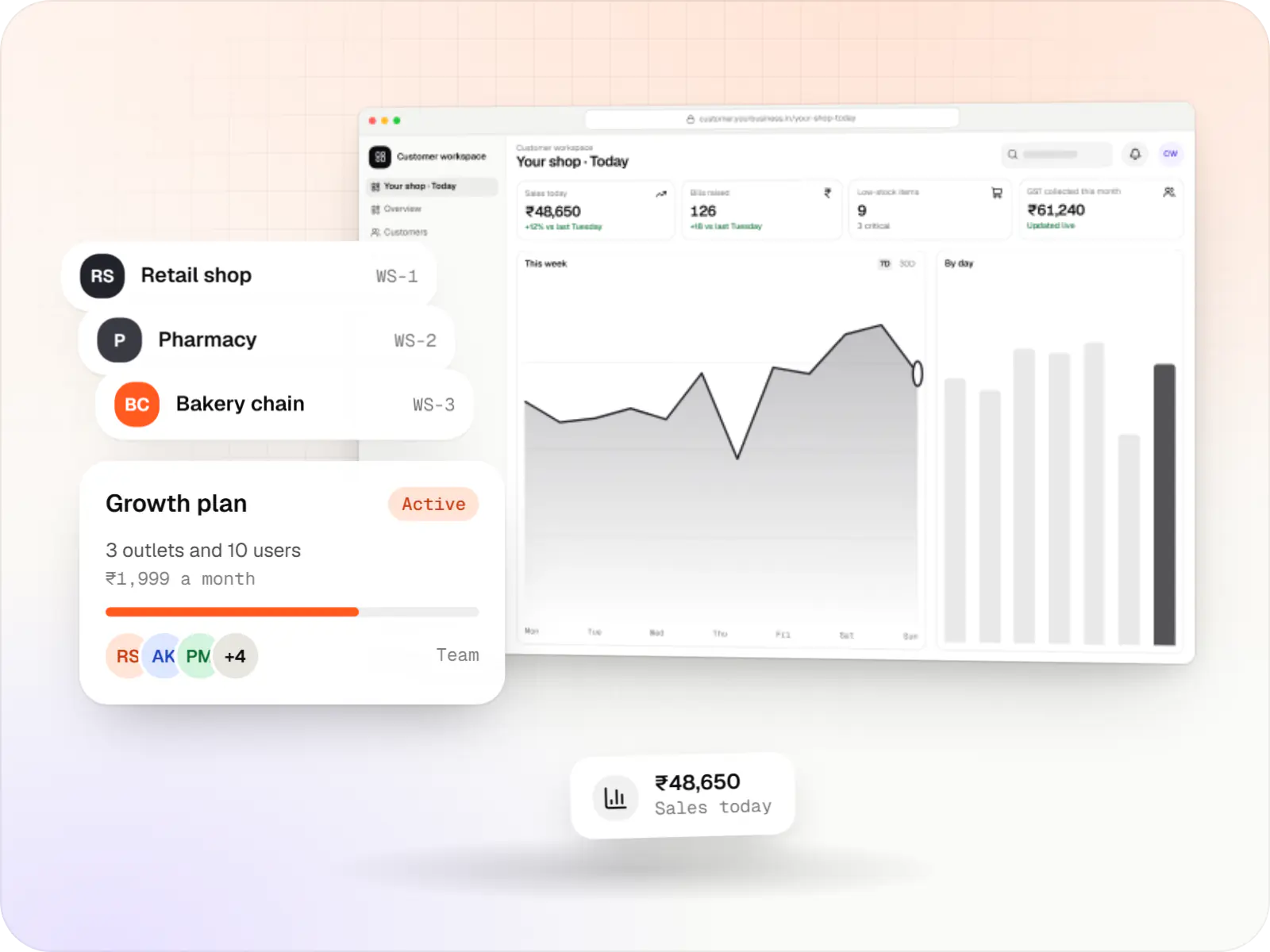
Multi-tenant SaaS products with subscription billing, team roles, onboarding and usage analytics, from first MVP to paying customers.
Industries
Industries where this kind of product fits well.
FAQ
Sometimes, with limits. Many consumer smart TVs and streaming boxes do not let an app become the device owner, so the player cannot be fully locked in, and remote restarts or silent updates are not available. They are also not always rated for twelve or more hours a day. For a few screens that may be acceptable; for a network, a commercial display or a signage player that allows device-owner setup is usually more reliable. We test your model before deciding.
Yes. The player downloads playlists and media ahead of time and keeps the current schedule on the device, so content keeps playing and dayparts keep switching during an outage. Live elements, such as queue numbers or prices pulled from a POS, show the last value or a fallback slide until the feed returns. Proof-of-play records are stored locally and uploaded once the connection is back.
Yes, within what the platform allows. Our player app captures a snapshot of what it is rendering and sends it to the console on request or on a schedule. Capturing the whole screen, including other apps, is not something an Android app can do silently: it needs on-screen consent or a capability in the player maker's software. Protected video may also appear blank in snapshots. For most networks, the player's own snapshot plus proof-of-play logs answers the question.
It varies by device and OS version. Some devices running Android TV let our player become the device owner after a reset, which gives a locked player, remote restarts and silent updates; others do not support it, and management is then limited to what the player app can do by itself. Standard Android Enterprise tools, including Google's Android Management API, often do not cover TV devices, and devices without Google Play services cannot use that API at all, so we plan TV screens around the device-owner route. We list what works on each shortlisted model before you buy.
Usually, but the method depends on the hardware. Commercial displays often have their own on and off scheduler, or a control interface in the maker's software. With a separate player, HDMI-CEC can switch many TVs on and off, but support is inconsistent between models. Where none of these work, the player can at least show a dark screen outside opening hours. We confirm the method during the hardware check.
Yes, if your POS or menu system can share its data through an API or a regular export. The menu board template reads item names, prices and sold-out flags from that feed, so a price change at the counter reaches the screens without anyone redesigning slides. The player caches the last good data, so a feed problem never leaves a blank board.
Related

Next step
Tell us how many screens you have, where they are and what they should show. We will check your hardware options and send a line-item estimate.