Mobile
iOS (Swift)
Apps built specifically for iPhone and iPad, for when your product needs Apple features or a polished experience for iPhone users.
Used for
- Apps for iPhone
- Apps for iPad
- Health and fitness apps
- Premium shopping apps
Kiosk mode for iPad
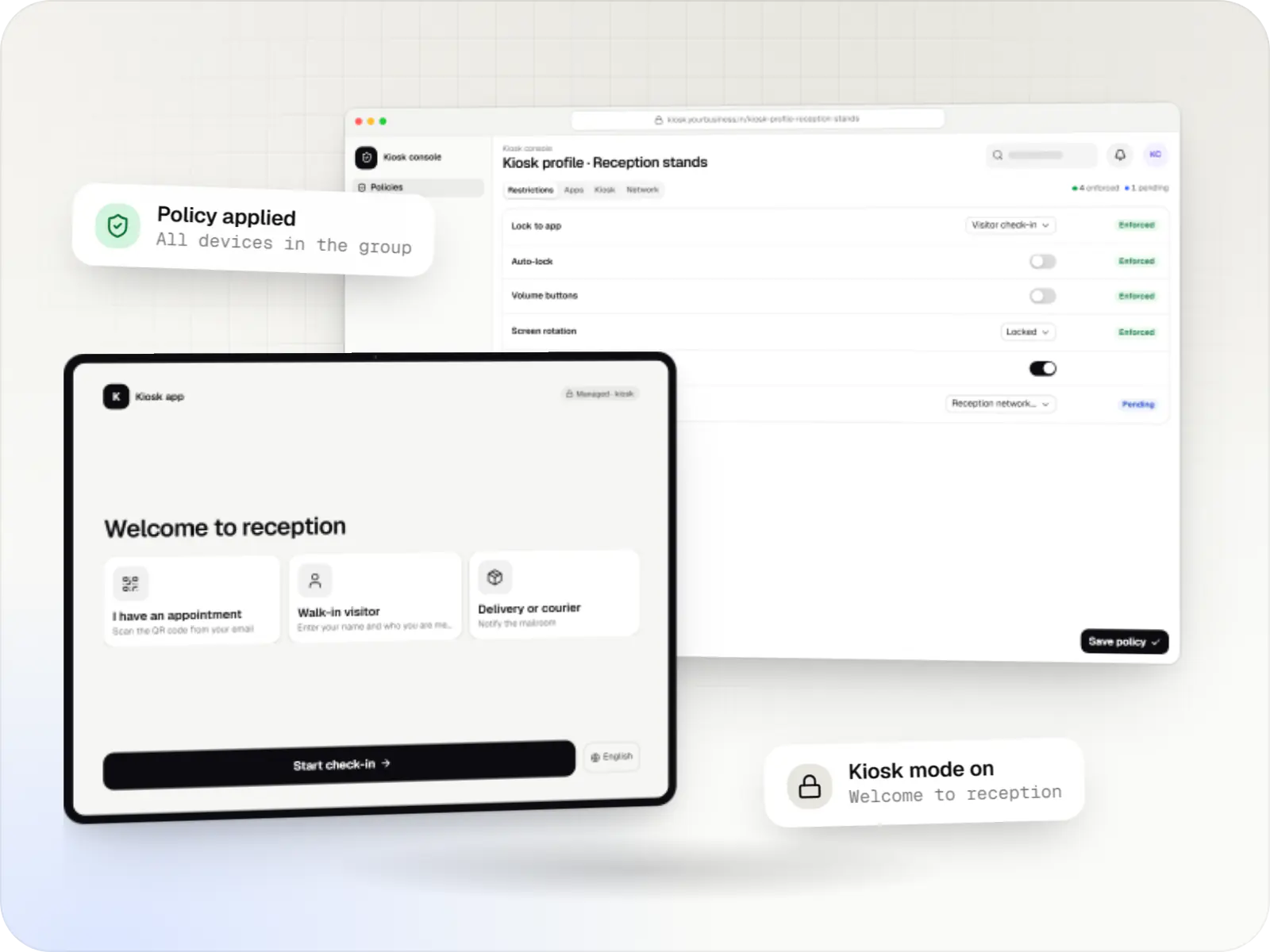
Check-in desks, catalogues and feedback stands that stay on one app all day, on supervised iPad devices you can update and reset remotely.
At a glance
What it is
Kiosk mode for iPad with Single App Mode, Autonomous Single App Mode or Guided Access, plus the kiosk app and console, for check-in, ordering and forms.
How to start
Tell us what you need in your own words. You talk to the developers who would build it and get a written, line-item estimate.
Get a project estimateGuided Access is built into every iPad: staff start it on the device and it keeps the screen in one app until someone enters the passcode. It needs no MDM, which makes it fine for a pilot or a single stand, but each device is set up by hand and anyone who knows the passcode can leave it.
Single App Mode is set by the MDM on a supervised iPad. The device opens straight into the chosen app and stays there, even after a restart, until the MDM releases it. Autonomous Single App Mode lets an approved app lock and unlock the iPad itself, for example only while a customer fills in a form or a student sits a test.
For stands that need two or three apps, we hide everything else on a supervised iPad and lay out the Home Screen for the task.
Use cases
Guests scan a QR code or enter their details and the host is notified. Clinics collect intake forms before the consultation.
Customers browse sizes and colours that are not on the shelf and send an order to the counter.
Restaurants and hotels show menus or collect quick ratings, with the screen reset for each guest.
Autonomous Single App Mode keeps students or trainees in the assessment app only while the test runs.
Branch visitors choose a service and receive a token or an SMS, spreading the queue across counters.
What is included
Platform: iPad app
Platform: Supervised iPad
Platform: Admin dashboard
Platform: Cloud service
How it works
The kiosk flow for a supervised iPad, from delivery to daily monitoring.
The serial number is linked to your MDM before the box is opened, so nobody sets the iPad up by hand.
On first start-up the iPad joins Wi-Fi, enrols and becomes supervised, skipping the setup screens a kiosk does not need.
Supervised-only restrictions remove the App Store, account changes and erasing; only Wi-Fi networks set by the MDM are allowed.
The kiosk app installs silently on the supervised iPad from a volume licence, and its settings, such as site name and form set, arrive through managed app configuration.
The MDM locks the iPad to the kiosk app. After a restart it opens straight back into the app.
Content, forms and app updates are pushed centrally, and a misbehaving iPad can be restarted remotely.
Offline or low-battery stands raise alerts, and a stand moved to another site can be erased and re-enrolled.
Comparison
All three keep an iPad in one app. They differ in who controls the lock and how much setup they need.
| Guided Access | Single App Mode | Autonomous Single App Mode | |
|---|---|---|---|
| Turned on by | Staff, on the iPad itself | The MDM, remotely | The approved app, when it needs to |
| Needs MDM and supervision | No | Yes: a supervised iPad enrolled through Automated Device Enrollment | Yes: a supervised iPad, with the app on the MDM's approved list |
| How it ends | Passcode, Face ID or Touch ID on the device | Only when the MDM removes the setting | When the app releases the lock |
| After a restart | May not resume by itself; staff may need to start it again | The iPad reopens the app | The app can lock again when it relaunches |
| Good for | A pilot or a single stand | Fixed kiosks that do one job all day | Tests, forms and sessions with a clear start and end |
Platforms
Supervised iPad devices on stands, the kiosk app itself and the console your operations team uses.
Organisation-owned or shared iPhone and iPad devices enrolled in MDM through Apple Business or Apple School Manager, supervised for Single App Mode and stricter restrictions.
Apps for iPhone and iPad, built to Apple's guidelines and released through TestFlight and the App Store.
Back-office panels for operations, support and finance teams: orders, users, content, reports and permissions.
Technology
Swift for the kiosk app, Apple's MDM protocol and Apple Business for the lock and setup, and a web console for the fleet.
Mobile
Apps built specifically for iPhone and iPad, for when your product needs Apple features or a polished experience for iPhone users.
Used for
Device management
The management channel built into iPhone, iPad and Mac: an MDM server sends settings, apps and commands, and devices apply them remotely.
Used for
Device management
The Apple portal for organisations, now called Apple Business: devices bought from Apple or linked resellers are assigned to your MDM and set up at first power-on.
Used for
Backend
Runs the server side of apps: fast, scalable back ends that power your app, website and integrations.
Used for
Data
A reliable database for the records your business runs on: orders, payments, bookings and stock, kept accurate and easy to report on.
Used for
Web
Builds interactive screens in the browser, such as dashboards, admin panels and portals, that respond instantly as your team works.
Used for
Web
A modern web technology for fast, search-friendly websites, online stores and web applications that load quickly on mobile.
Used for
Cloud & DevOps
Cloud hosting for your app, website and data, with data centres in India and room to grow when traffic rises.
Used for
Plain-English glossary
Product preview
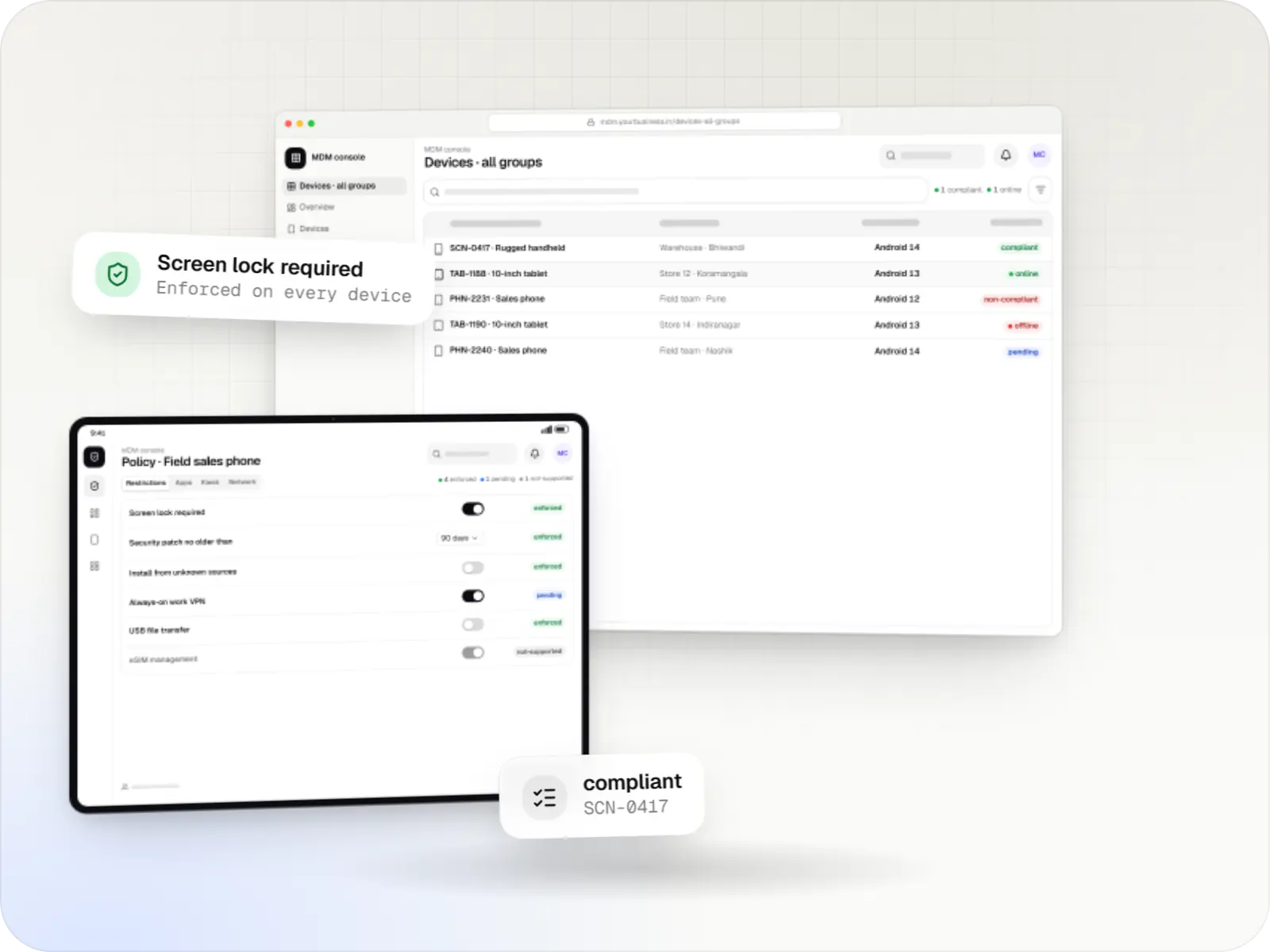
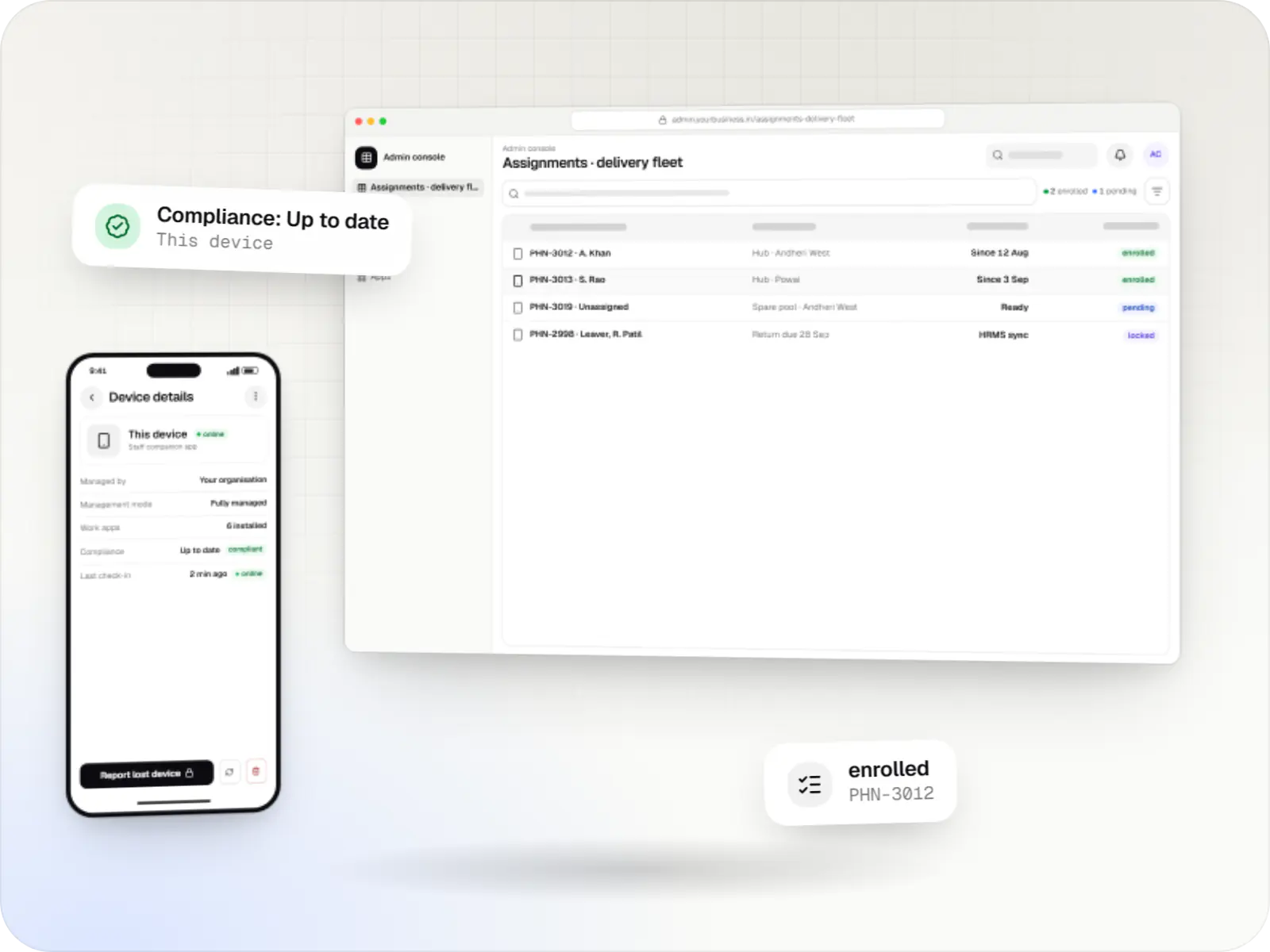
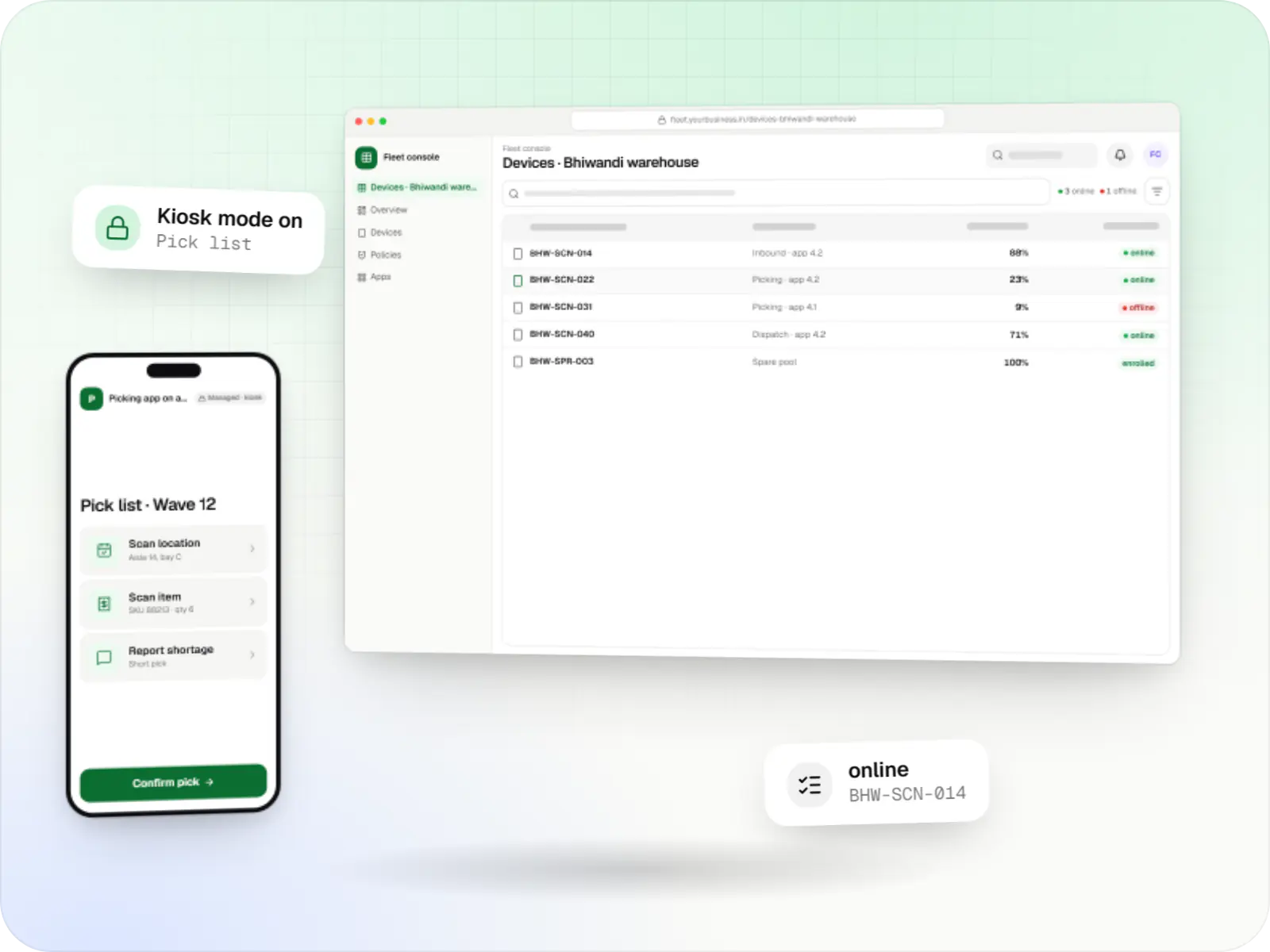
Illustrative screens; sites, versions and numbers are samples.
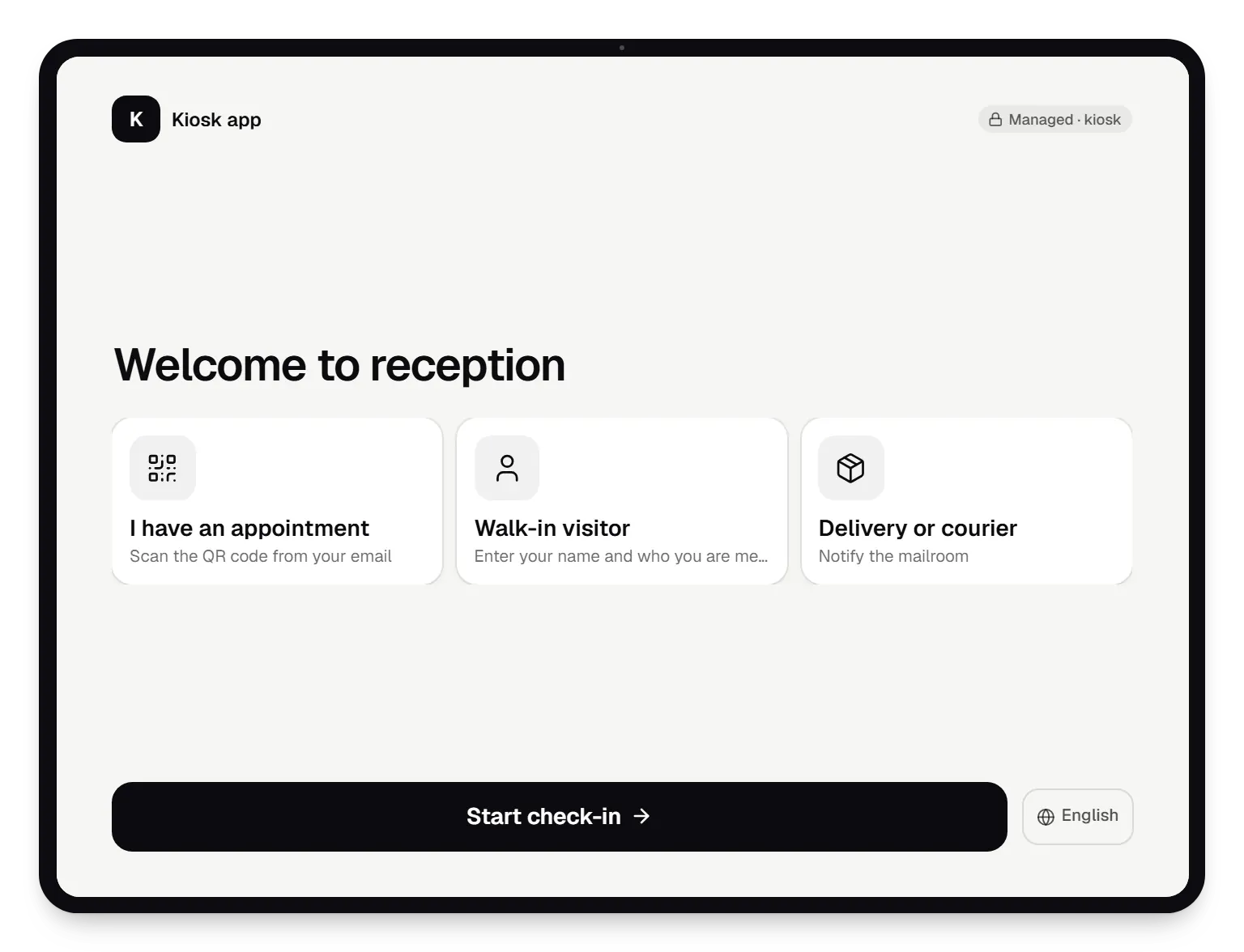
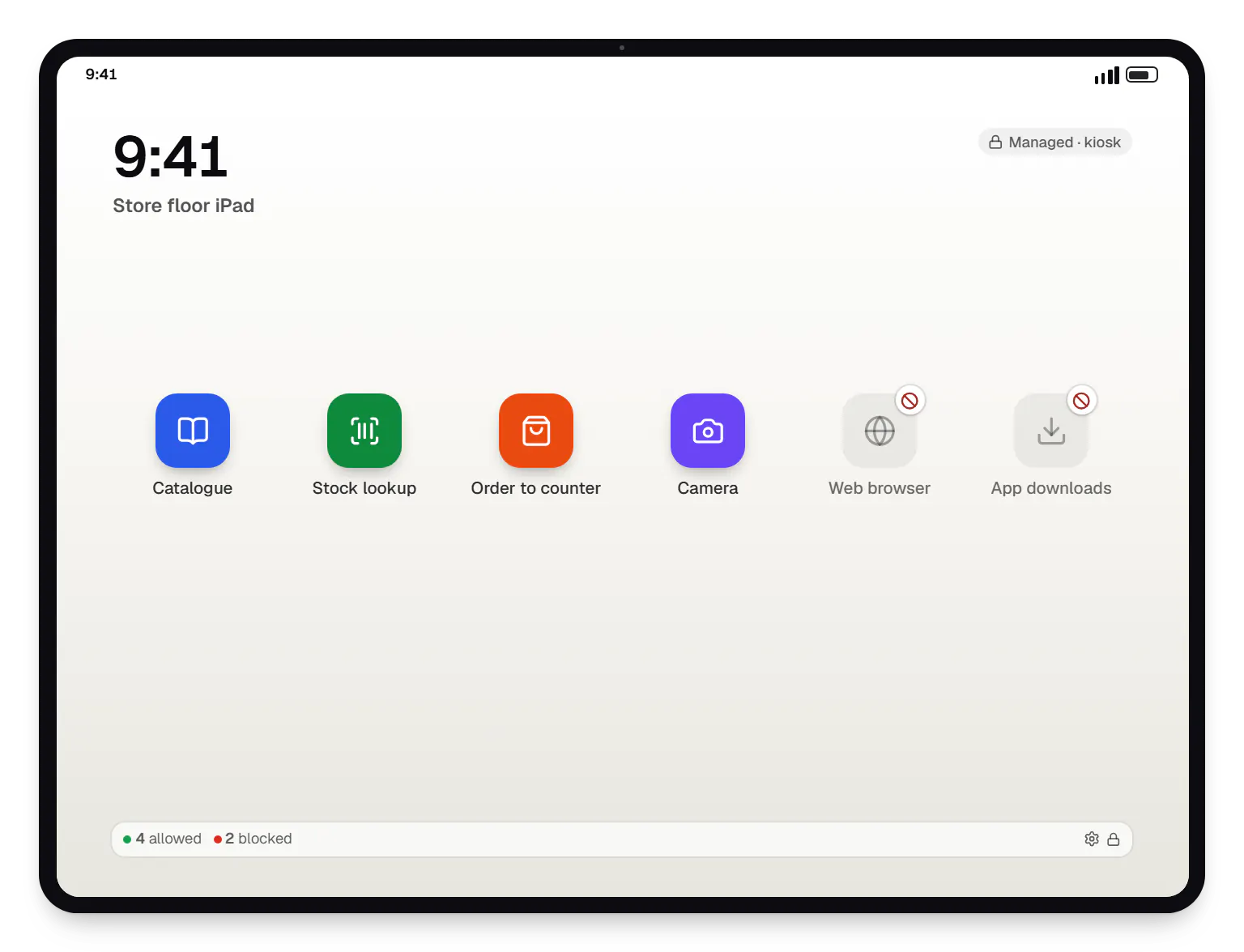
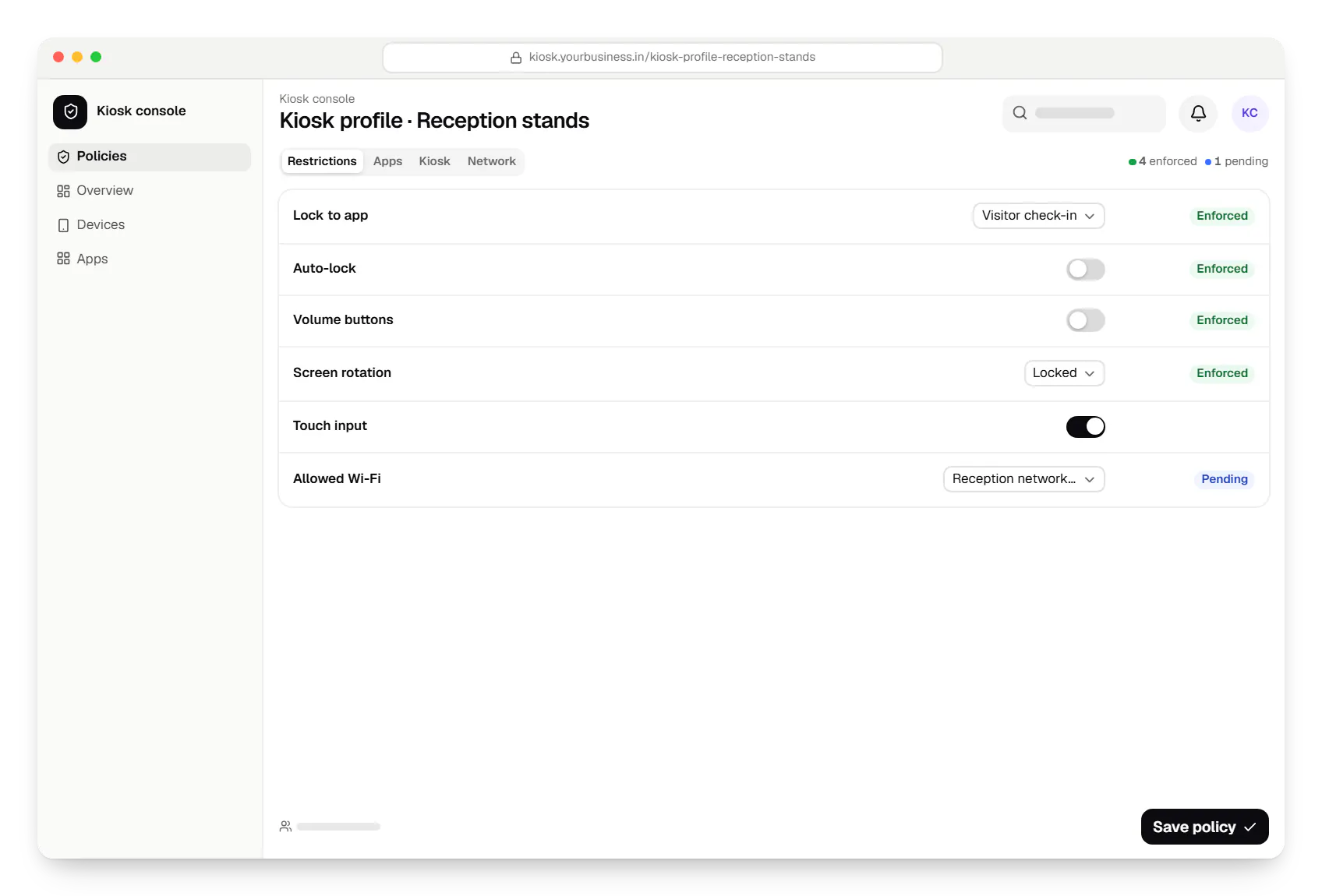
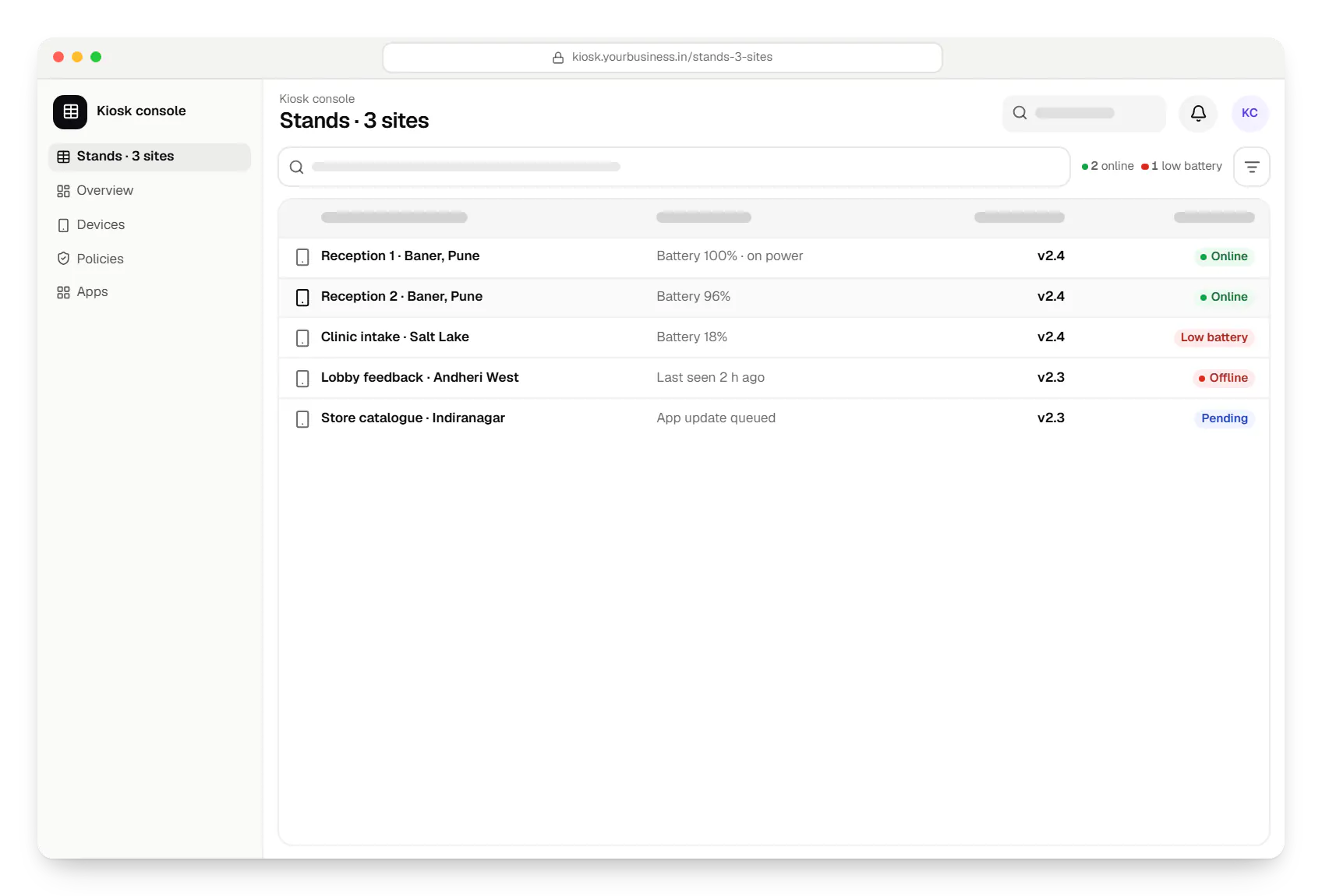
Sample screens: names, prices and figures are examples, not client data.
Work
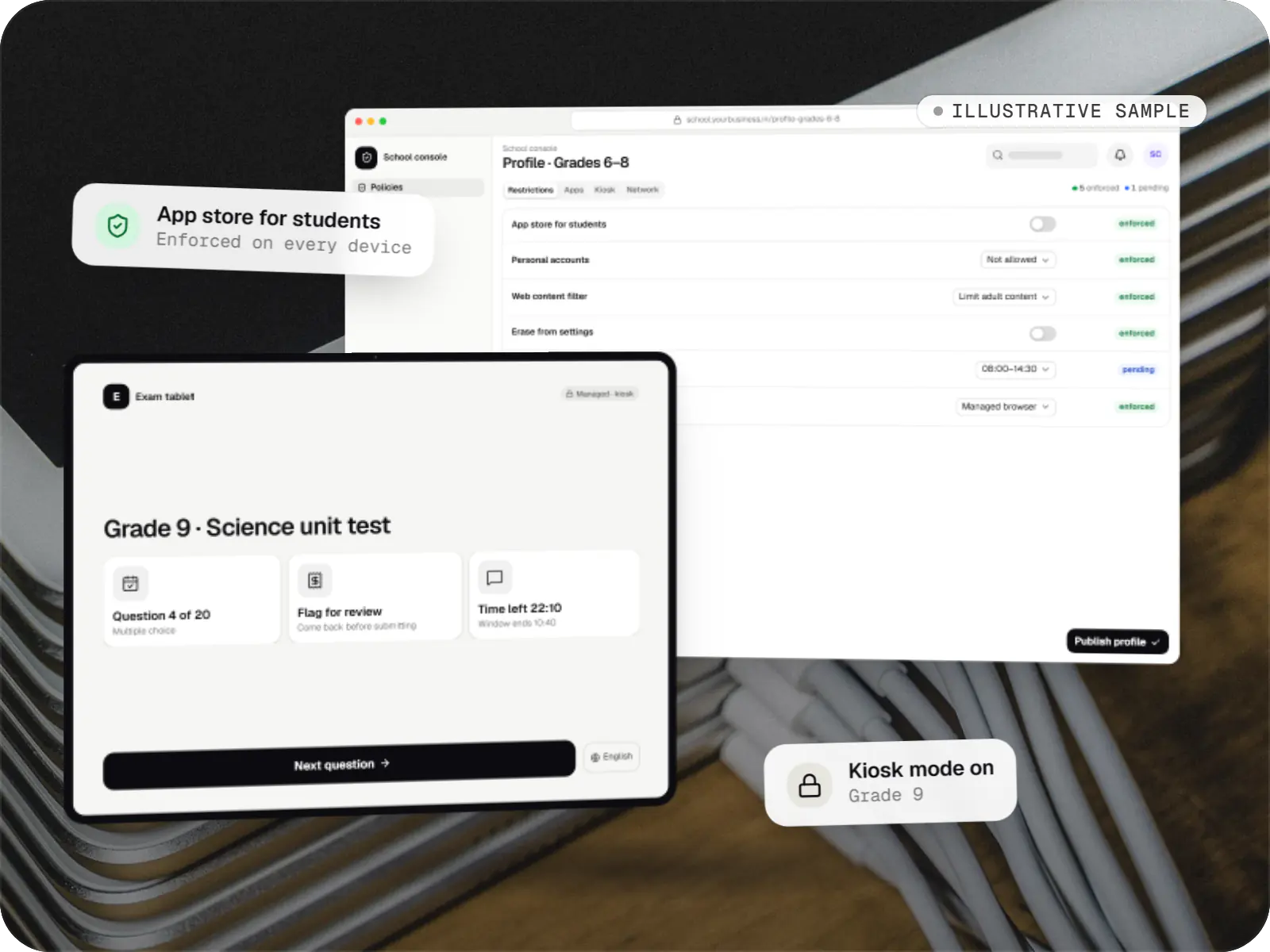
Device management & kiosk solutions
An illustrative console for school tablets: iPad devices through Apple School Manager and MDM, Android™ tablets through Android Enterprise, with class-based rules teachers can follow.
Runs on
Built with
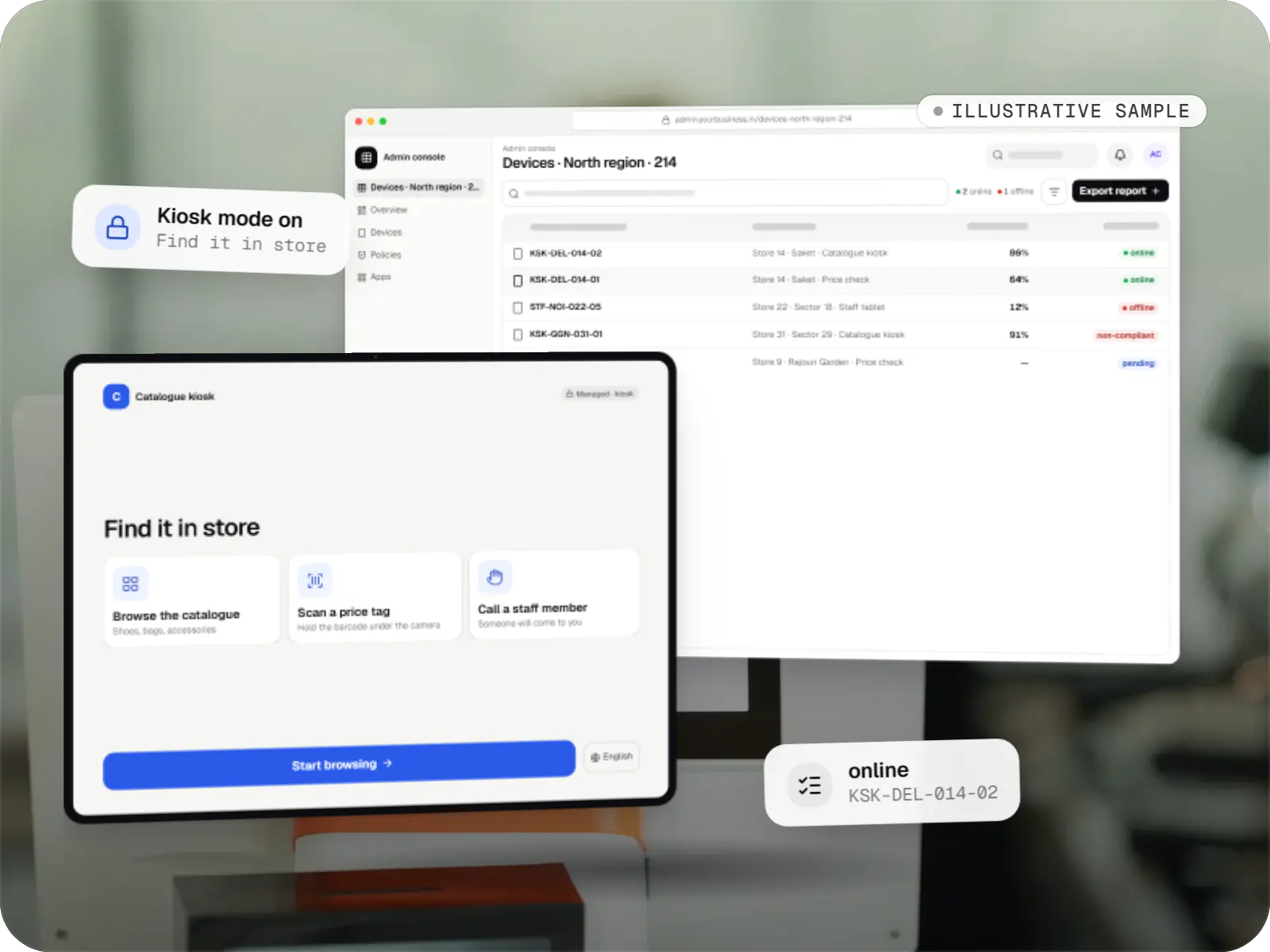
Device management & kiosk solutions
An illustrative kiosk product for retail chains: locked Android tablets for catalogues and price checks, a staff launcher, and a console to enrol, update and monitor every device.
Runs on
Built with
Cost drivers
A single check-in form is quick to build; payments, badge printing, ID scanning or several languages add screens and testing.
Guided Access needs no MDM work. Single App Mode and Autonomous Single App Mode need supervised devices and an MDM setup, and the autonomous route needs changes in the app too.
Sending entries to a CRM, hospital system, visitor register or printer is estimated per system.
Stands, locks, badge printers and card readers are chosen and tested with the app before rollout.
More sites mean more Wi-Fi checks, setup days and console views per location.
Collecting personal or health details adds consent screens, deletion rules and a security review.
Estimates are written from your scope, with the effort and assumptions behind each line item.
How pricing worksProcess
We stand where the kiosk will stand and watch how visitors, patients or customers move today.
You getJourney map and kiosk brief
Staff and a few visitors try the flow on the device, and we fix wording and button sizes before building.
You getTested prototype
We build the app and the MDM configuration together, so the lock, restrictions and app settings are tested as one.
You getKiosk app and device profile
One stand runs for two weeks with detailed logging; we adjust idle times, wording and alerts.
You getPilot findings
Devices are enrolled site by site, staff learn how to report a problem, and we keep the app current with each iPadOS release.
You getSupport plan
Solutions
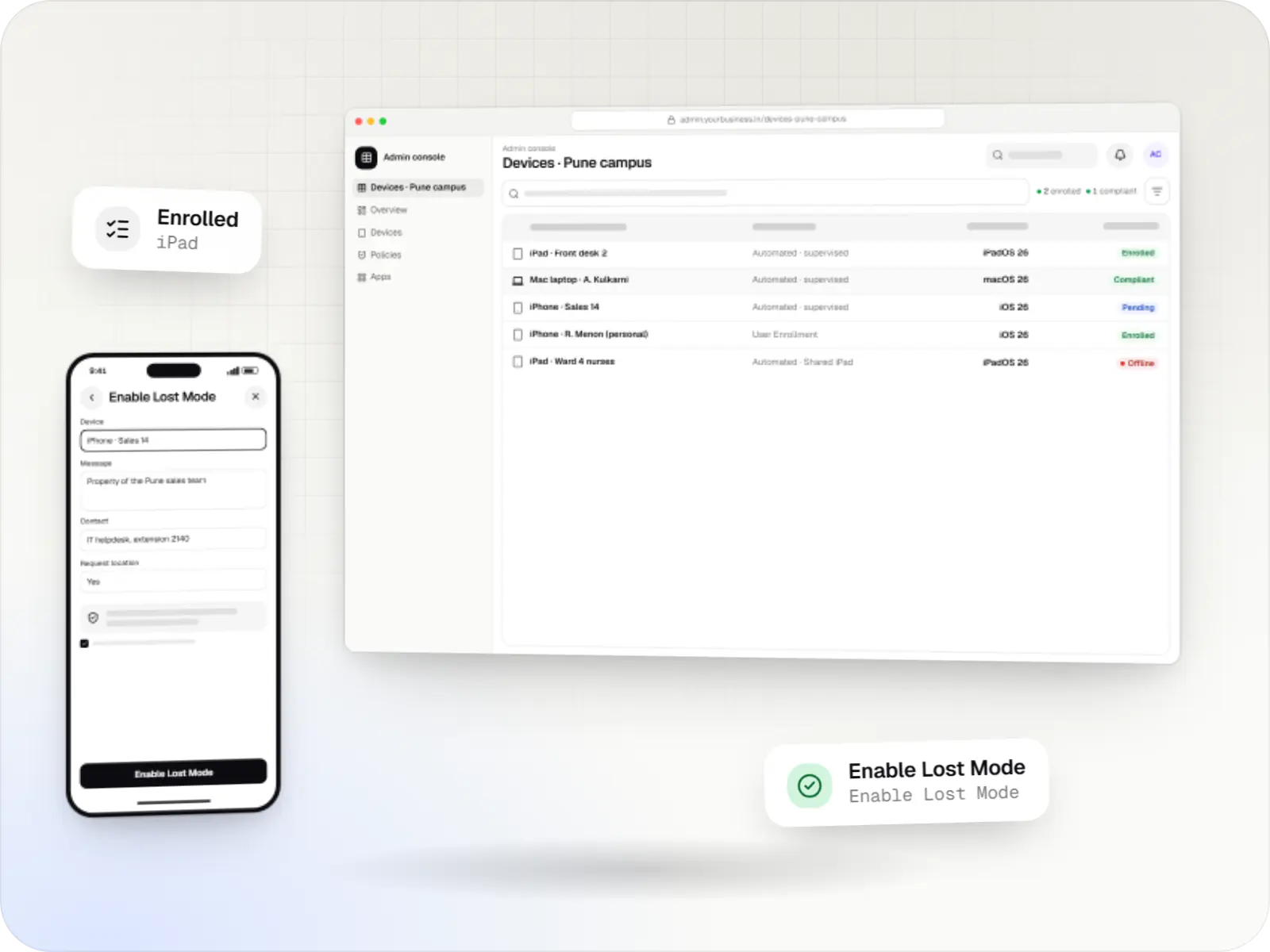
MDM for company iPhone, iPad and Mac devices: automatic enrolment, supervision, apps, OS updates and remote lock, as a custom build or an integration.
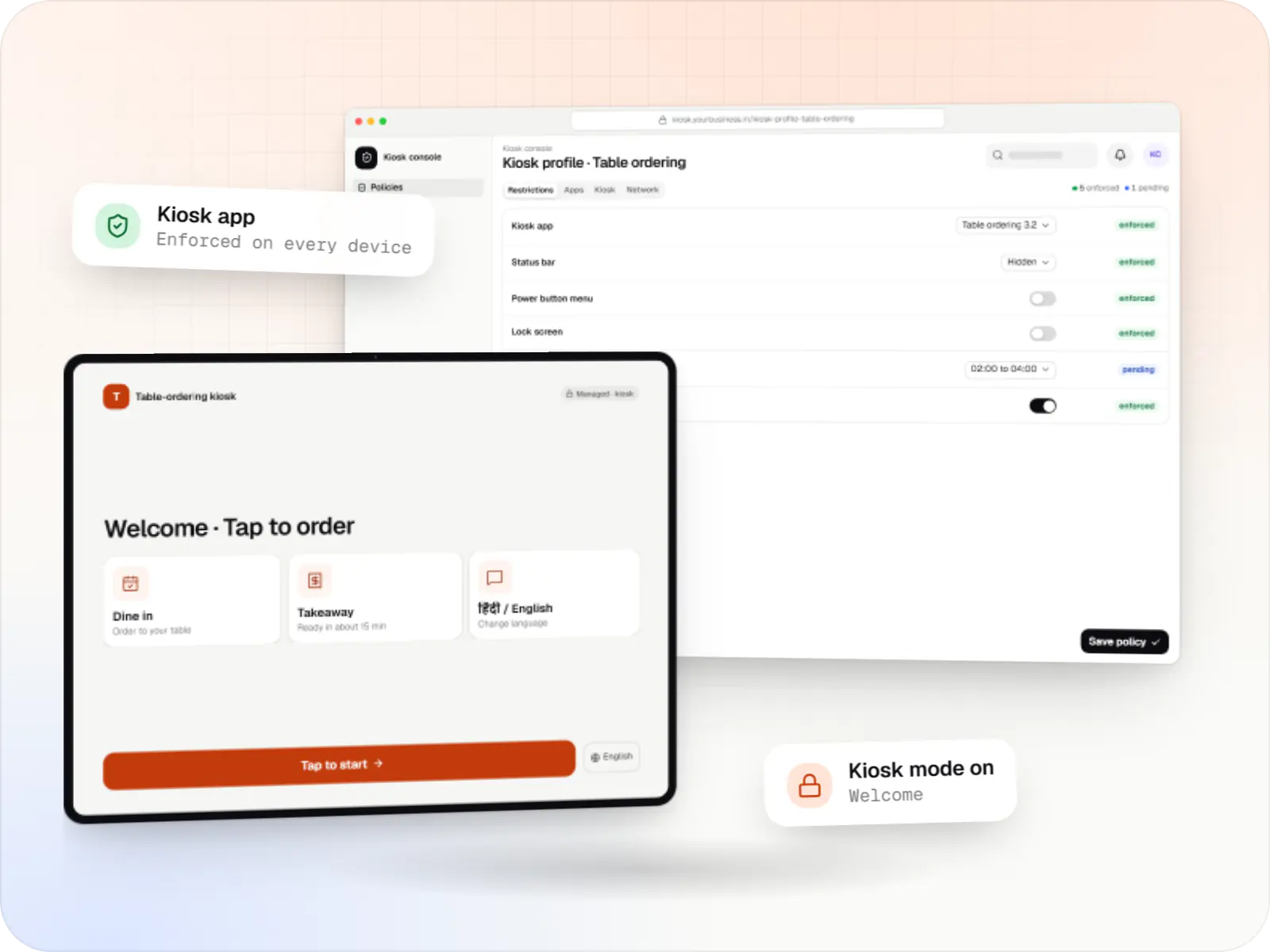
Single-app and multi-app kiosks for Android tablets, phones and terminals: locked ordering, check-in and catalogue apps that customers cannot escape.
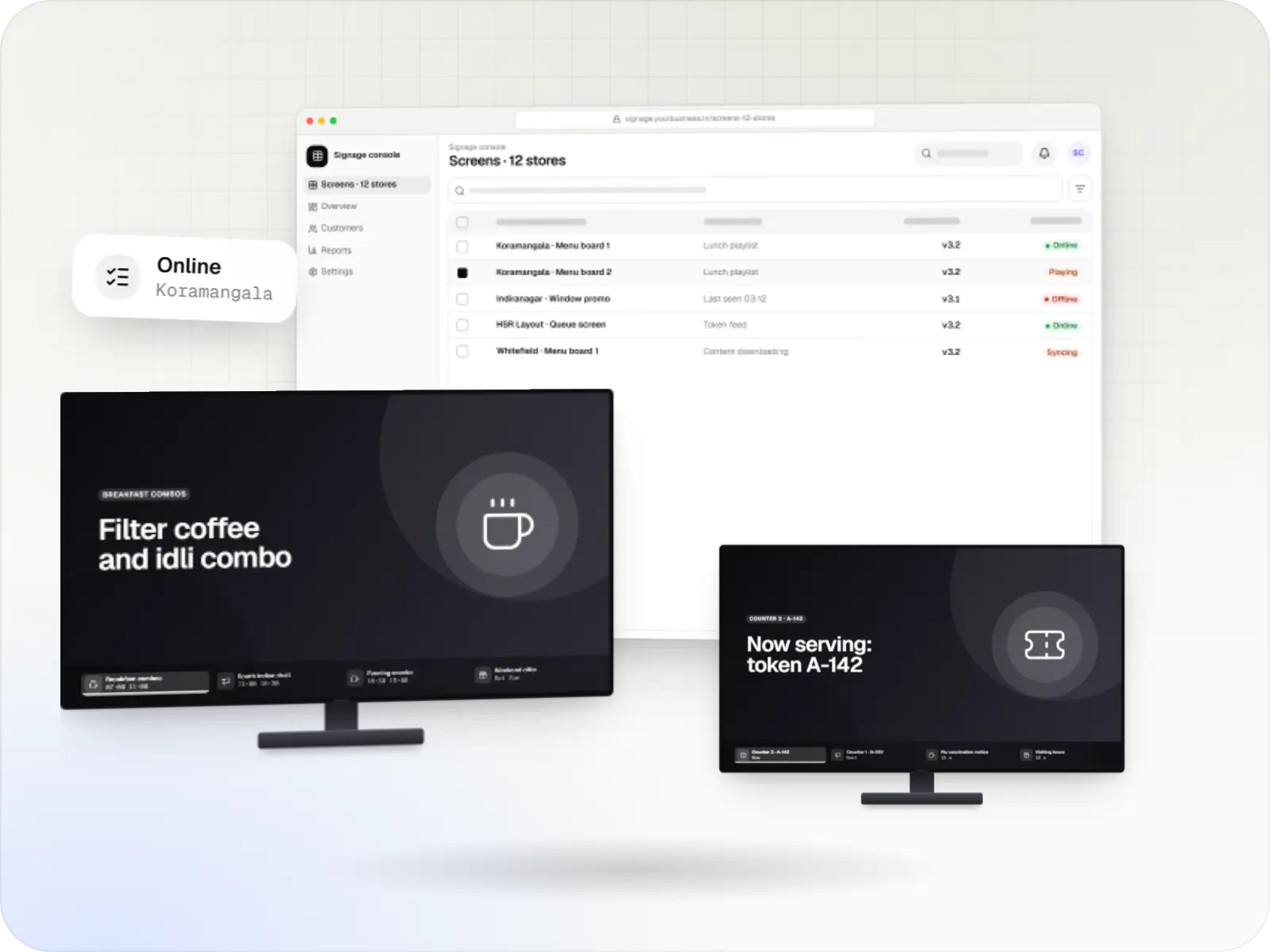
Player apps, a scheduling console and device management for menu boards, promotions and queue screens on signage players and devices running Android TV.
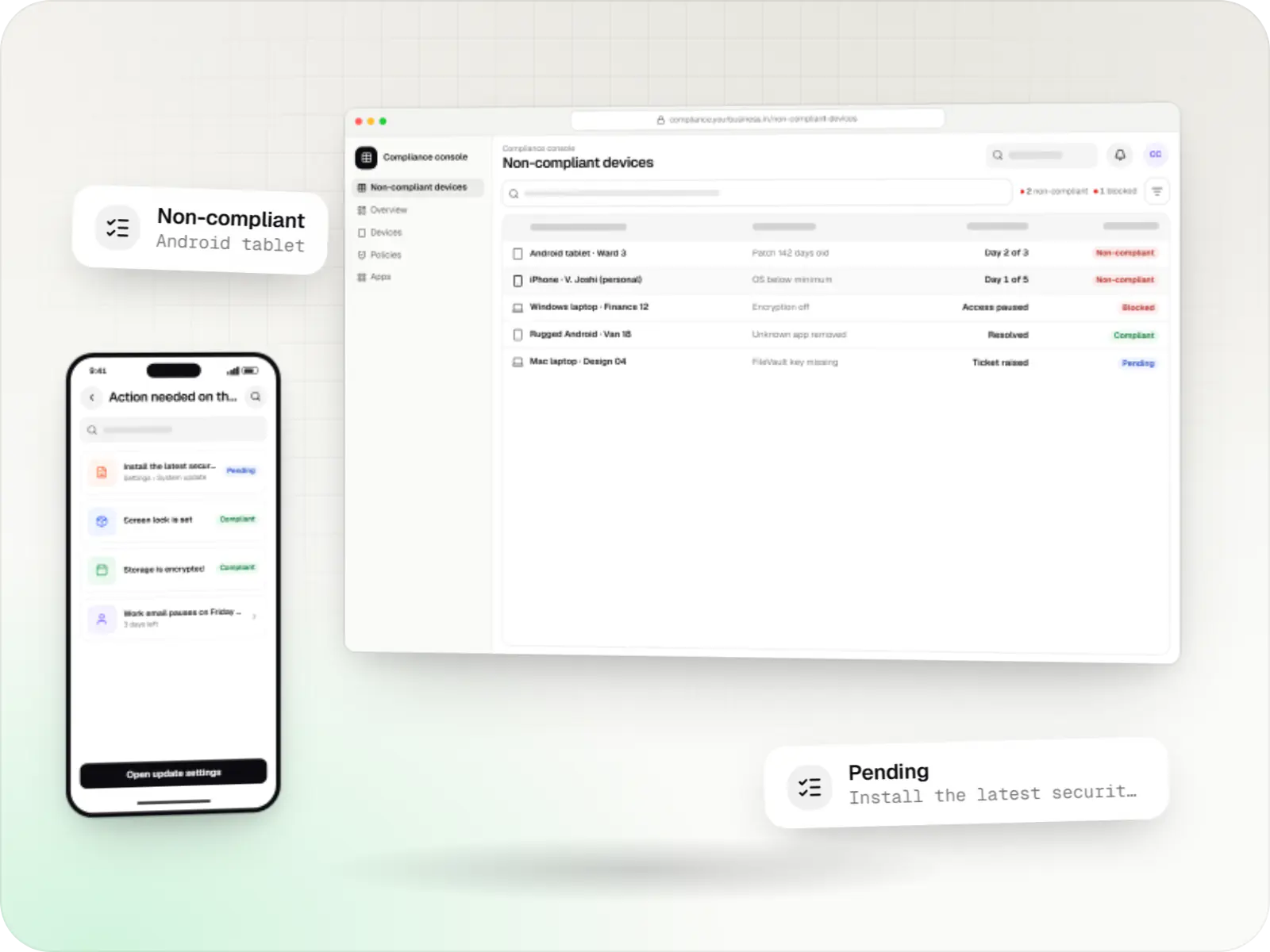
Compliance rules for Android, Apple and Windows devices: passcodes, encryption, OS updates, app lists, remote lock and wipe, audit logs and reports.
Services
The disciplines a project like this draws on.
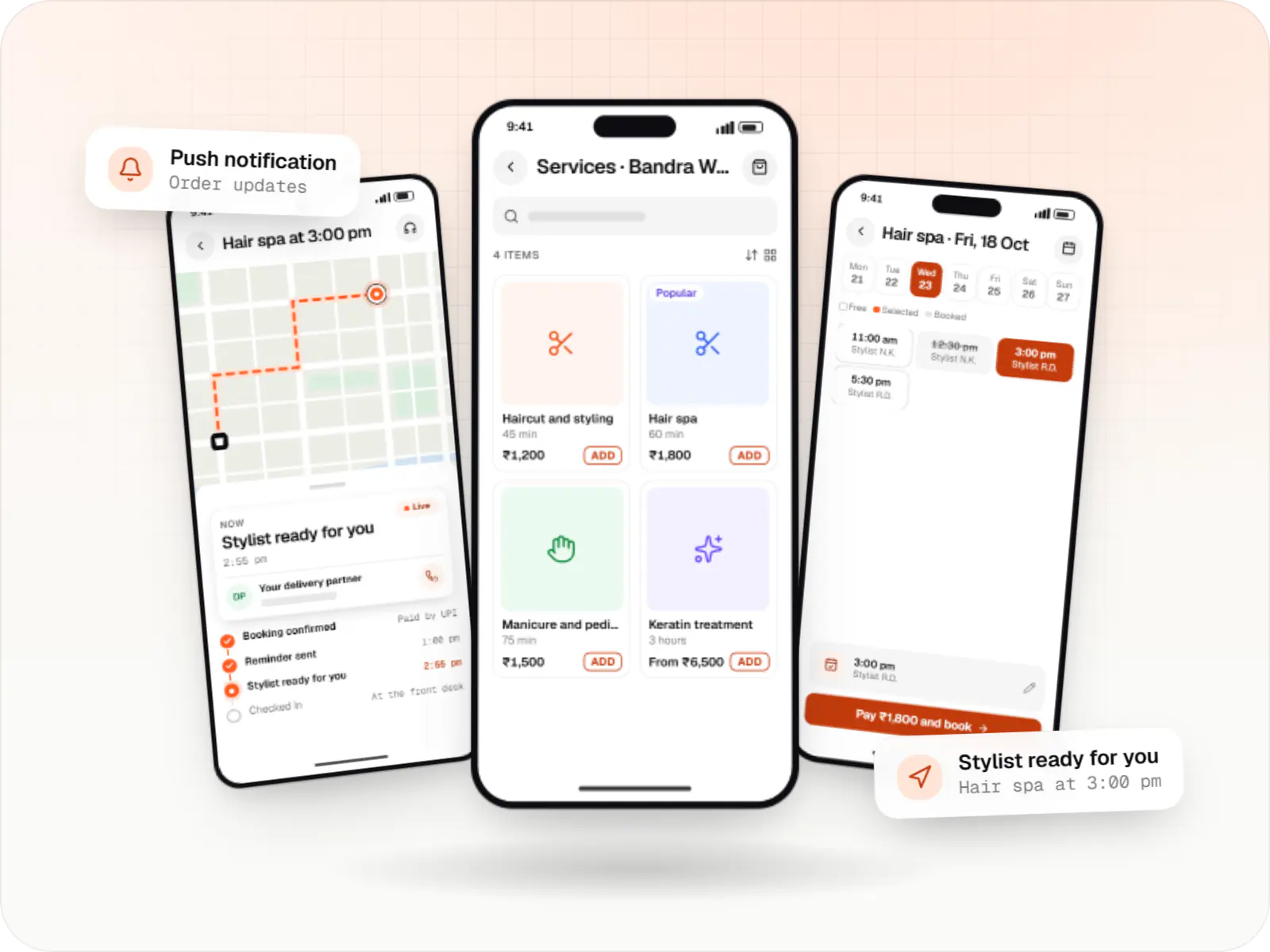
Native iPhone and iPad apps in Swift and SwiftUI, built to Apple's review guidelines and privacy rules and tested on the devices your customers use.
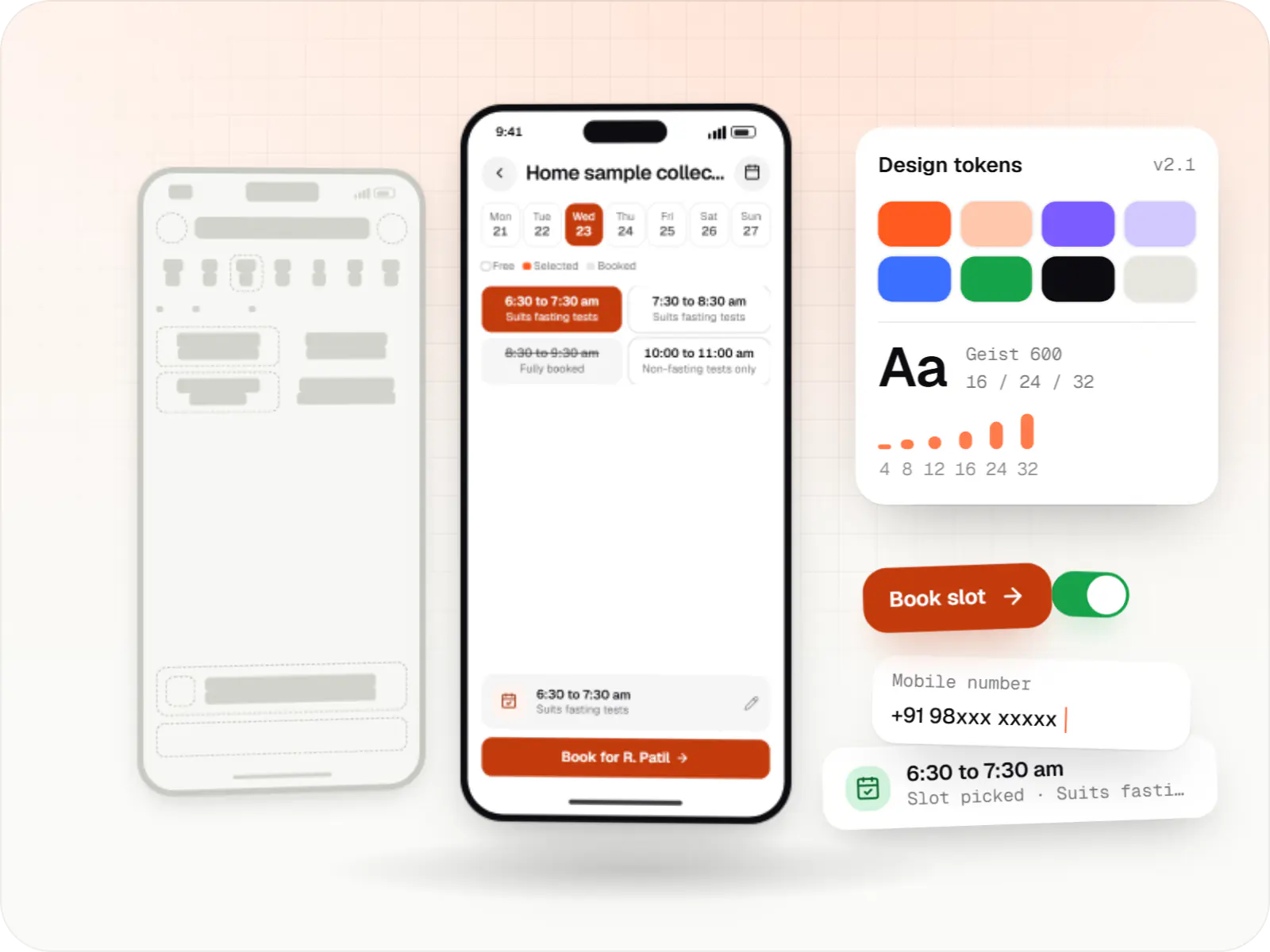
Product design for web and mobile apps: research, user flows, wireframes, prototypes and design systems that engineers can build from.
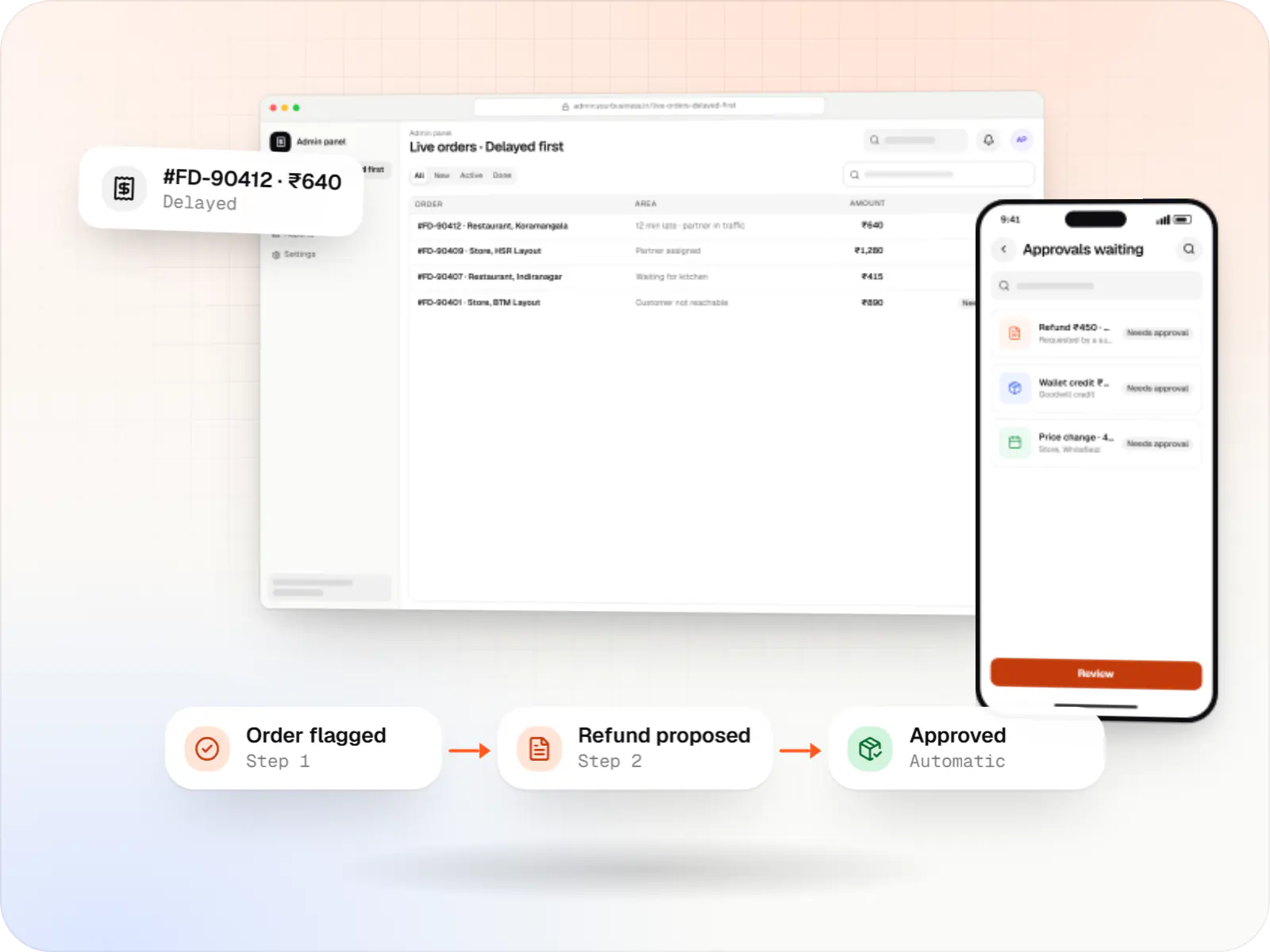
Back-office dashboards built around your team's daily tasks: order queues, approvals, catalogue management, payouts, reports and audit logs.
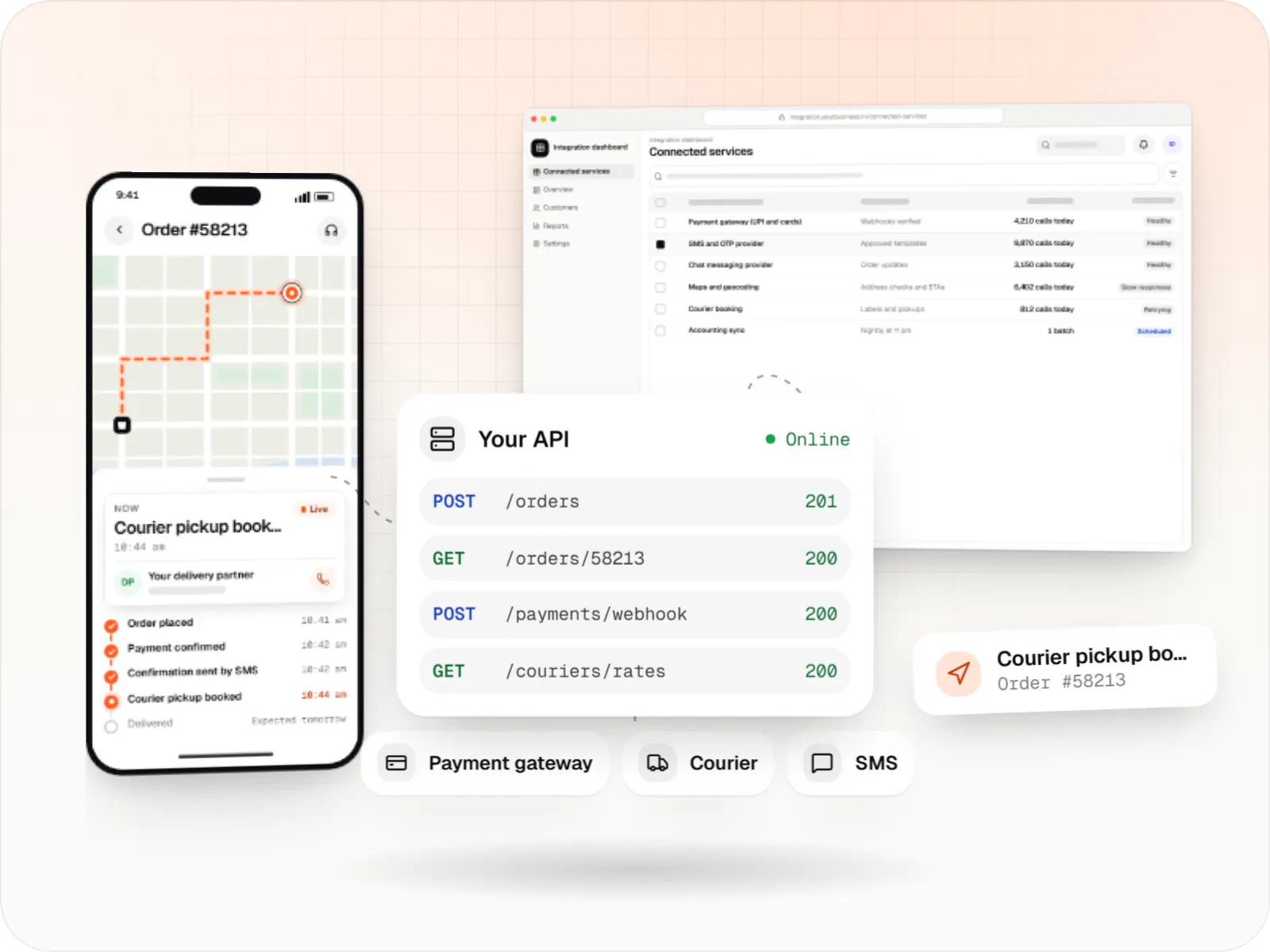
Secure, documented REST and GraphQL APIs, plus integrations that connect your apps to payment, logistics, GST, messaging and business systems.
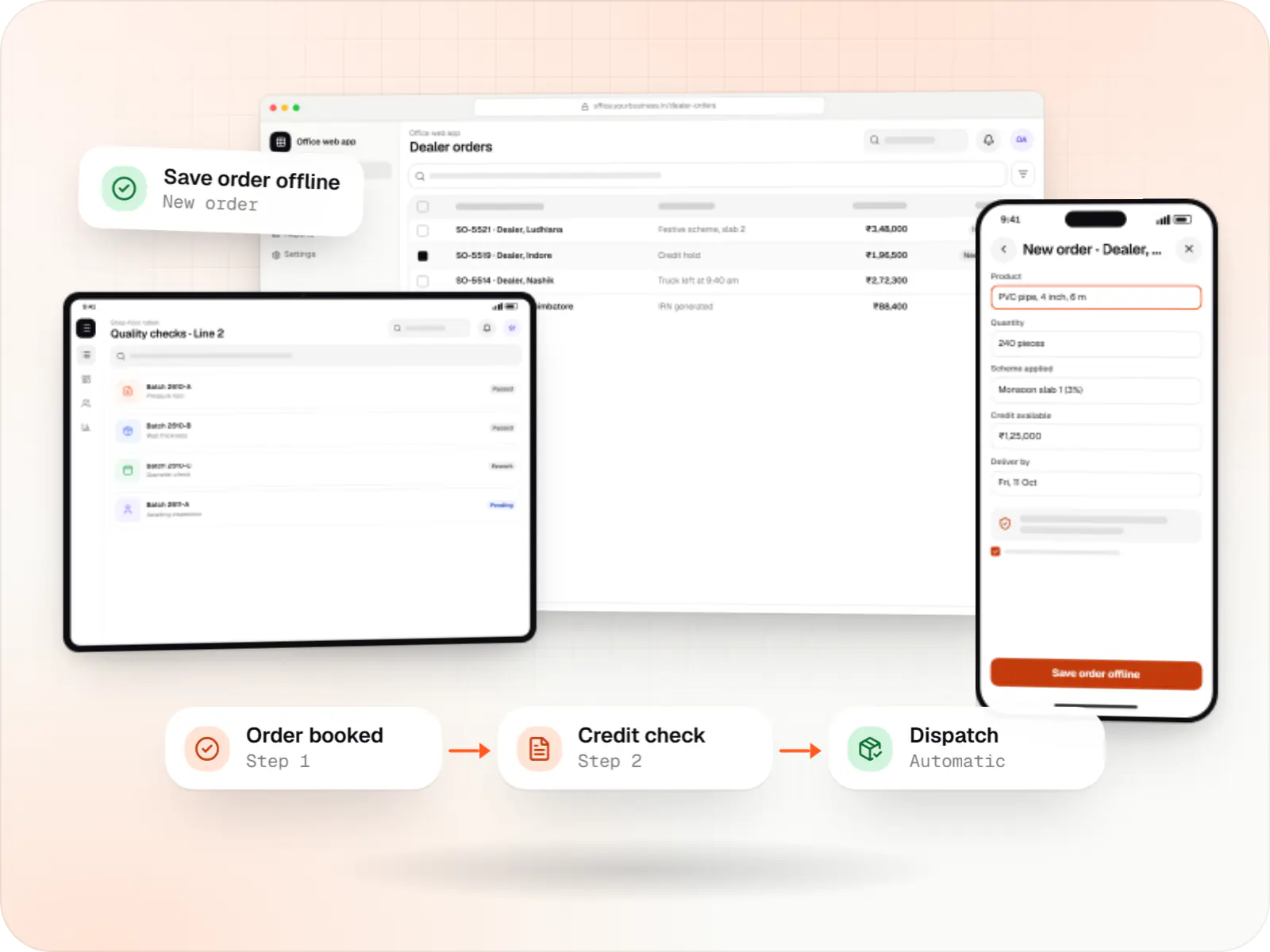
Software shaped around how your business runs, from approvals and inventory to billing and reports, replacing spreadsheets and disconnected tools.
Industries
Industries where this kind of product fits well.
FAQ
In most cases, yes. If they were not bought through Apple or a participating reseller or carrier, Apple Configurator can add them to your Apple Business account; they are erased in the process, then enrol automatically and become supervised, which Single App Mode needs. For 30 days after that enrolment, someone holding the iPad can still release it from management, so we keep newly added stands supervised by staff during that period. Older models may not run the iPadOS version your kiosk app targets, so we check the models first. For a quick trial, Guided Access works on any iPad without any of this setup.
With Single App Mode, the iPad reopens the kiosk app automatically after a restart, so there is nothing for staff to do. With Guided Access, Apple does not promise that a session survives a restart, so staff may need to start it again, which is one reason we avoid it for unattended stands. Our kiosk apps also save unfinished entries locally and report crashes to the console, so repeated problems get fixed rather than hidden.
Yes, through a payment provider's own flow: a UPI QR code or payment link shown on screen, or a card reader paired with the iPad through the provider's SDK. Card data then stays inside the provider's certified components, not in our kiosk app. Which options work depends on the provider and reader you choose, so we confirm them before design. Many visitor and feedback kiosks need no payment at all.
The MDM installs the new version over the air, usually outside opening hours. The app closes briefly during the update and, under Single App Mode, the iPad returns to it automatically. Content changes such as menus, forms or languages need no app update at all: the app downloads them from the kiosk console. We also keep one pilot stand on the new version for a day before updating the rest.
We design the kiosk so personal data does not linger. Entries go to your server over an encrypted connection and are deleted from the iPad once confirmed, the screen clears after each visitor, and a supervised iPad can be set to block AirDrop, account changes and erasing by users. The consent text, purpose and retention period are shown on screen, in line with the Digital Personal Data Protection Act, 2023. Health and ID data need extra review, which we plan with your compliance team.
Single App Mode is for exactly one app. For a small set of apps, we hide every other app on a supervised iPad, arrange the Home Screen and block app downloads, so staff see only their tools. It is less locked down than a single-app kiosk, because users can switch between the allowed apps, so we use it for staff devices rather than public stands.
Related

Next step
Tell us where the iPad will stand, who will use it and which systems it must talk to. We will suggest the right lock and send a line-item estimate.