

Mobile
Android (Kotlin)
Apps built specifically for Android, with full access to the phone's hardware, background location and company-managed devices.
Used for
- Apps for Android
- Delivery partner apps
- Billing and POS apps
- Field staff apps
Kiosk mode · Retail
Catalogue, price-check and queue kiosks on Android tablets that shoppers cannot wander out of, updated from head office instead of store visits.
This page brings together
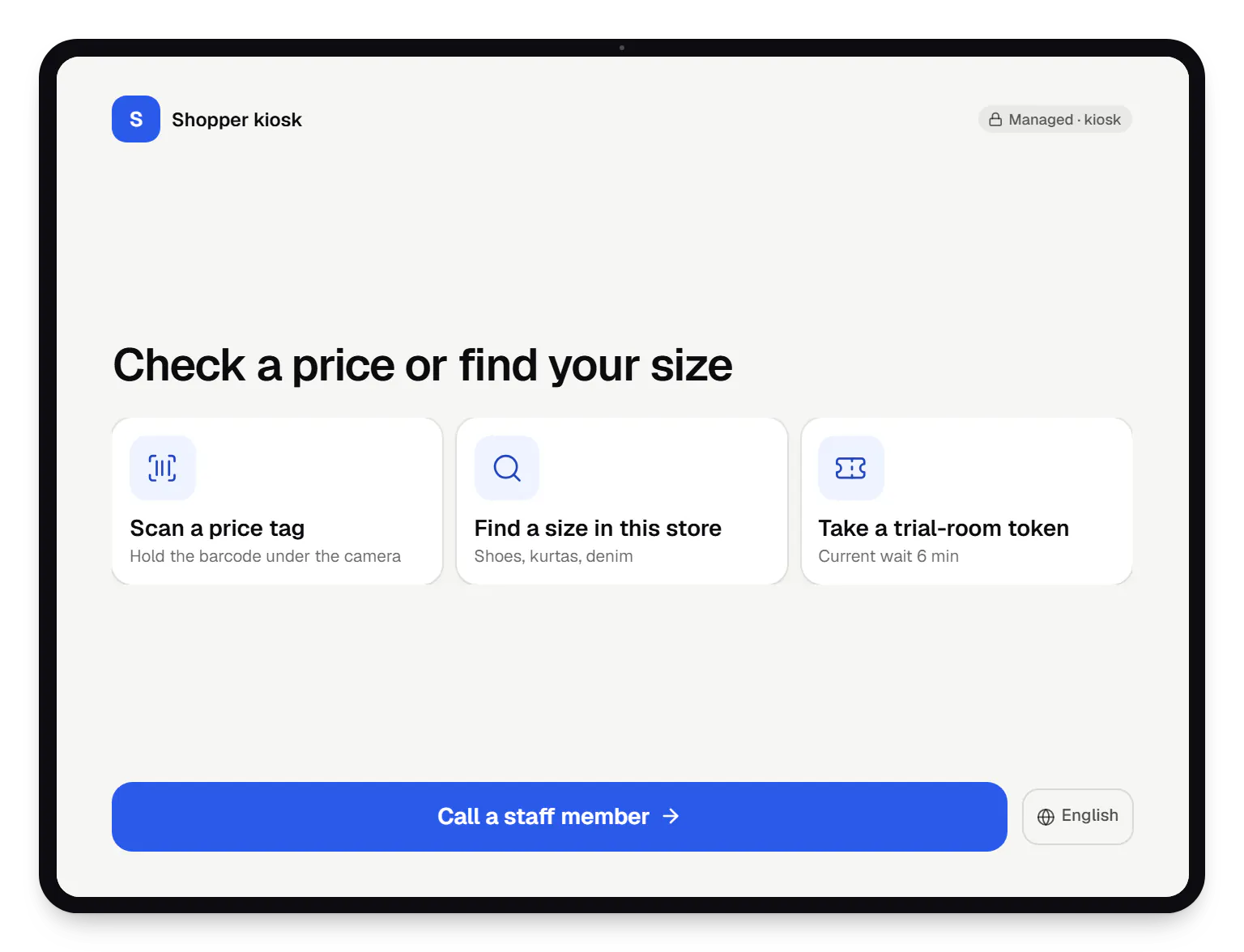
A retail kiosk is usually a tablet on a stand near the shelf or the billing counter. It helps shoppers find a size in stock, check a price without queuing, sign up for loyalty or take a token for the trial room. The hardware is inexpensive; what fails is everything around it. By the weekend, someone has closed the app, opened a video site or changed the language, and the store's tablet shows a home screen.
Kiosk mode fixes the device side. On a company-owned tablet set up as a dedicated device, the kiosk app runs in lock task mode: the home and recent-apps buttons disappear, notifications stay hidden and the app relaunches after a restart. We build the kiosk app, the lock-down policy and the console that manages them across stores, and plan the rollout so store staff only unbox, plug in and scan a QR code.
Challenges
Without lock task mode, one swipe reaches the home screen, the browser or settings.
Kiosk content updated by hand drifts away from the POS price list within days.
Without remote management, each app or content update costs staff time in every store.
A kiosk that lost Wi-Fi or power shows nothing to head office until a manager calls.
A half-filled sign-up form can expose the previous shopper's phone number.
What is included
Platform: Android tablet (single-app kiosk)
Platform: Staff tablet or handheld (multi-app kiosk)
Platform: Admin dashboard
How it works
The flow repeats for every new store and every replaced tablet.
A tablet ordered for zero-touch, or reset to factory settings, is mounted on its stand with mains power and store Wi-Fi.
The manager scans the store group QR code on the setup screen, or the tablet enrols itself at first boot if it was ordered for zero-touch.
The tablet receives the store's rules and starts the kiosk app in lock task mode, with the status bar hidden.
The app loads this store's catalogue, prices and stock from the retailer's systems and caches them for weak connections.
They browse, scan a price or call staff; after a minute of inactivity the session clears for the next person.
Offline or non-compliant kiosks raise alerts, and app or content updates go out overnight in waves.
Then it starts again at step 1: Tablet reaches the store
Product preview
Illustrative screens. Stores, products and figures are invented.
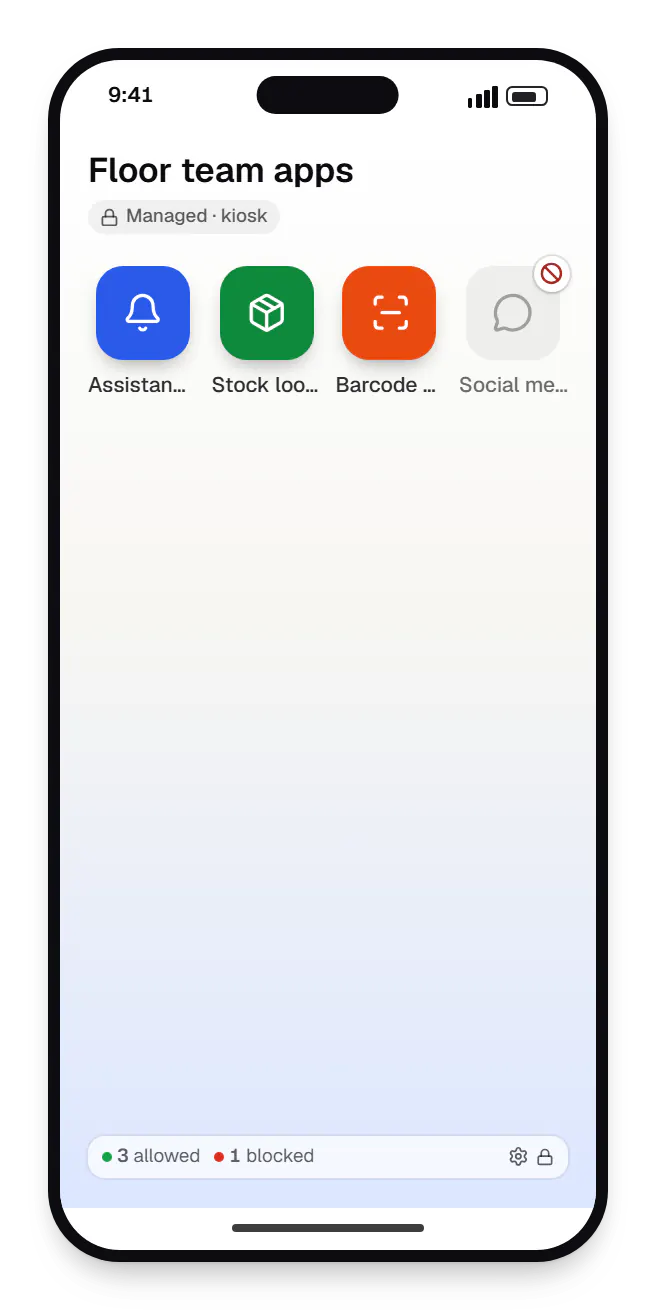
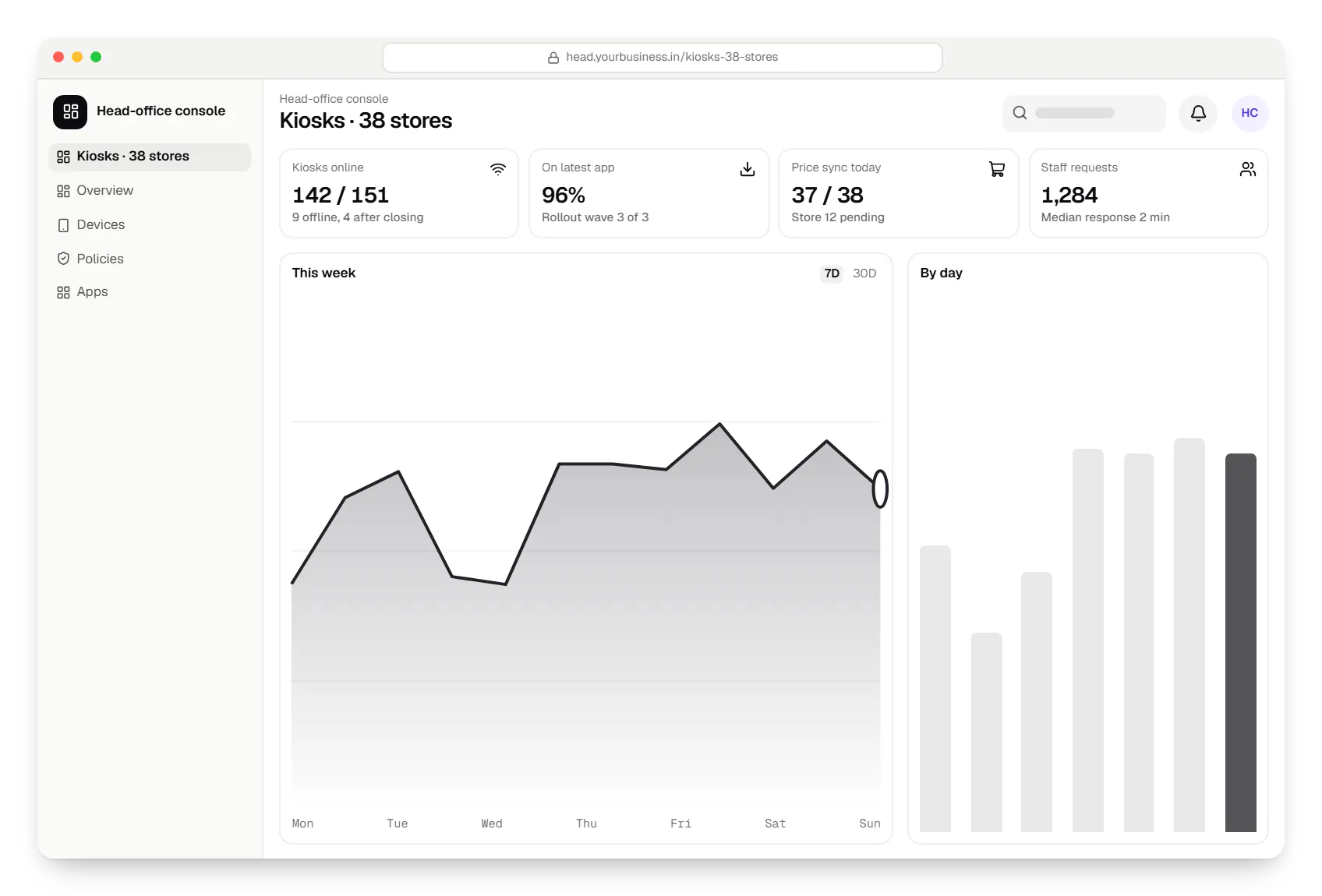
Sample screens: names, prices and figures are examples, not client data.
Consumer tablets without Android Enterprise support or regular patches make lock-down unreliable. We shortlist models and test them in kiosk mode first.
Kiosks should run on mains power with a secure stand and cable lock; the app keeps the screen awake only while charging.
A separate network, or at least a separate SSID, keeps kiosks away from the network your billing counters use.
Brightness, volume and Wi-Fi can sit behind a PIN; everything else stays with head office.
App and system updates run after closing time. On Android 9 or later, system updates can also be frozen over sale periods, although makers may still push urgent security fixes.
Platforms
Company-owned Android tablets and staff handhelds in stores, and a web console for head office.
Android phones, tablets and rugged handhelds with Google Play services, managed through Android Enterprise: company-owned devices as fully managed, dedicated (kiosk) or work-profile devices, and personal phones through a work profile only.
Back-office panels for operations, support and finance teams: orders, users, content, reports and permissions.
Browser-based applications with logins, roles and workflows, such as customer portals, SaaS products and internal tools.
Technology
Kotlin kiosk apps, lock task mode through the Android Management API or a device-owner app, and a NestJS back end that syncs catalogues and prices.
Mobile
Apps built specifically for Android, with full access to the phone's hardware, background location and company-managed devices.
Used for
Device management
A Google cloud API for device-management products: your console sets the rules, and a Google app on each Android device applies them.
Used for
Device management
Built-in Android APIs that let one trusted app control a company device: kiosk lock, silent app updates and restrictions, even without Google Play.
Used for
Backend
A structured way to build back ends on Node.js, so large business systems stay organised, testable and easy to hand over.
Used for
Data
A reliable database for the records your business runs on: orders, payments, bookings and stock, kept accurate and easy to report on.
Used for
Web
Builds interactive screens in the browser, such as dashboards, admin panels and portals, that respond instantly as your team works.
Used for
Cost drivers
A price checker is a small app; a catalogue with stock, sizes and staff requests is a larger one.
A kiosk product offered to several retailers can use the Android Management API; a single chain usually extends an existing EMM or needs a device-owner app.
Read-only price sync is modest; live stock and loyalty integration depend on your POS or ERP.
Each model is tested in kiosk mode, and more stores mean more rollout waves.
Each language needs content, and larger text or audio prompts add design and testing time.
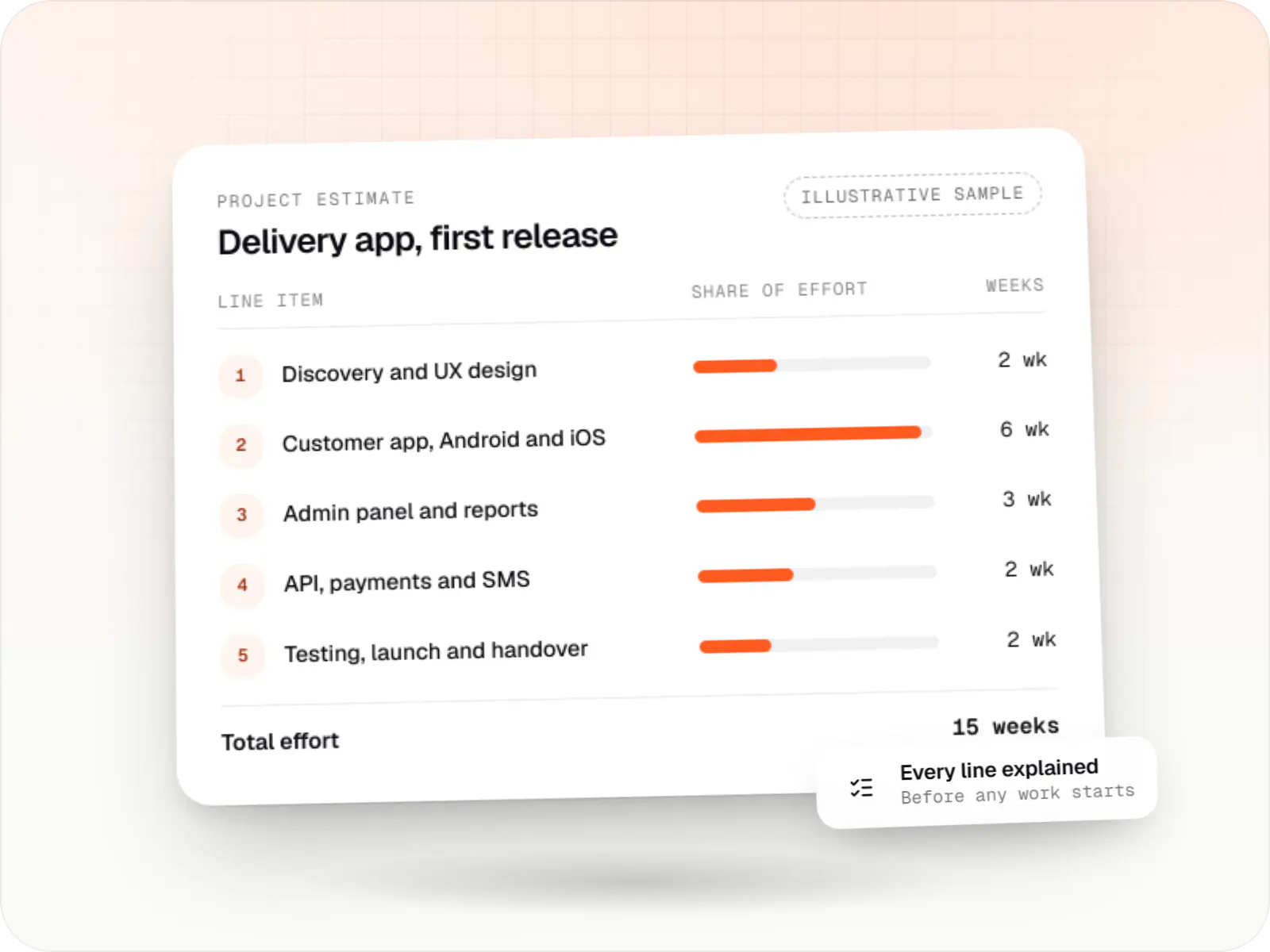
Estimates are written from your scope, with the effort and assumptions behind each line item.
How pricing worksProcess
We look at where kiosks will stand, the network, the POS and the questions shoppers ask staff most often.
You getKiosk plan per store format
Kiosks run for a few weeks; we watch usage, failures and staff requests and fix what gets in the way.
You getPilot report and fixes
Stores are enrolled in groups with a printed QR setup card and a named support contact for the first week.
You getRollout checklist
Monthly updates, tests of new tablet models before purchase and alerts reviewed with your operations team.
You getSupport plan
Work
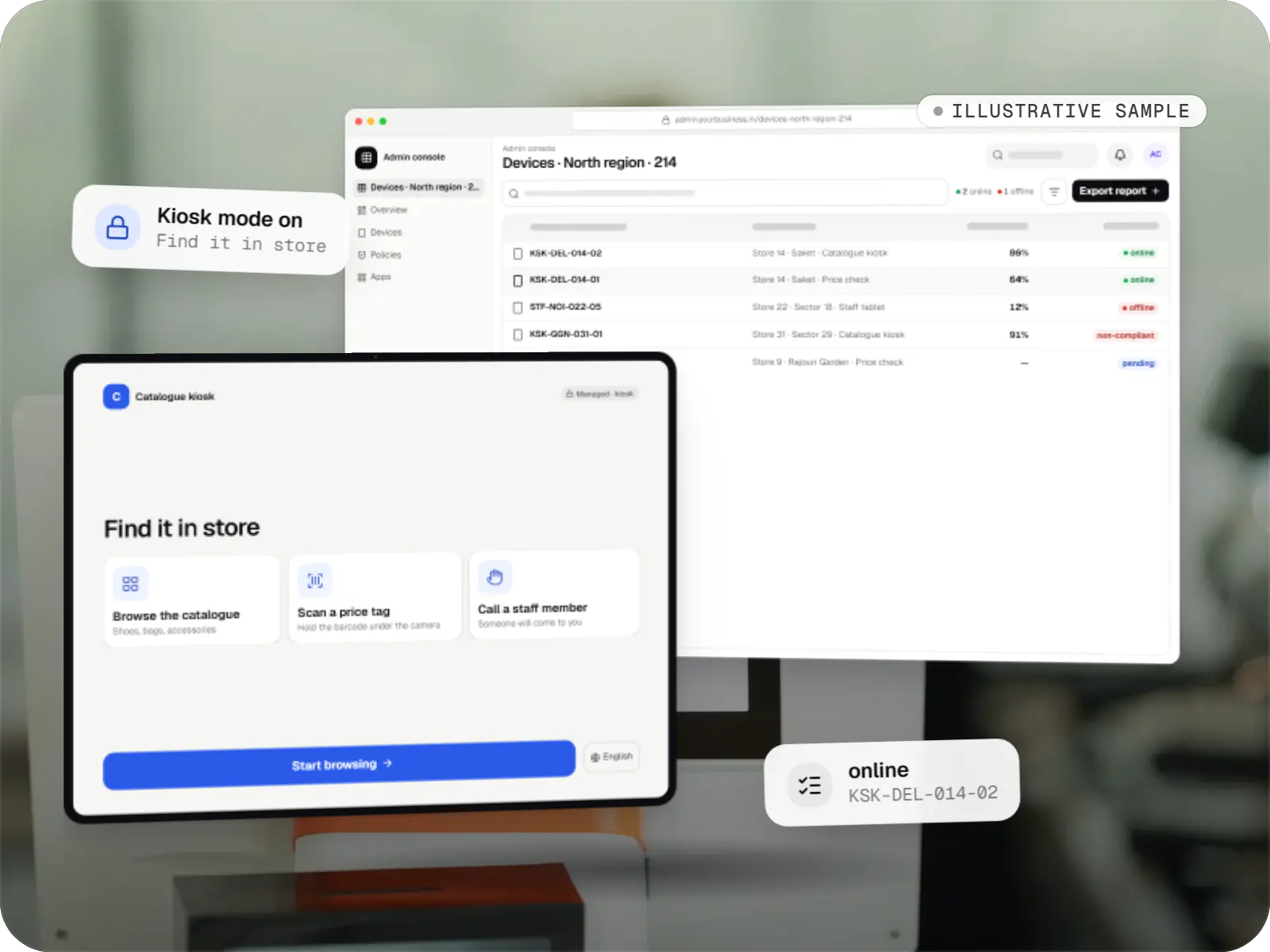
Device management & kiosk solutions
An illustrative kiosk product for retail chains: locked Android tablets for catalogues and price checks, a staff launcher, and a console to enrol, update and monitor every device.
Runs on
Built with
Solutions
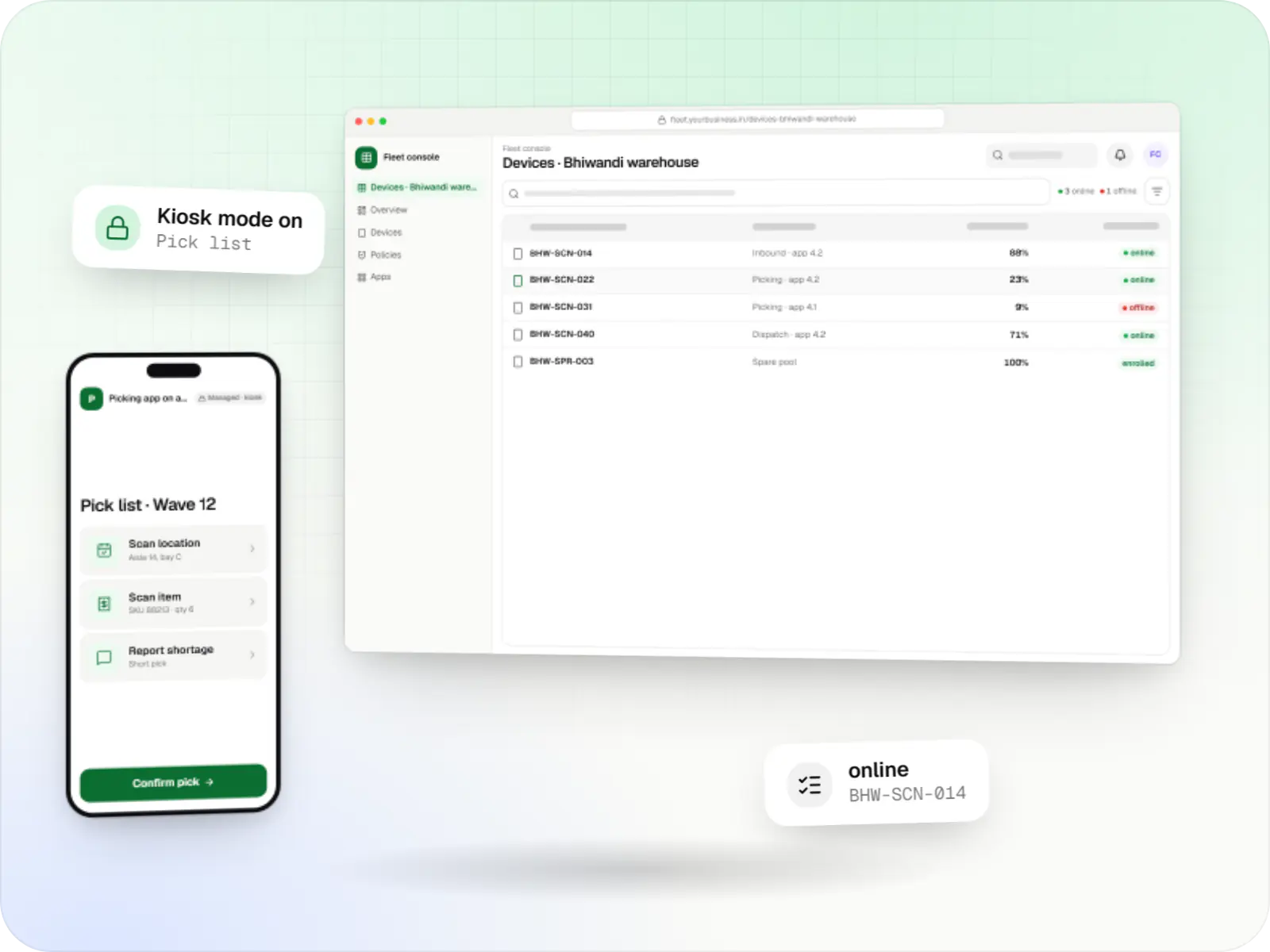
Fleet management for single-purpose Android devices: rugged scanners, delivery handhelds and shift tablets, kept charged, updated and healthy across sites.
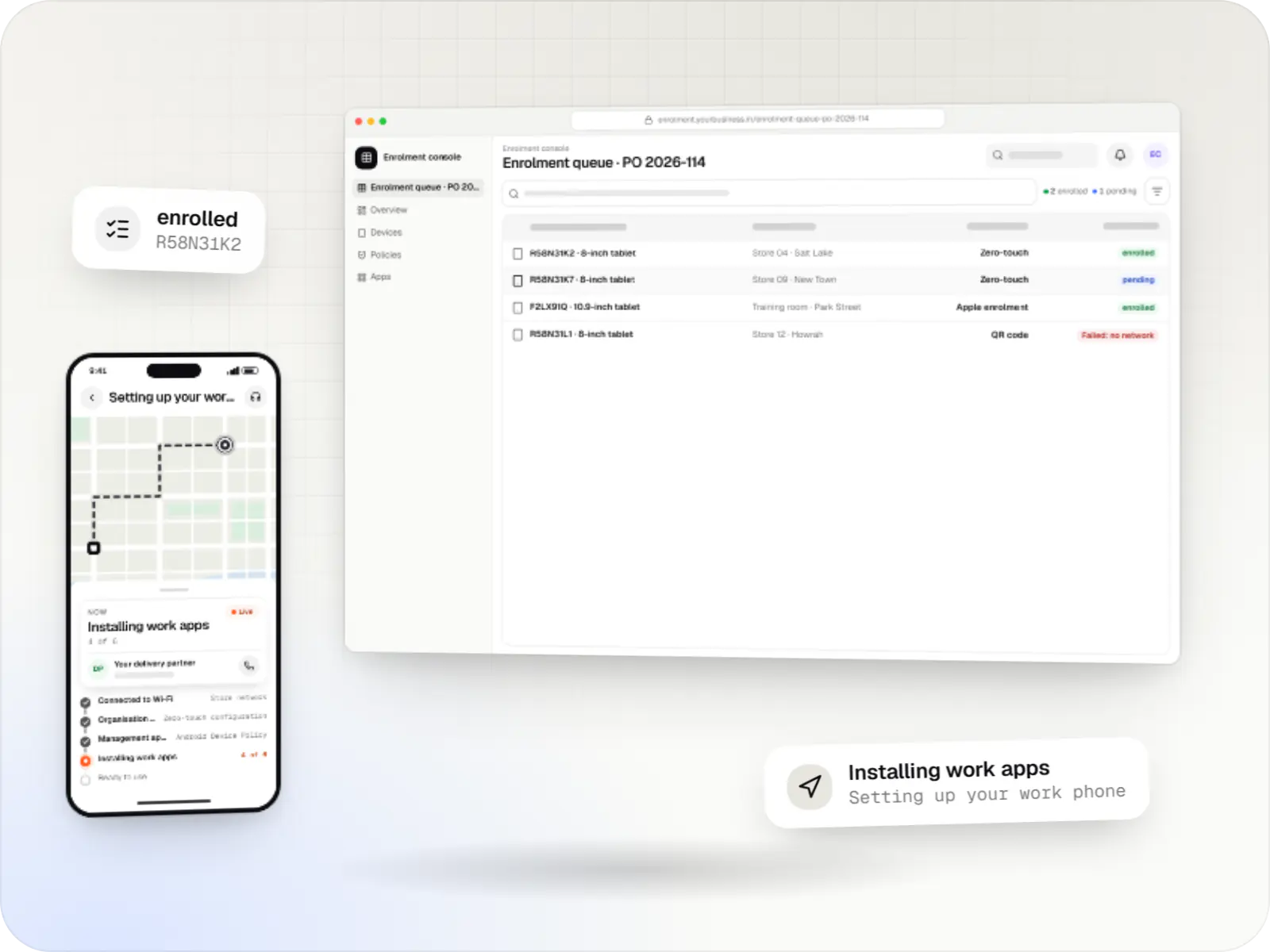
Zero-touch, QR code, Knox Mobile Enrollment and Apple Automated Device Enrollment set-ups that take devices from the box to ready-to-use.
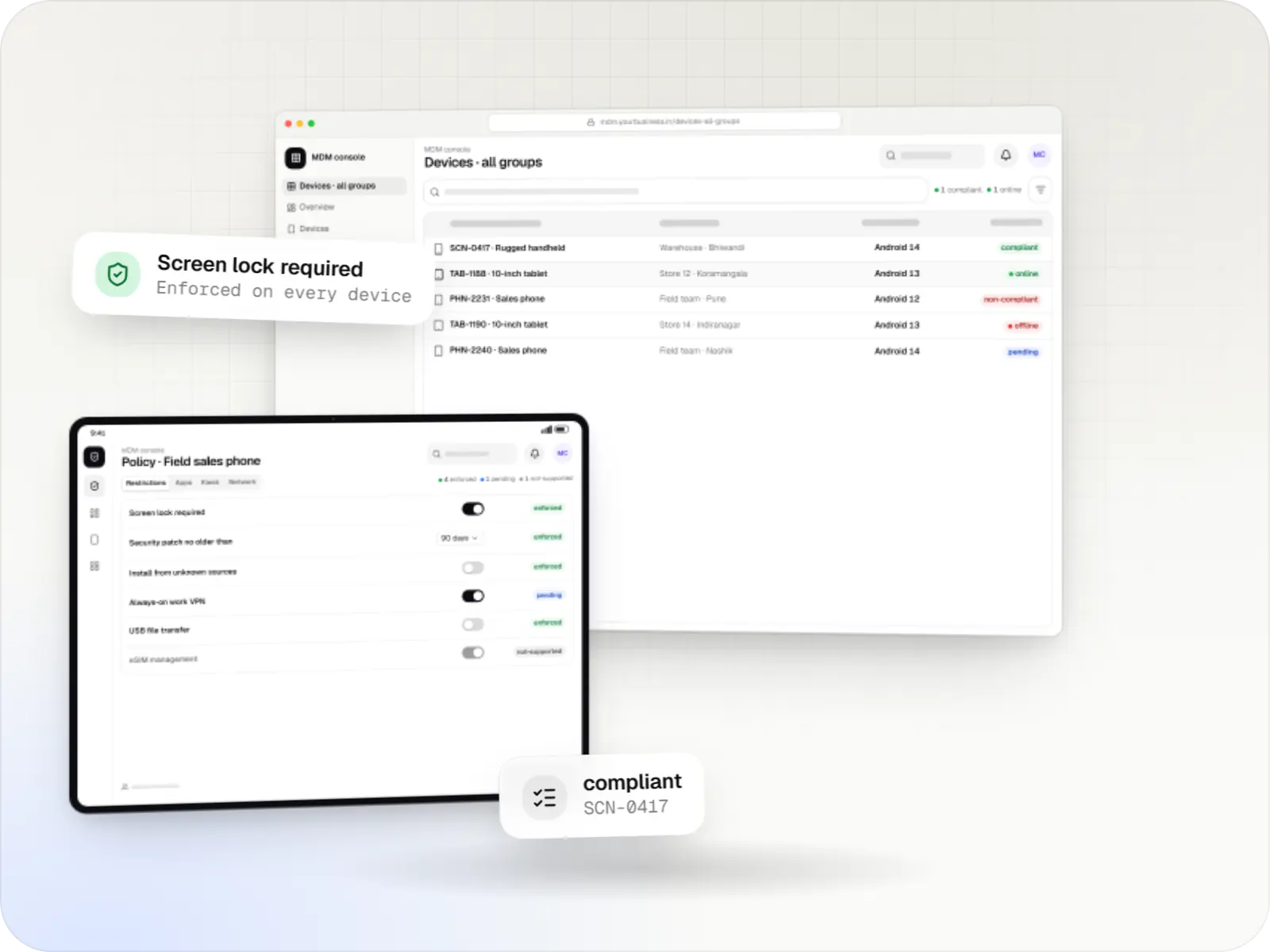
Android MDM consoles, backends and device agents built on the Android Management API or a custom device-owner app, for EMM products and specialised fleets.
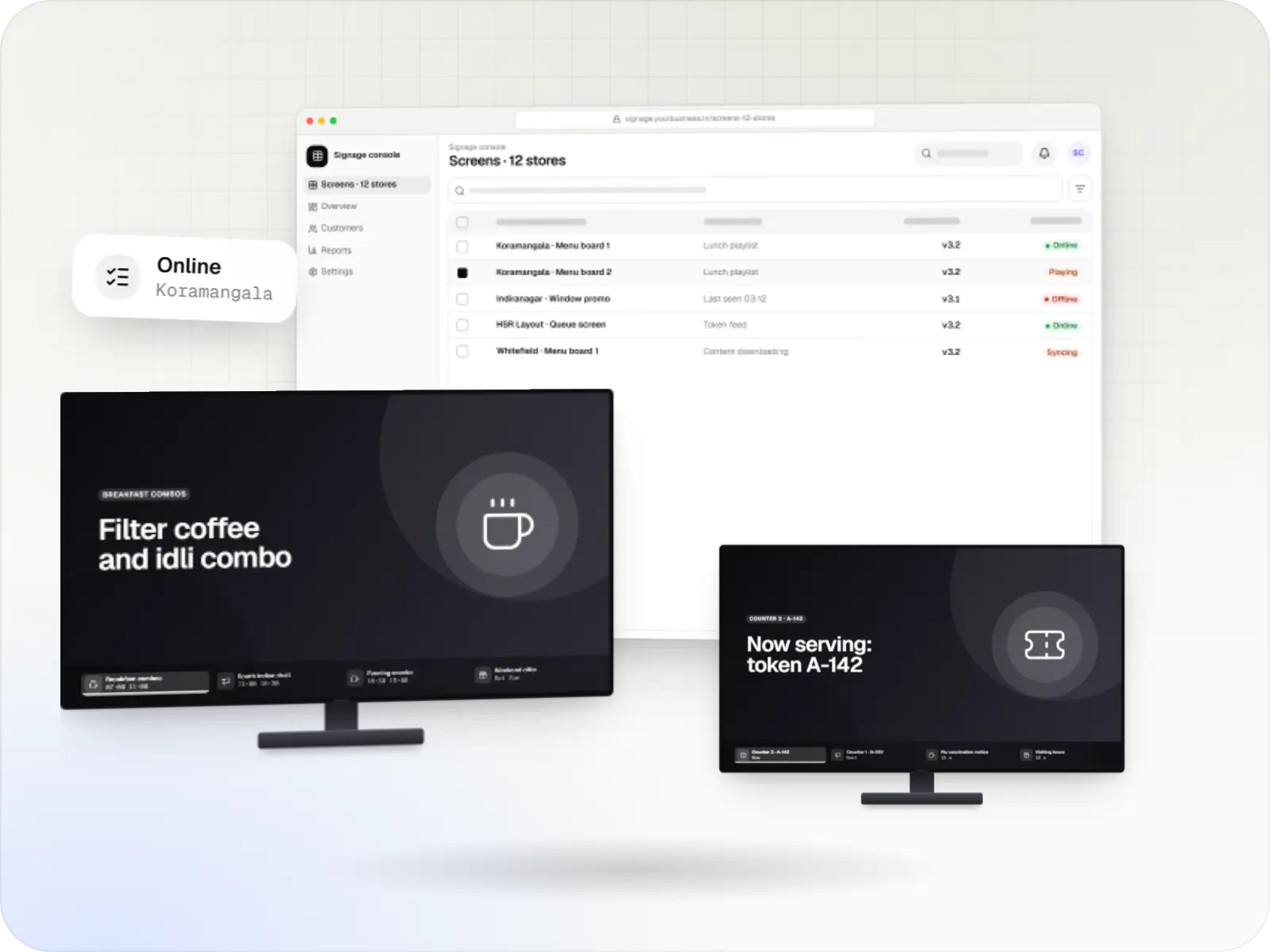
Player apps, a scheduling console and device management for menu boards, promotions and queue screens on signage players and devices running Android TV.
More pages
More pages for android kiosk mode development and retail.
FAQ
No, when the tablet is set up as a dedicated device. The kiosk app runs in lock task mode, so the home and recent-apps buttons are hidden, notifications stay off and other apps cannot open. If the tablet restarts, the kiosk app launches again. Staff can reach a small maintenance screen with a PIN, which offers only the settings you approve.
It can, through a payment terminal or your payment provider's SDK, so the kiosk app itself does not handle or store card or UPI details. Many retailers start with catalogue, price check and staff requests, and add self-checkout once the kiosks have proved reliable. Payments add compliance work and testing with the provider, which we include in the estimate.
Often, if they have Google Play services, still receive security updates and support Android Enterprise. Each one must be factory reset and set up again as a dedicated device, because kiosk control is only granted during setup. We test one of each model first; very old or unsupported tablets usually cost more in failures than replacing them.
The kiosk keeps showing a cached catalogue and prices, and queues staff requests until the connection returns. The lock-down rules stay active offline. The console marks the kiosk offline after missed heartbeats and only raises alerts during opening hours, so a router restart at night does not wake anyone.
The kiosk shows a short notice explaining what is collected and why, confirms the phone number with an OTP and sends the data straight to your loyalty system. Nothing stays on the tablet, and the form clears after inactivity so the next shopper never sees it. This follows the notice-and-consent approach of India's Digital Personal Data Protection Act, 2023.
Next step
Tell us how many stores you have, which kiosk tasks matter and which POS you use, and we will suggest a pilot with an itemised estimate.