Skip to content
Softcoderz

iPad management · Schools

MDM for school iPad devices, with Apple School Manager

iPad devices that arrive ready for class, follow grade-level rules, lock for exams and reset themselves for the next academic year.

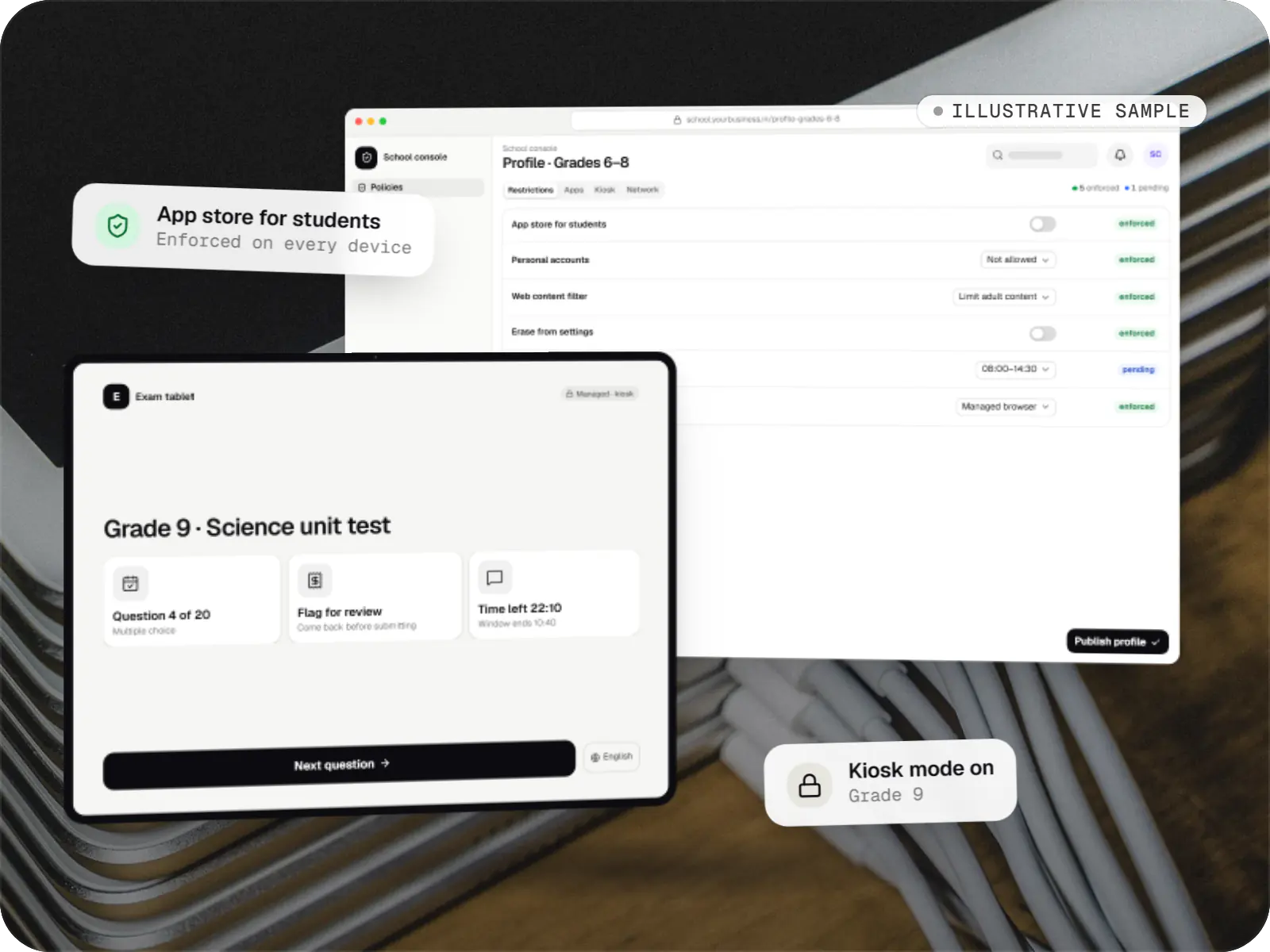
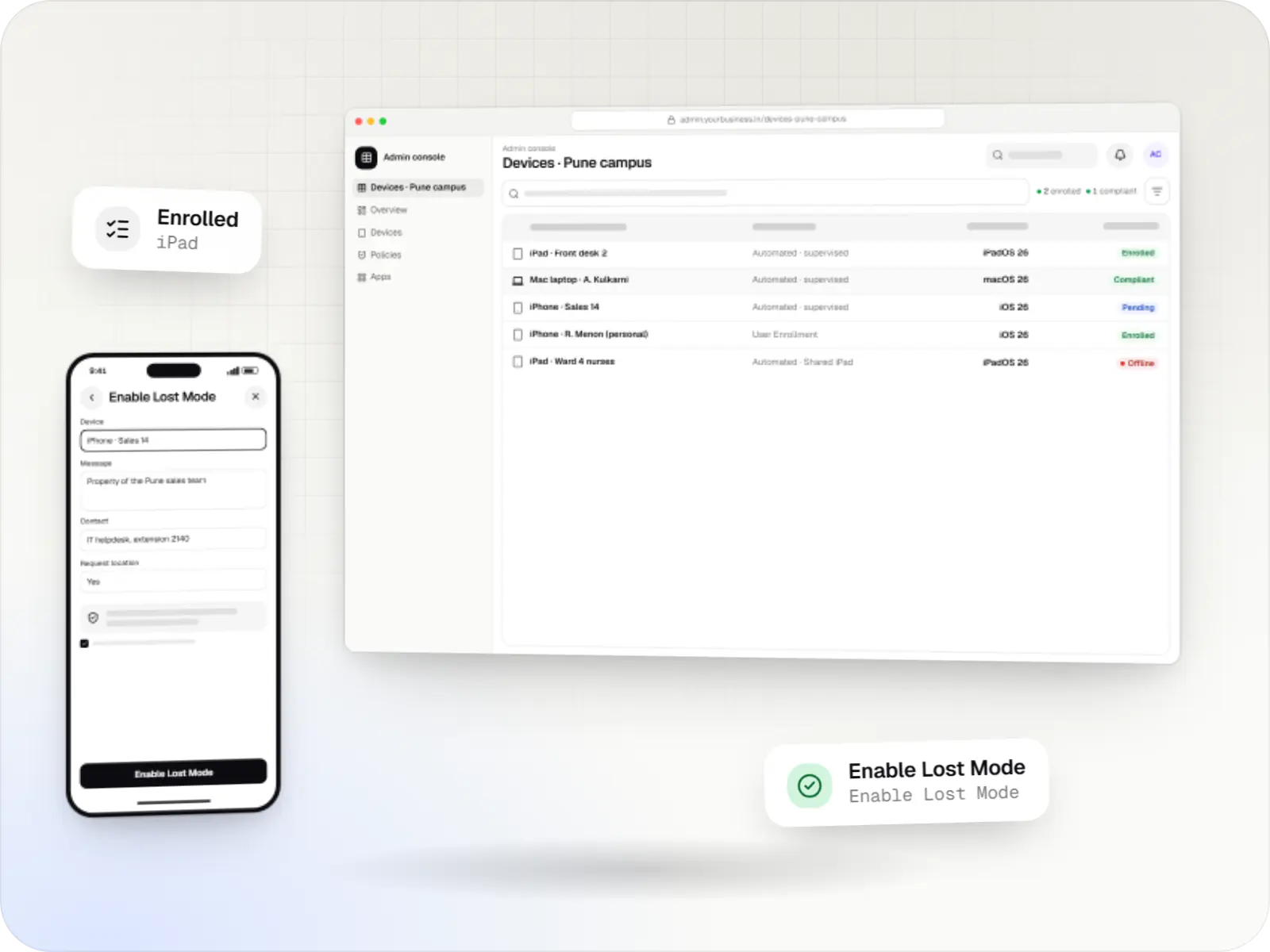
Apple MDM screens: admin console in a browser and admin console on a phone
Illustrative previewDevices locked to the job they do, set up and updated from one management console.

What schools need from iPad management

A school tablet programme succeeds or fails on things teachers never want to think about: whether the devices are charged and on the right apps for period three, whether a Grade 6 student can download games or reach unsuitable websites, and whether an exam can run without someone walking round setting up each device. Most schools have one IT person, sometimes shared across campuses.

iPad devices suit this well when they are set up properly. The school registers with Apple School Manager, buys devices through a linked reseller and assigns them to an MDM. Each iPad then enrols itself at first switch-on, supervised, with its grade's restrictions, web filter and apps. Teachers use the Classroom app for lesson control, and the MDM handles everything around it. We set this up, build a school-friendly console and exam scheduling on top where needed, and keep children's data to the minimum the programme requires.

Challenges

Problems school device programmes run into

  1. Games and personal accounts

    Without supervision, students add their own Apple Account, install apps and change settings.

  2. Carts shared across classes

    One cart serves several sections a day, each expecting its own apps.

  3. Exams on tablets

    A test needs every device locked to one app for a fixed window, then released.

  4. Children's data and consent

    India's DPDP Act generally requires verifiable parental consent for children's data and restricts tracking them, with narrow exemptions for schools.

  5. The end-of-year reset

    Hundreds of devices must be erased and set up again for new students before term starts.

What is included

What we set up and build for schools

  • Platform: Setup

    Apple School Manager and MDM setup

    • School verified and linked with your reseller
    • Devices assigned to the MDM automatically on purchase
    • Rosters used for classes and Managed Apple Accounts
    • Setup Assistant reduced to the screens students need
  • Platform: MDM profiles

    Grade-level rules

    • App store and account changes off for students
    • Web content filter by grade, with an allowlist for younger classes
    • Approved apps per grade using Apps and Books licences
    • Shared iPad for carts used by several classes
  • Platform: Scheduling service

    Exam and lesson support

    • Exam windows that lock iPad devices to the test app and release them afterwards
    • Assessment apps that lock the iPad themselves during a test
    • Classroom app for teachers during lessons
  • Platform: Admin dashboard

    School console

    • Devices by campus, grade, section and cart
    • Readiness before each period: charged, online, correct profile
    • Lost-device workflow with Managed Lost Mode
    • End-of-year erase with Return to Service

How it works

A school iPad from purchase to the next academic year

  1. School office

    Step 1: School orders through a linked reseller

    The purchase is linked to the school in Apple School Manager and assigned to the MDM before the boxes arrive.

  2. Setup Assistant

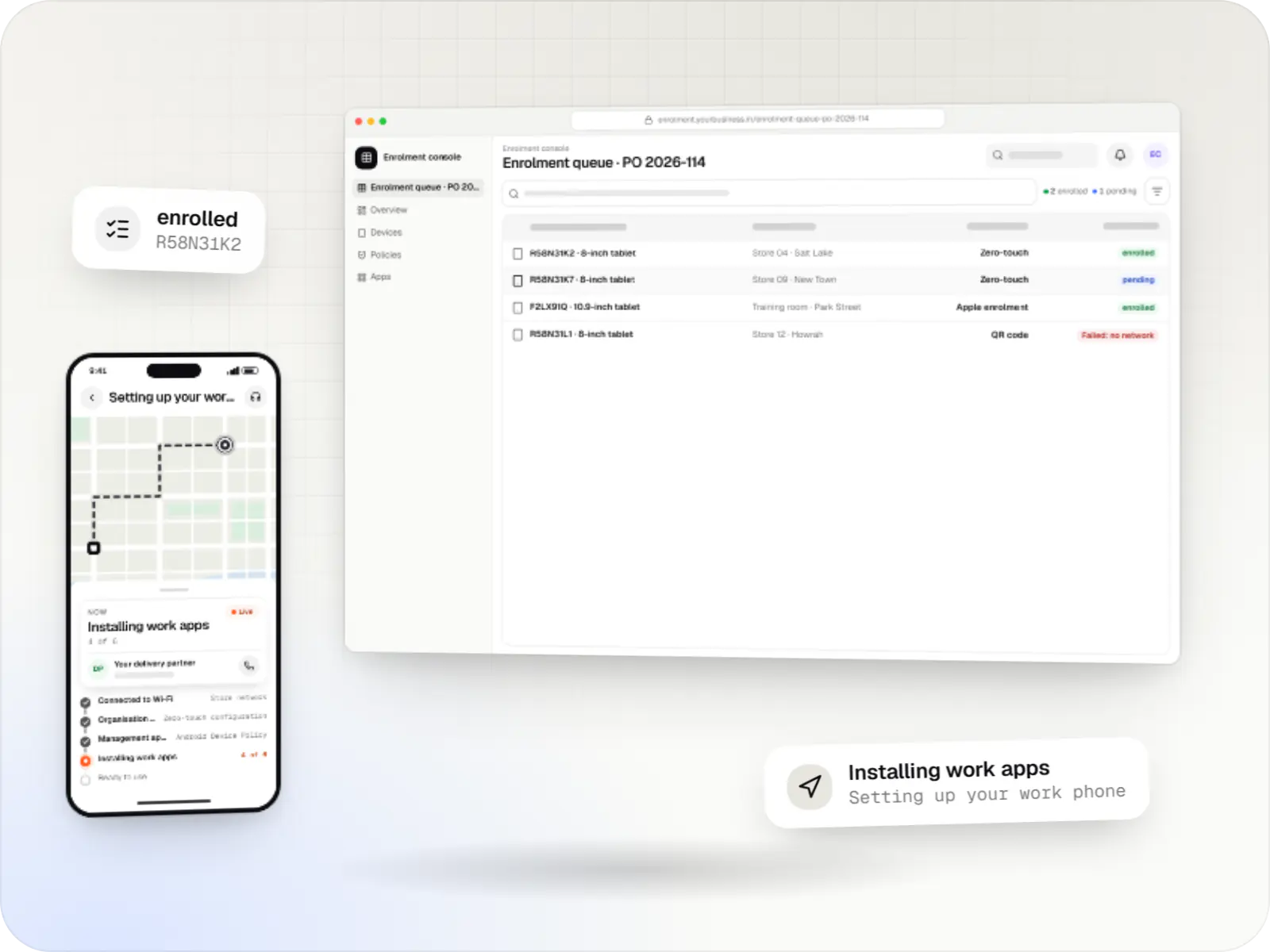
    Step 2: iPad enrols at first switch-on

    The device joins Wi-Fi, finds its MDM and enrols itself, supervised, with management that students cannot remove.

  3. MDM

    Step 3: Grade profile and apps

    Restrictions, web filtering and the grade's apps install without anyone signing in with a personal account.

  4. Teacher

    Step 4: Lessons

    Teachers guide the class with the Classroom app, opening the same app on every iPad when needed.

  5. School console

    Step 5: Exam window

    At the scheduled time the devices lock to the test app, and unlock automatically when the window ends.

  6. School IT administrator

    Step 6: Monitoring

    The console shows devices that are uncharged, offline or out of profile before the next period.

  7. MDM

    Step 7: End-of-year reset

    Devices are erased and, with Return to Service on iPadOS 17 or later, rejoin Wi-Fi and management ready for new students.

Then it starts again at step 1: School orders through a linked reseller

Product preview

The school console and an exam-locked iPad

Illustrative screens. Schools, classes and figures are invented.

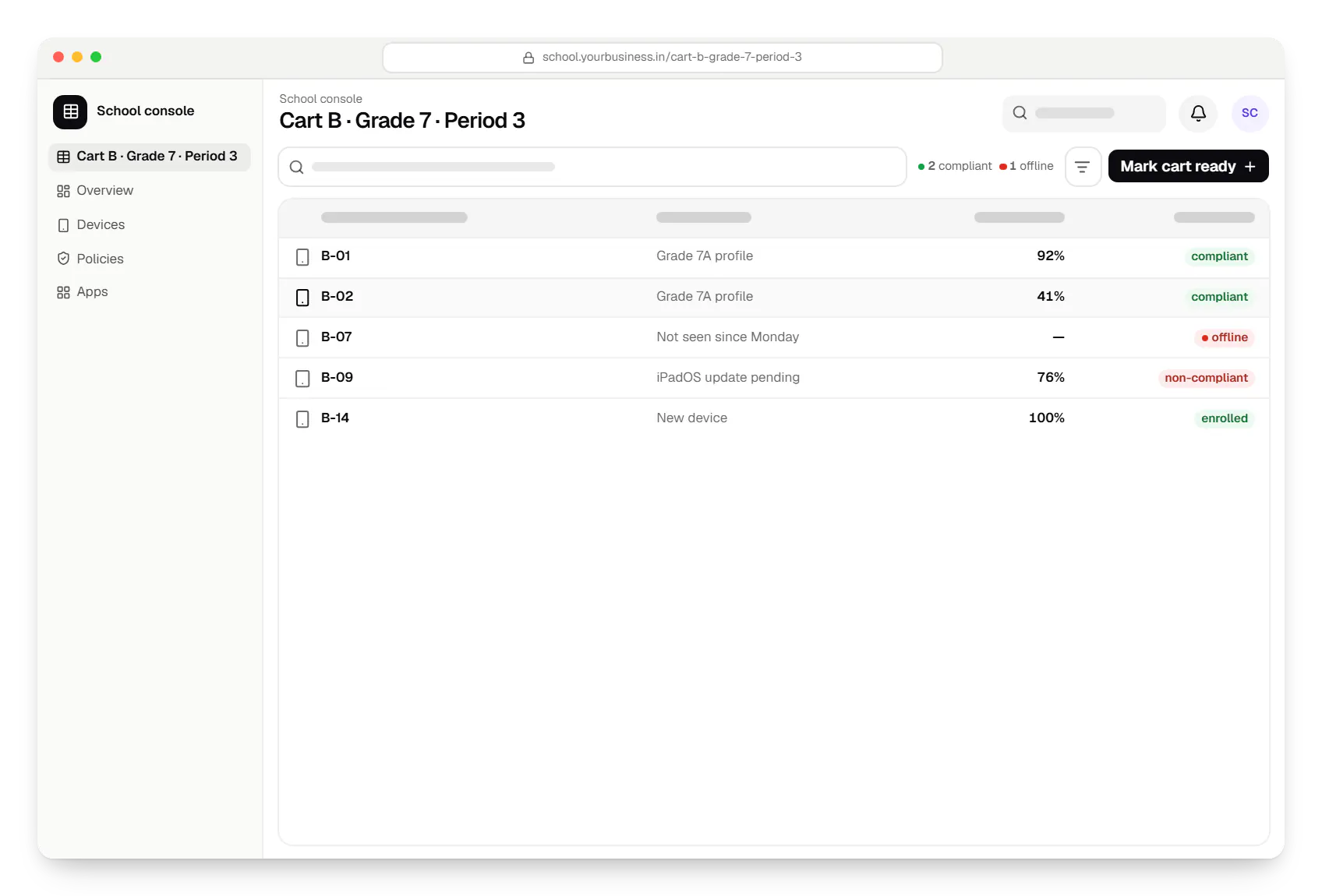
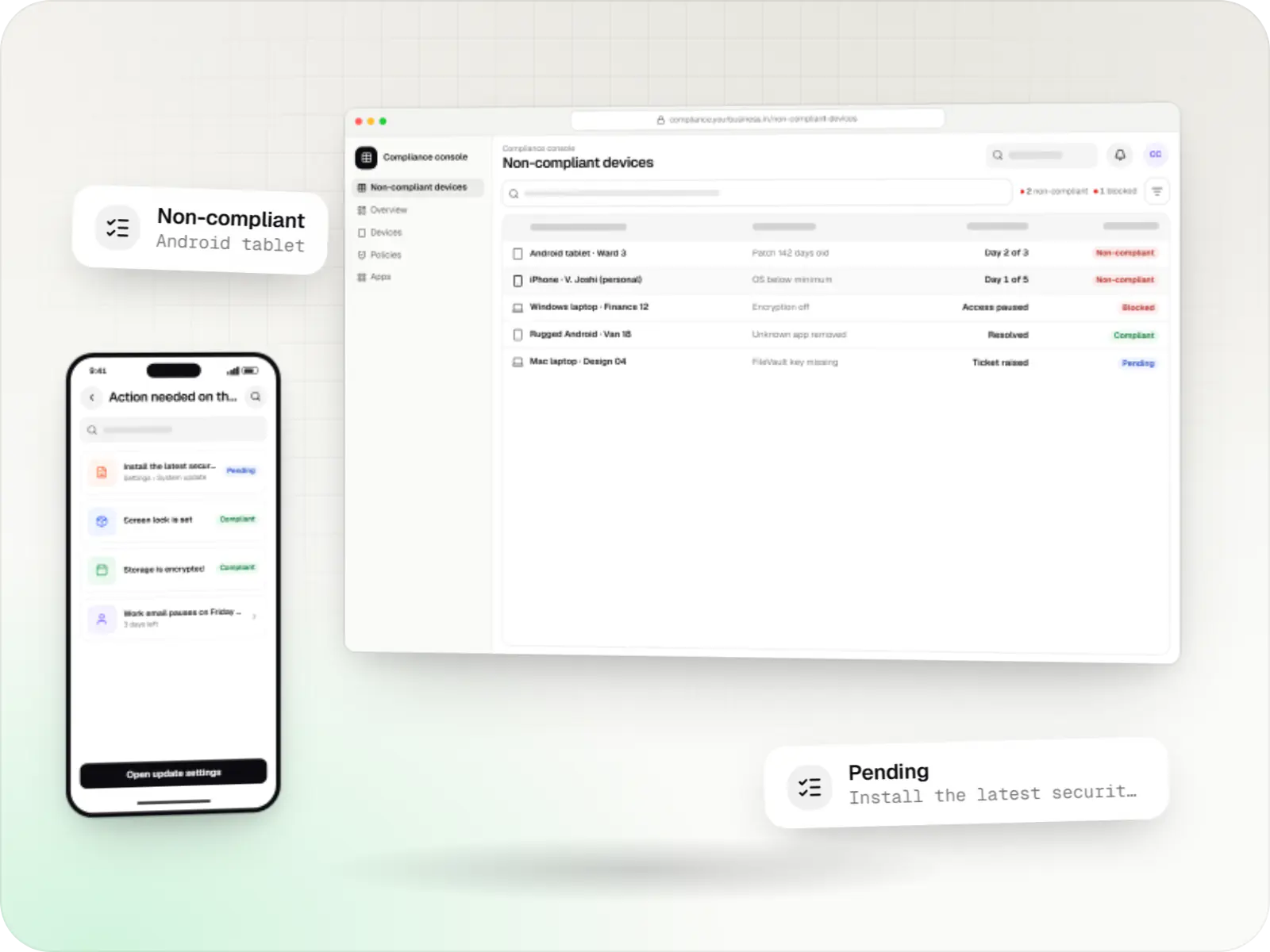
  • MDM for devices, with Apple Manager school console cart B table in a web browser, with 5 rows and status labels
    School console. Before each period, staff see which iPad devices in a cart are charged, online and on the right profile, and which one to swap out.
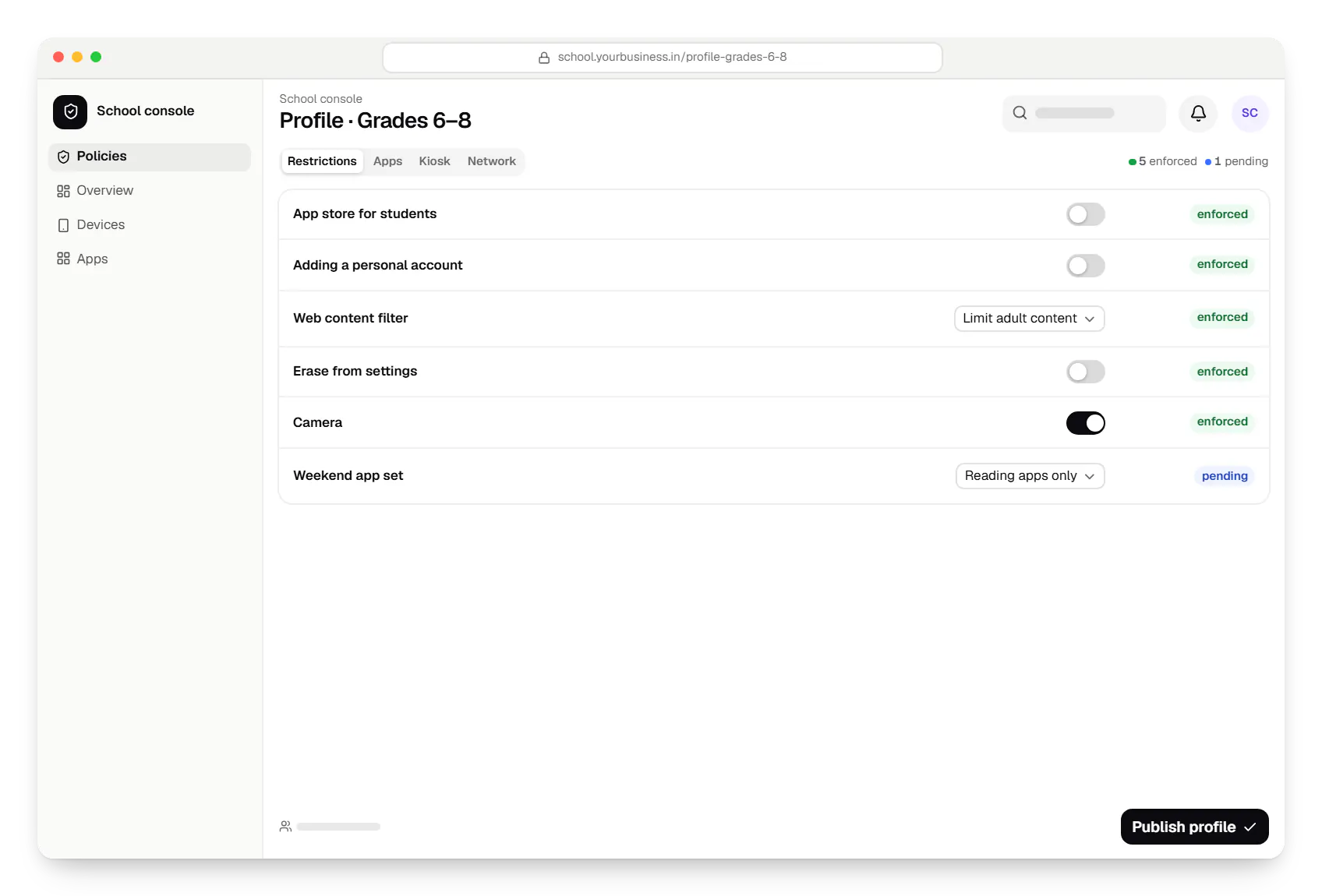
  • MDM for devices, with Apple Manager school console policy settings in a web browser
    School console. Grade profiles are written in plain language, so school leaders can see what is on and off without knowing the underlying settings.
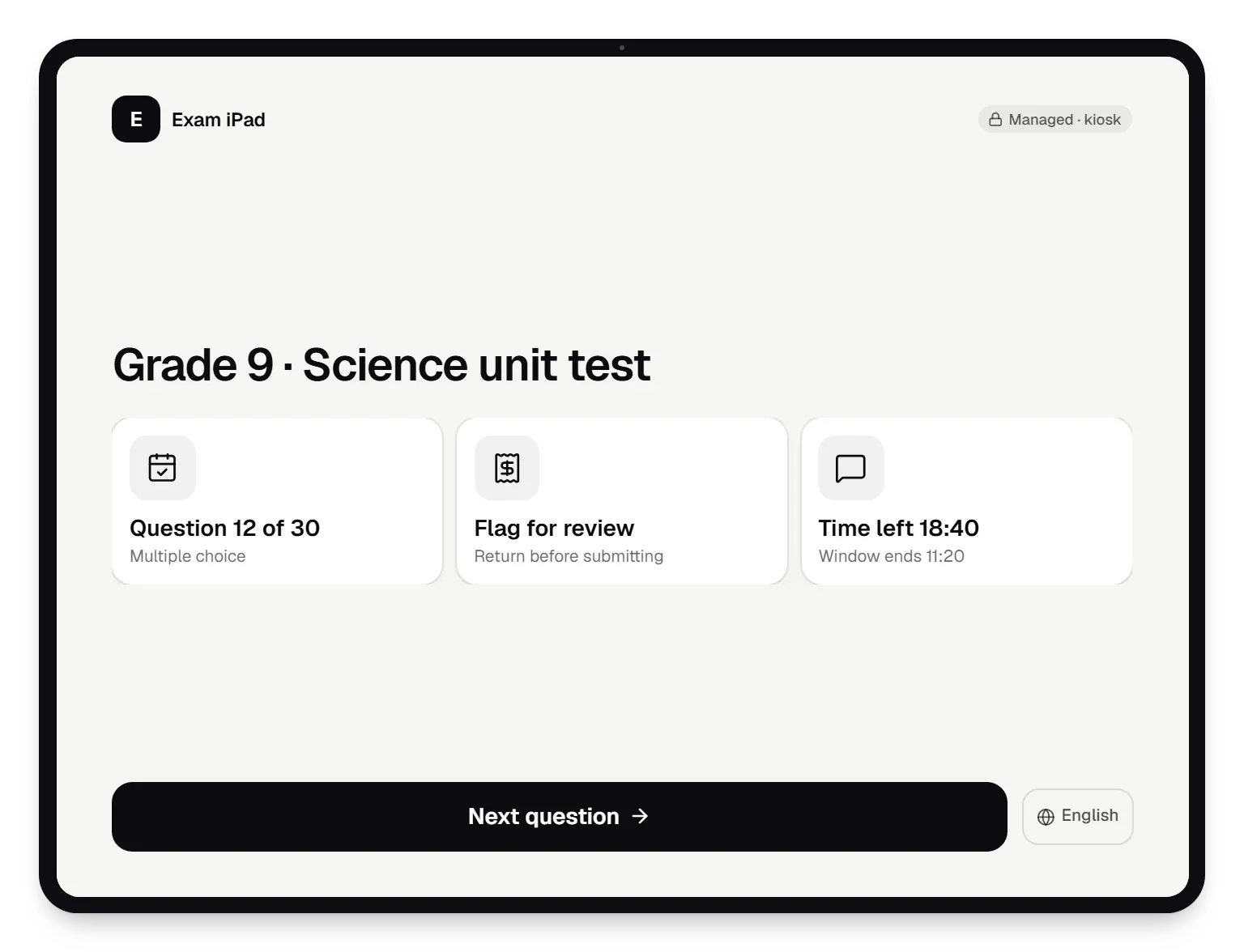
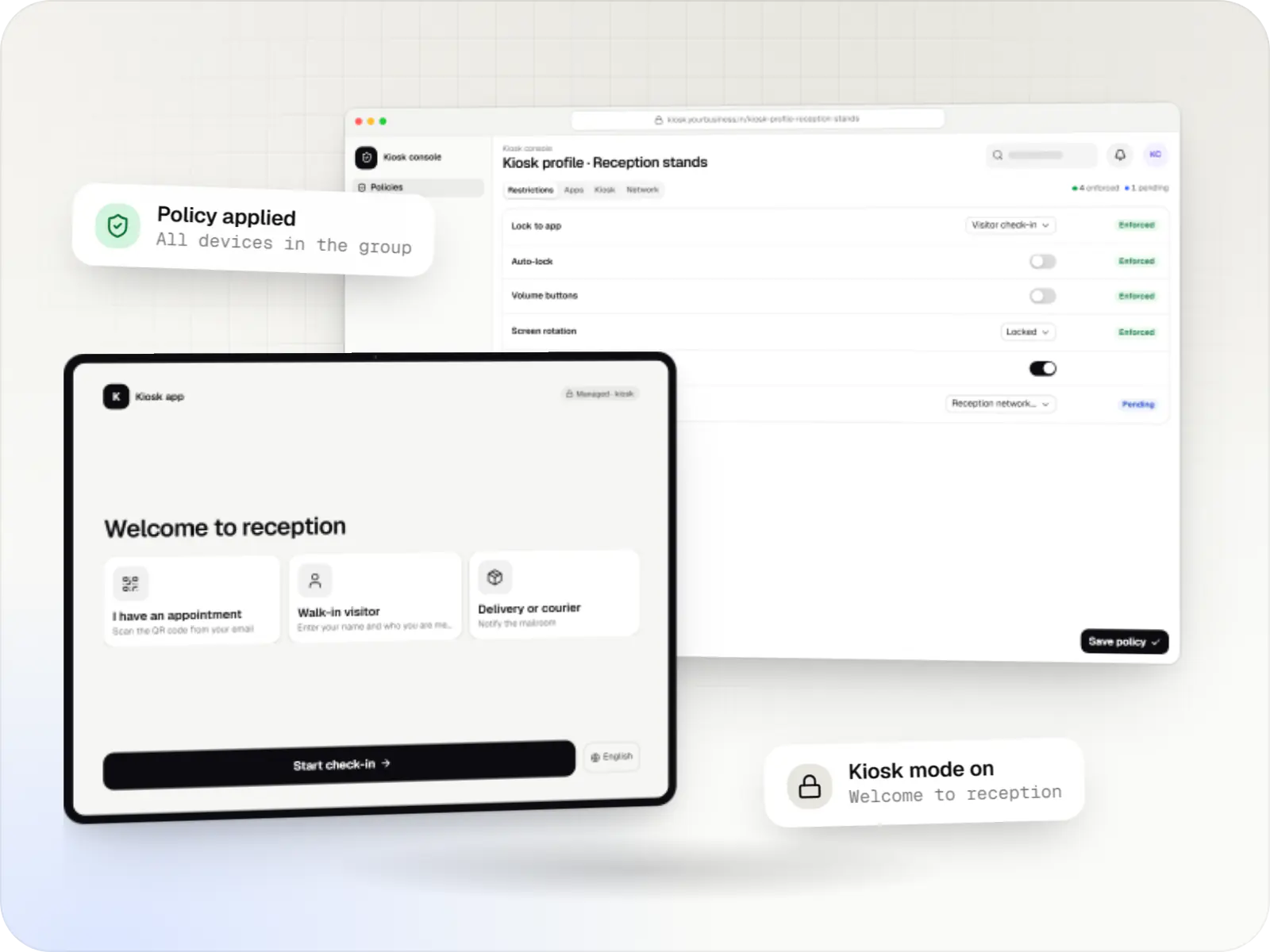
  • MDM for school devices, with Apple School Manager exam locked kiosk screen on a tablet
    Exam iPad. During an exam window the iPad shows only the test app. Students cannot switch apps, and the lock ends automatically when the window closes.
Illustrative preview

Sample screens: names, prices and figures are examples, not client data.

Privacy & security

Child safety and privacy

  • Parental consent

    India's Digital Personal Data Protection Act, 2023 generally requires verifiable consent from a parent before a child's data is processed. The DPDP Rules, 2025 phase this in and give schools narrow exemptions, so we design the consent step into onboarding and confirm the details with your legal adviser.

  • No tracking of students

    Location is never collected during school use. Managed Lost Mode is used only when a device is lost, and each use is logged.

  • Minimal data

    Student records hold names, classes and device assignments; the MDM protocol does not provide messages, photos or browsing history.

  • Staff roles

    Teachers see their own classes; only IT administrators can erase or lock devices, or locate one in Managed Lost Mode.

Android tablets and Chromebooks in the same school

Many schools own a mix of devices. Androidâ„¢ tablets can be managed with Android Enterprise in the same console, as in our sample project on this page. Chromebooks are managed in Google's own admin console, and we can bring their status into the same reports.

The rules differ by platform, and we say so plainly rather than promising identical behaviour everywhere. For example, the grade profile above maps to restrictions on iPad and to a policy on Android, and a setting that exists on only one platform is marked as such.

Platforms

Devices and consoles

School-owned iPad devices, Mac computers for staff where needed, and the school console.

  • Mobile

    iPhone and iPad

    Organisation-owned or shared iPhone and iPad devices enrolled in MDM through Apple Business or Apple School Manager, supervised for Single App Mode and stricter restrictions.

  • Desktop

    Mac

    Mac computers enrolled in MDM for configuration profiles, app and package installs, disk encryption settings and software update rules, set up at first power-on when the purchase is linked to Apple Business.

  • Back office

    Admin dashboard

    Back-office panels for operations, support and finance teams: orders, users, content, reports and permissions.

Technology

Technology behind school iPad management

The Apple MDM protocol and declarative device management, Apple School Manager for purchase-linked setup, and a Next.js console on a NestJS back end.

  • Device management

    Apple MDM protocol

    The management channel built into iPhone, iPad and Mac: an MDM server sends settings, apps and commands, and devices apply them remotely.

    Used for

    • iPad kiosks
    • Company iPhone fleets
    • Mac setup and updates
    • School iPad programmes
  • The Apple portal for organisations, now called Apple Business: devices bought from Apple or linked resellers are assigned to your MDM and set up at first power-on.

    Used for

    • Zero-touch device setup
    • iPhone, iPad and Mac rollouts
    • Volume app licences
    • Managed Apple Accounts
  • Apps built specifically for iPhone and iPad, for when your product needs Apple features or a polished experience for iPhone users.

    Used for

    • Apps for iPhone
    • Apps for iPad
    • Health and fitness apps
    • Premium shopping apps
  • A modern web technology for fast, search-friendly websites, online stores and web applications that load quickly on mobile.

    Used for

    • Business websites
    • Online stores
    • Web apps
    • Customer portals
  • Backend

    NestJS

    A structured way to build back ends on Node.js, so large business systems stay organised, testable and easy to hand over.

    Used for

    • Business app back ends
    • SaaS platforms
    • Marketplaces
    • Admin panel back ends
  • A reliable database for the records your business runs on: orders, payments, bookings and stock, kept accurate and easy to report on.

    Used for

    • Orders and customers
    • Payments and ledgers
    • Stock and inventory
    • Bookings

Cost drivers

What changes the estimate for a school

  1. Campuses and devices

    More campuses mean more profiles to test and more Wi-Fi networks to prepare for first boot.

  2. Existing MDM or a new console

    Configuring an existing MDM service is smaller than building a school console with exam scheduling.

  3. Shared or one-to-one devices

    Shared iPad carts need Managed Apple Accounts and storage planning; one-to-one devices need take-home rules.

  4. Mixed platforms

    Android tablets or Chromebooks alongside iPad devices add policies and reports.

  5. Consent and roster data

    Importing rosters and running parental consent flows add integration and testing work.

Estimates are written from your scope, with the effort and assumptions behind each line item.

How pricing works

Process

From one grade to the whole school

  1. Readiness check

    We review purchases, Wi-Fi, existing accounts and how classes share devices.

    You getSetup plan

  2. Apple School Manager and MDM setup

    Verification, reseller linking, device assignment and the first grade profile.

    You getWorking setup for new devices

  3. Pilot with one grade

    Teachers run lessons and one practice exam; we adjust profiles and schedules.

    You getPilot notes

  4. Whole-school rollout and year-end plan

    The remaining grades move over, with a documented reset process for the end of the year.

    You getRunbook for school IT

Work

School device sample project

  • Device management & kiosk solutions

    Illustrative sample

    Tablet management console for schools

    An illustrative console for school tablets: iPad devices through Apple School Manager and MDM, Androidâ„¢ tablets through Android Enterprise, with class-based rules teachers can follow.

    • Schools
    • Device management SaaS

    Runs on

    • iPhone and iPad
    • Android Enterprise
    • Admin
    • Web app

    Built with

    • Next.js
    • NestJS
    • PostgreSQL
    • Redis
    • AWS
    • +1 more

FAQ

Frequently asked questions

Should a school use Apple School Manager or Apple Business?

Apple School Manager. It is built for schools, with class rosters, Managed Apple Accounts for students and classes synced to the Classroom app, while Apple Business is for companies. Both assign devices to an MDM through Automated Device Enrollment. The school's legal entity has to be verified by Apple, which can take some days, so start before the devices arrive.

Can several classes share the same iPad devices?

Yes. Shared iPad lets several students use one supervised iPad, each signing in with a Managed Apple Account so their work stays separate. It needs an iPad with at least 32 GB, enough storage per student and good Wi-Fi. For younger classes, a simpler cart model with the same apps for everyone and no personal sign-in often works better.

Can teachers see students' screens?

With the Classroom app, teachers can view student screens during a lesson, nearby and only if the school allows it; the school decides in its MDM whether students are asked first. The MDM and our console do not provide live screen viewing. We help the school write a clear device-use policy that explains this to students and parents.

How do exams work on iPad?

There are two ways. The MDM can lock supervised iPad devices to the test app for a scheduled window, which our console automates. Or the assessment app itself locks the iPad while a test is in progress, if it is built to do so. Either way, students cannot switch apps until the test ends.

What happens at the end of the academic year?

Devices are erased and prepared for the next class. On iPadOS 17 or later, Return to Service lets the MDM erase a device and have it rejoin Wi-Fi and enrol again on its own, so staff don't set up each one by hand. We plan the reset around exam results and the new timetable.

Next step

Starting or fixing a school iPad programme?

Tell us how many devices and campuses you have and how classes share them, and we will propose a pilot for one grade.

Or reach us directly

Mon–Sat, 10:00–19:00 IST